Turn On the Mac Firewall
macOS ships with its firewall off, trusting your home router to do the guarding. That is fine at home — but on coffee-shop and hotel Wi-Fi, your Mac sits exposed to every other device on the network. Turning on the built-in firewall takes thirty seconds and costs nothing in speed.
TL;DR / Quick Fix
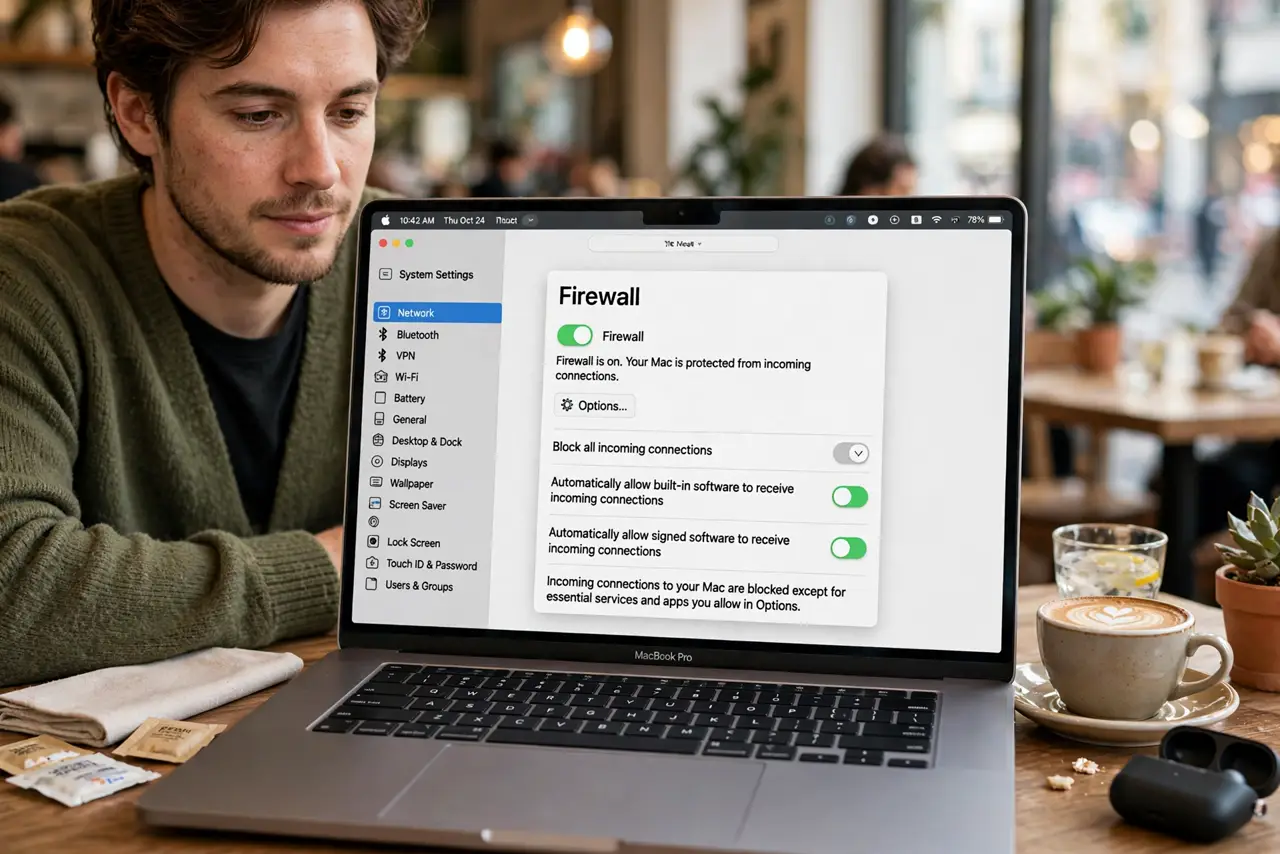
Quick fix: open System Settings, go to Network, click Firewall, and toggle it on — your Mac is blocking unsolicited incoming connections. Click Options to enable stealth mode, which makes your Mac ignore network probes. This is safe for everyday use and won't break browsing, streaming, or the App Store.
Follow these steps
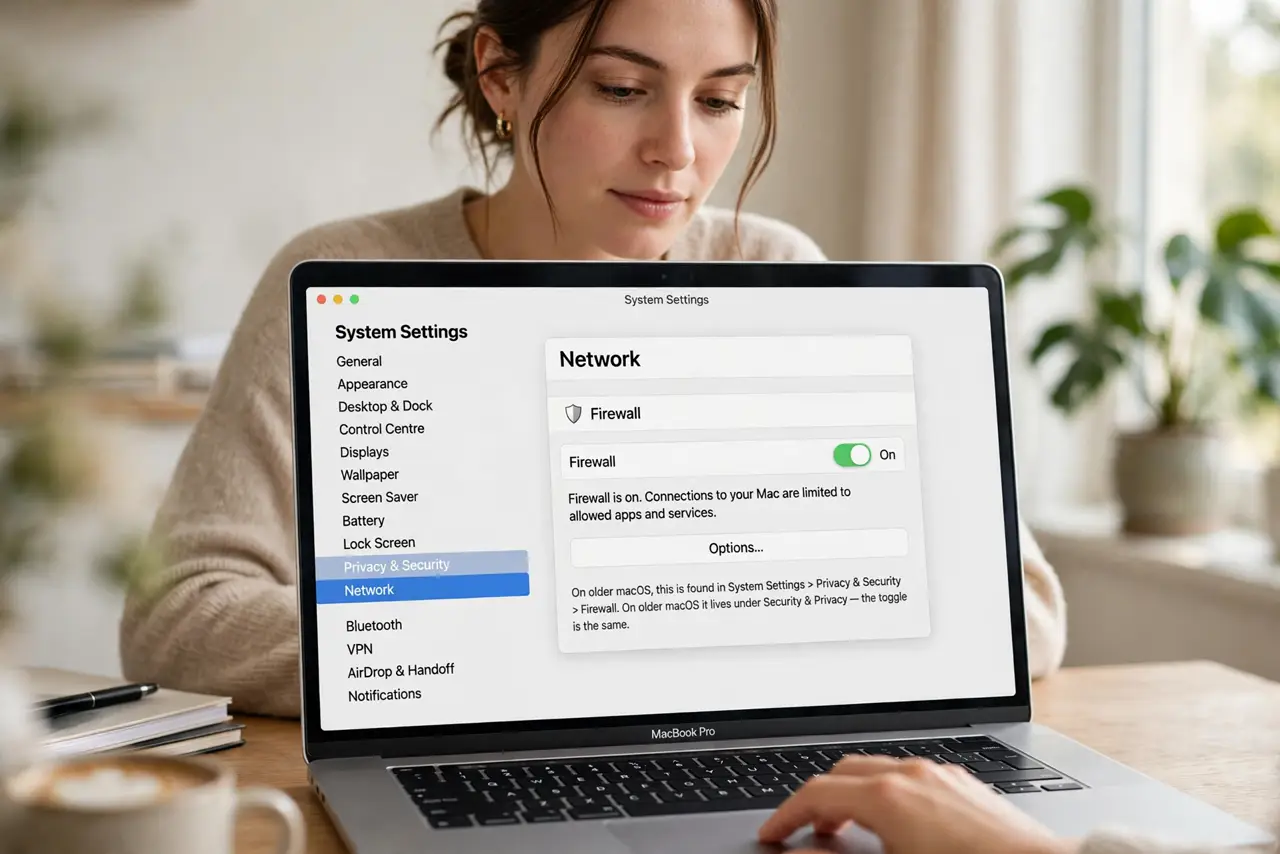
- Open the Firewall settings. Go to System Settings, then Network, then Firewall. On older macOS it lives under Security & Privacy — the toggle is the same.
- Turn the firewall on. Click the toggle. From now on, macOS blocks unsolicited incoming connections while letting your own apps work normally.
- Open Options for stealth mode. Click Options and enable stealth mode. Your Mac then ignores ping and probe requests — it becomes effectively invisible to network scans. Compare this with the firewall built into your router for full coverage.
- Allow signed apps automatically. Keep 'Automatically allow built-in software to receive incoming connections' on. This keeps system services working while still blocking strangers.
- Add exceptions only as needed. If a trusted app needs incoming connections — a game server, a local tool — add it with the plus button. Remove exceptions you no longer use.
- Leave it on everywhere. The firewall costs no speed and breaks nothing normal. Set it once and forget it — it protects you on every network you join.
What NOT to do
- Do not turn it on and assume you are invisible. A firewall blocks incoming attacks; it does not make malicious downloads or phishing safe.
- Do not enable 'Block all incoming connections' casually. That breaks file sharing, screen sharing, and many legitimate apps — learn what happens when a firewall blocks a local app first.
- Do not add exceptions for software you do not recognize. An unknown app asking for incoming access deserves suspicion, not a click.
- Do not confuse it with a VPN. A firewall guards your device; a VPN hides your traffic — different jobs, both useful.
Frequently asked questions
Will the firewall slow down my Mac?
No. It filters connection attempts, which is trivial work — browsing, streaming, and downloads run at full speed.
Do I need a firewall at home behind a router?
Your router already blocks most incoming traffic, so the Mac firewall is backup. It matters most on public networks — but leaving it on everywhere is simplest.
Why did an app stop working after I enabled it?
The firewall blocked its incoming connections. Add the app to the allowed list in Firewall Options.