Turn On the Mac Firewall
Your Mac sits on cafe Wi-Fi, hotel networks, and airport hotspots — all full of strangers' devices. The built-in firewall blocks unsolicited incoming connections, closing doors you did not know were open. It is off by default, takes ten seconds to enable, and never gets in your way.
TL;DR / Quick Fix
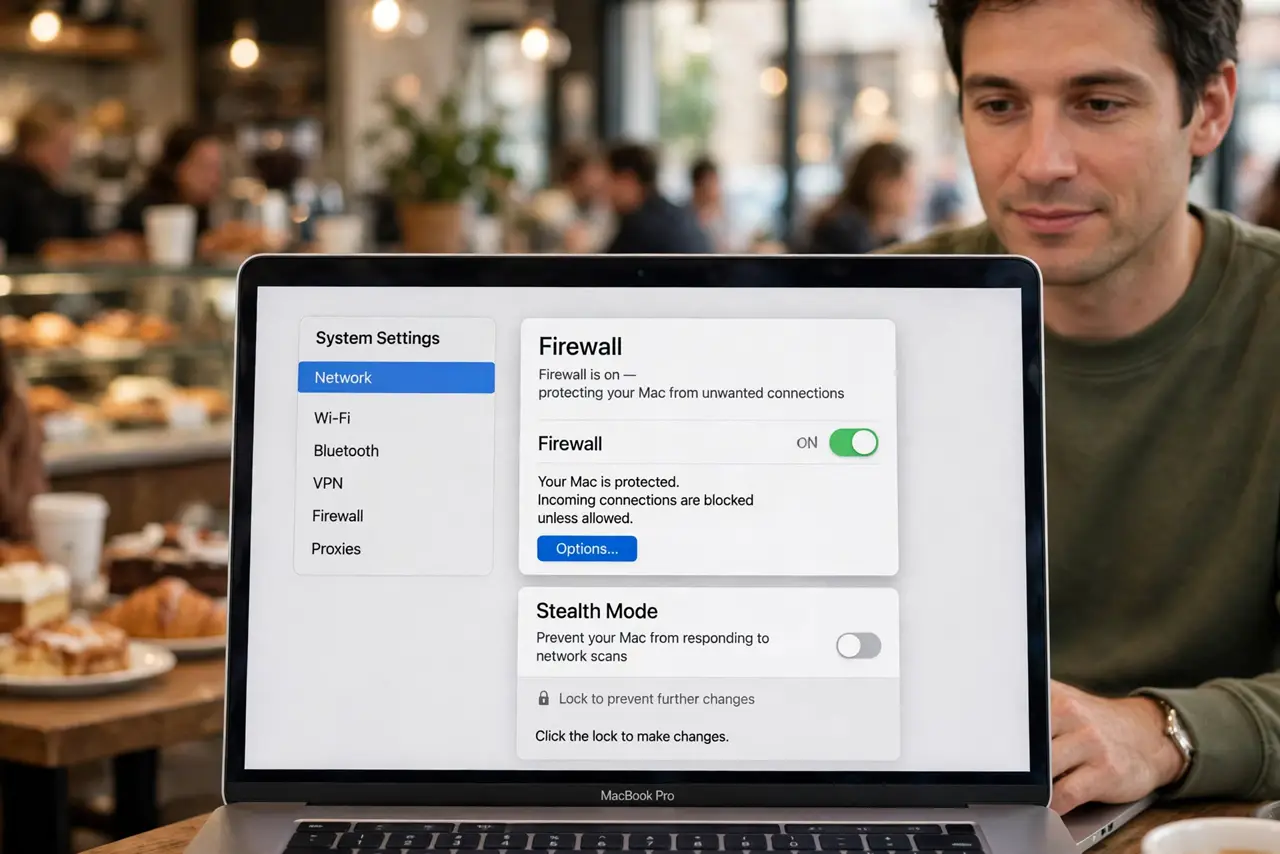
Quick fix: open System Settings, go to Network, then Firewall, and turn it on to block unwanted incoming connections. For most home users the default settings are perfect — leave stealth mode and app rules alone unless you run servers. The firewall never blocks your outgoing traffic.
Follow these steps
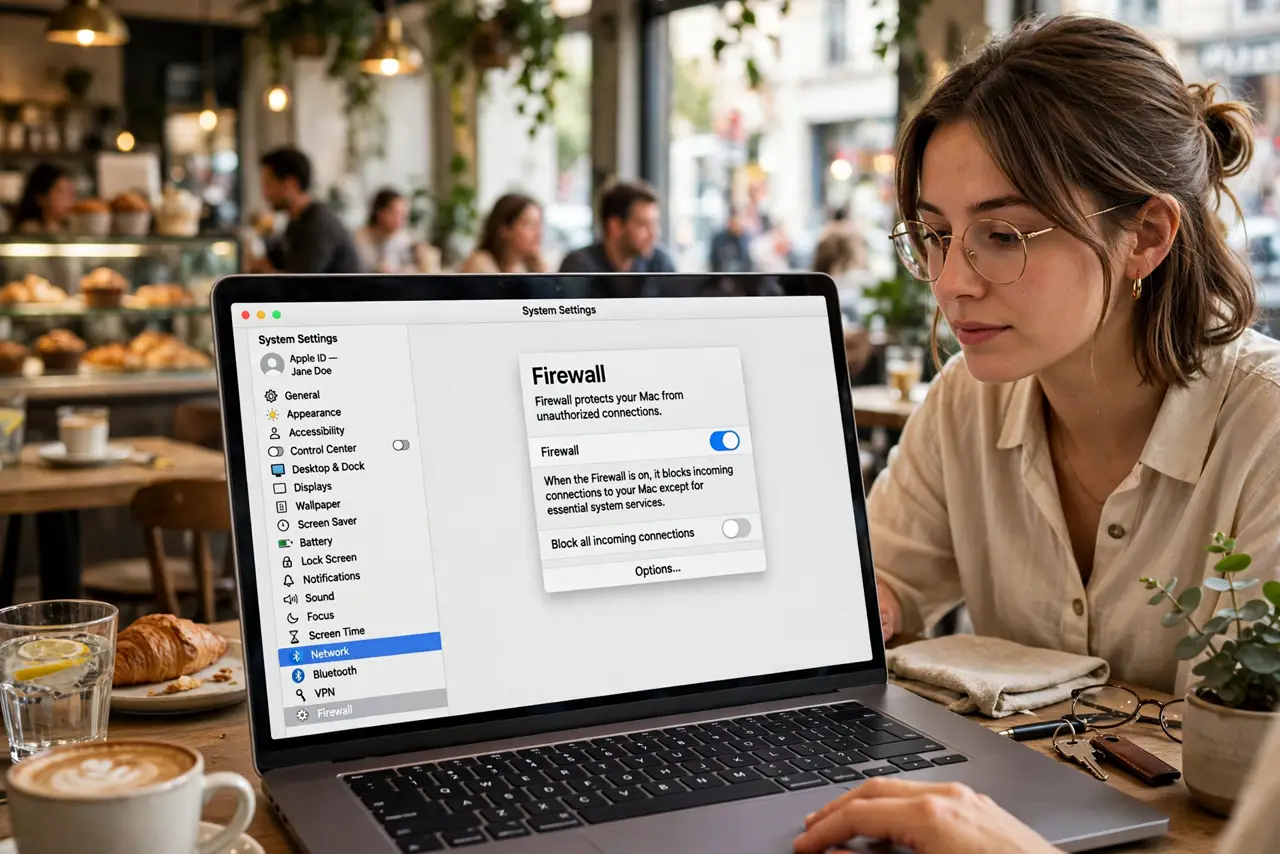
- Open the Firewall settings. In System Settings, go to Network, then Firewall. One toggle controls the whole thing.
- Turn the firewall on. Flip the switch. From now on, incoming connections your apps did not request get blocked.
- Leave the defaults alone. Stealth mode and per-app rules are already sensible. Unless you run servers or share services, defaults are the right choice.
- Understand what it does not do. The firewall blocks incoming connections only. Your browsing, downloads, and outgoing traffic flow untouched.
- Check it after major upgrades. macOS upgrades occasionally reset network settings. A glance at the toggle after each yearly upgrade takes five seconds.
- Pair it with Lockdown Mode only if needed. Everyday users need the firewall only. Lockdown Mode is for targeted-threat scenarios — a different league.
What NOT to do
- Do not install a third-party firewall 'for more protection.' The built-in one covers incoming threats; extras mostly add popups and confusion.
- Do not open ports you do not understand. Every exception you add is a door — add them deliberately, one at a time.
- Do not assume the firewall replaces updates. It blocks network probes; it does not patch vulnerabilities — keep automatic updates on too.
- Do not turn it off to fix a misbehaving app permanently. Diagnose the app's actual network need, add a targeted rule, and leave the firewall on.
Frequently asked questions
Do I need a firewall at home behind a router?
Your router already blocks most incoming traffic, so the Mac firewall is a second layer. On public Wi-Fi it becomes the first layer — keep it on everywhere.
Will the firewall break my apps?
Legitimate apps request the access they need and macOS prompts you. If an app stops working right after enabling, check its permission prompt.
What's stealth mode?
It makes the Mac ignore network probes entirely instead of refusing them — the Mac becomes invisible to casual scans. Harmless to leave on.