Sync Focus Across Devices?
You turn on Do Not Disturb on your iPhone and your Mac goes silent too — or the reverse — and you never asked for that. Apple's Share Across Devices syncs every Focus mode between your iPhone, iPad, and Mac automatically. Sometimes that is exactly what you want; often it is a surprise. Here is how the sync works and how to control it.
TL;DR / Quick Fix
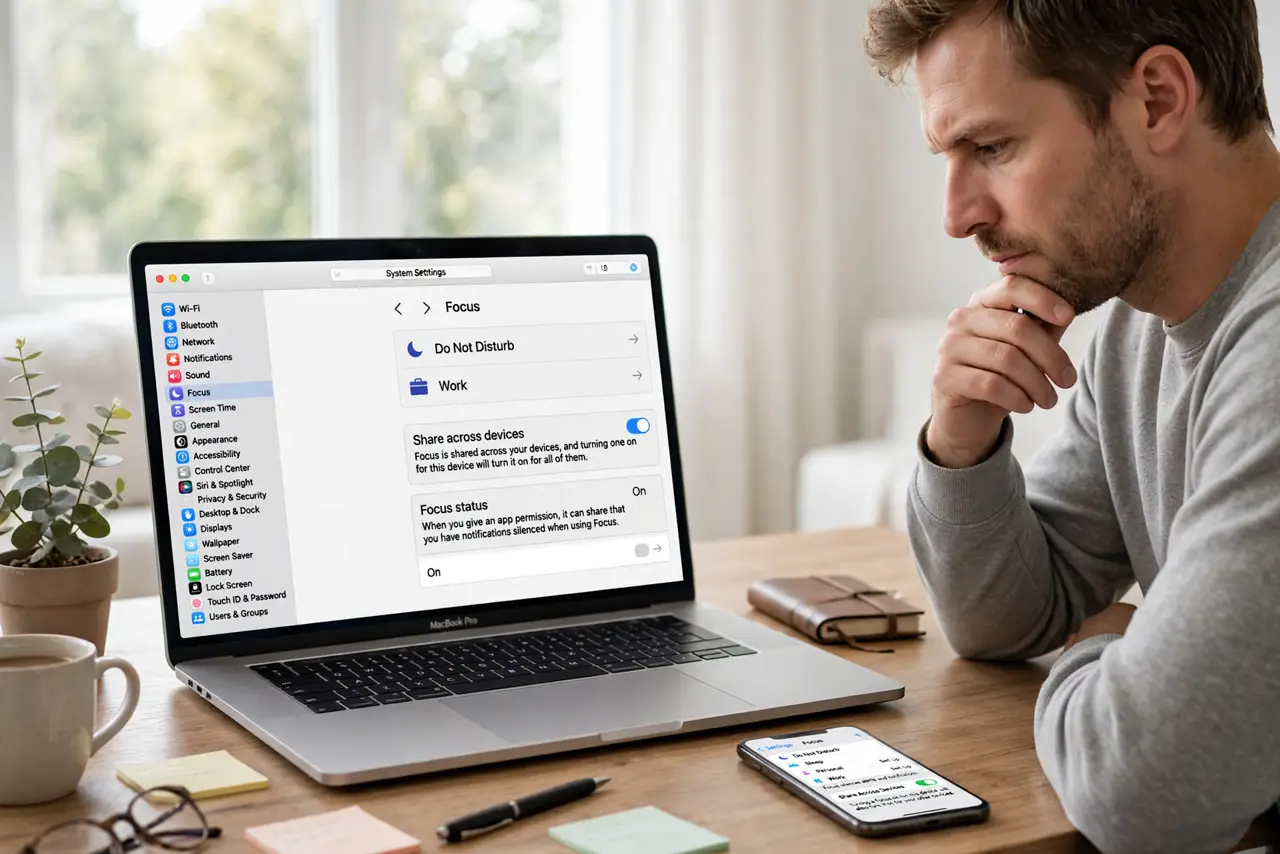
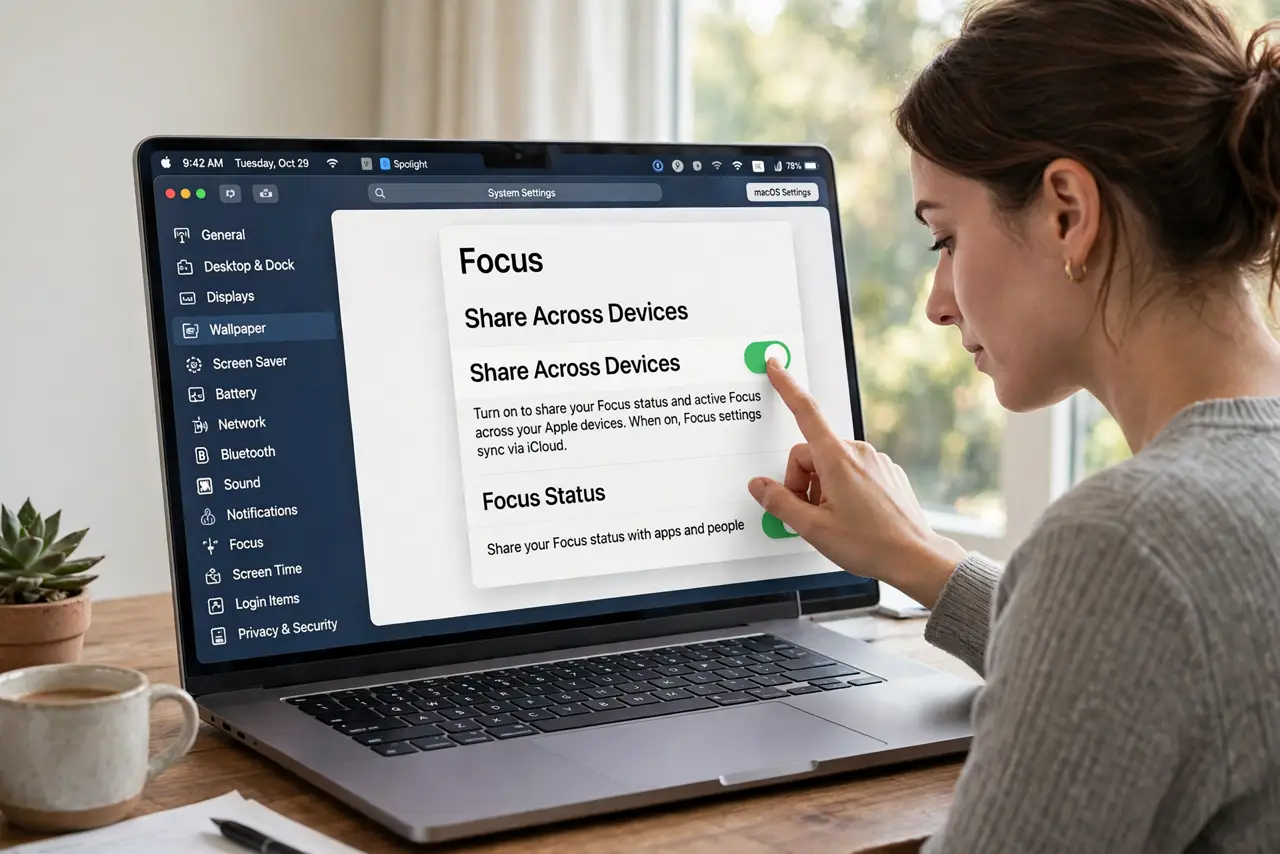
Quick fix: on Mac open System Settings, then Focus, and toggle Share Across Devices off to stop Focus syncing. The same toggle exists on iPhone under Settings, then Focus. Turning it off on one device stops the sync everywhere. Each device then keeps its own independent Focus modes.
Follow these steps
- Find the Share Across Devices toggle. On Mac: System Settings, then Focus, and the toggle sits near the top. On iPhone: Settings, then Focus, same toggle. One switch controls the whole Apple ID — turning it off anywhere stops sync everywhere.
- Decide if sync helps or hurts you. Sync is great when you want one Do Not Disturb everywhere — bedtime, for example. It is terrible when your work Mac should stay silent but your personal iPhone should ring. Match the setting to your real life.
- Check which device started it. When everything goes silent at once, the culprit is whichever device activated Focus first. Check the iPhone, iPad, and Apple Watch — a location trigger on one device silences them all.
- Use per-device modes instead. With sync off, you can keep Do Not Disturb on the Mac for work hours and a different setup on the iPhone. Independent modes beat one-size-fits-all for most people.
- Mind the Apple Watch too. The watch mirrors the iPhone's Focus by default. If your wrist buzzes (or pointedly does not) at odd times, the watch is following the phone — check its Focus mirroring setting.
- Test the change. Toggle a Focus mode on one device and watch the others. If they stay independent now, the sync is off and each device minds its own business.
What NOT to do
- Do not toggle it off on every device separately. One toggle controls the Apple ID — doing it three times just wastes time.
- Do not assume sync is broken when modes differ. With sync off, devices are supposed to differ — that is the feature working.
- Do not forget a signed-in work Mac. A work Mac on your Apple ID joins the sync party too — sign out or disable it there.
- Do not blame Focus for notification summary timing. A scheduled summary batches notifications on its own schedule regardless of sync.
Frequently asked questions
If I turn off sync, do my Focus modes disappear?
No — existing modes stay on each device. They just stop copying changes to the other devices from now on.
Why does my Mac go silent when my iPhone is on Do Not Disturb?
Share Across Devices is on. The iPhone's Focus mode is being mirrored to the Mac automatically.
Can I sync only some modes?
No — it is all or nothing. Either every Focus mode syncs, or none do. Use per-device setups for mixed needs.