Manage Fonts
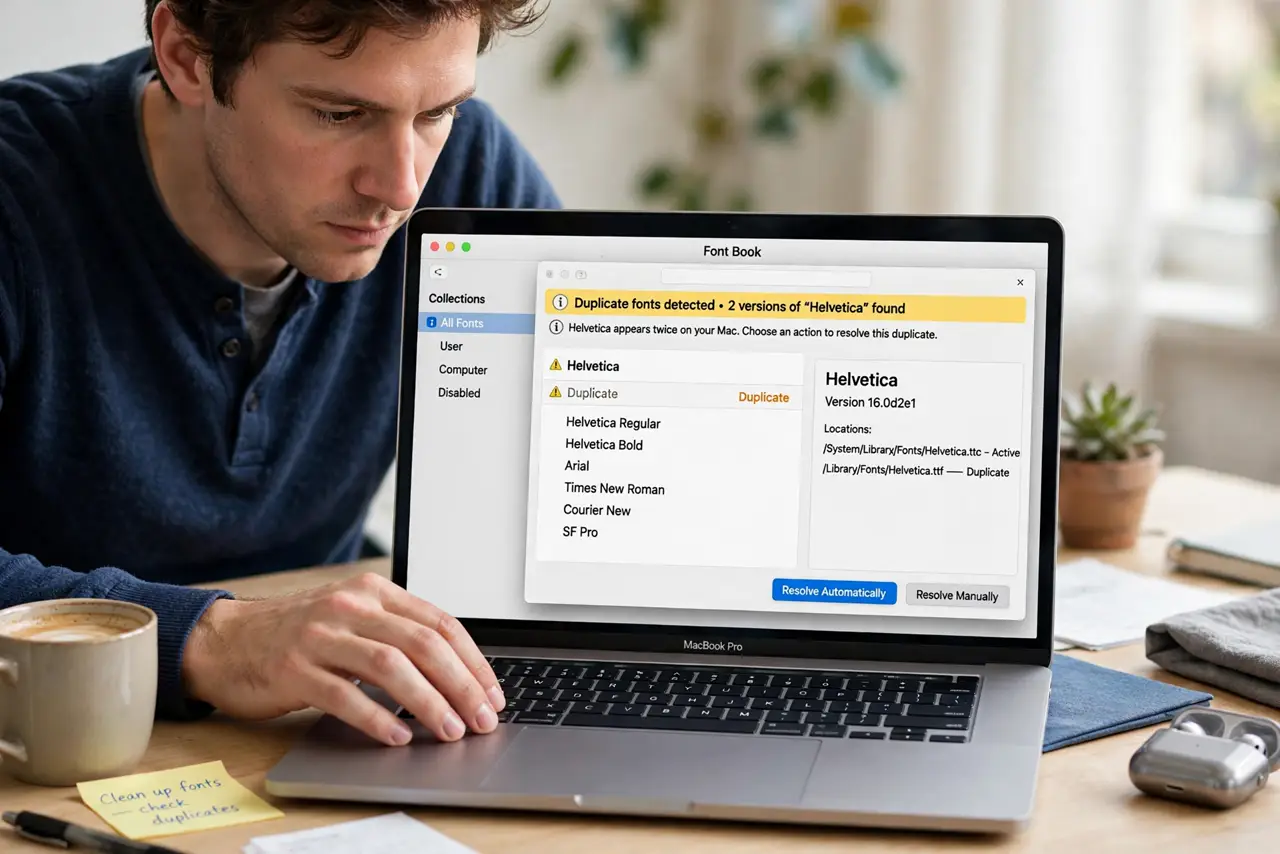
A document suddenly renders in the wrong font, or Font Book warns about duplicates — the classic sign that the same font is installed twice in different places on your Mac. macOS ships with system fonts, apps install their own copies, and you may have added more, until three versions of Helvetica fight for control. Font Book, the free app already on your Mac, finds and resolves these clashes in minutes. This guide cleans up duplicates safely, validates damaged fonts, and organizes what remains. For getting content into documents cleanly, start with plain text in TextEdit.
TL;DR / Quick Fix
Quick fix: open Font Book, choose Edit and then Look for Enabled Duplicates to find every clash. Select the duplicates and resolve them, keeping one copy. Then run File and Validate to catch damaged fonts. Do this cleanup before installing any new fonts, not after.
Follow these steps
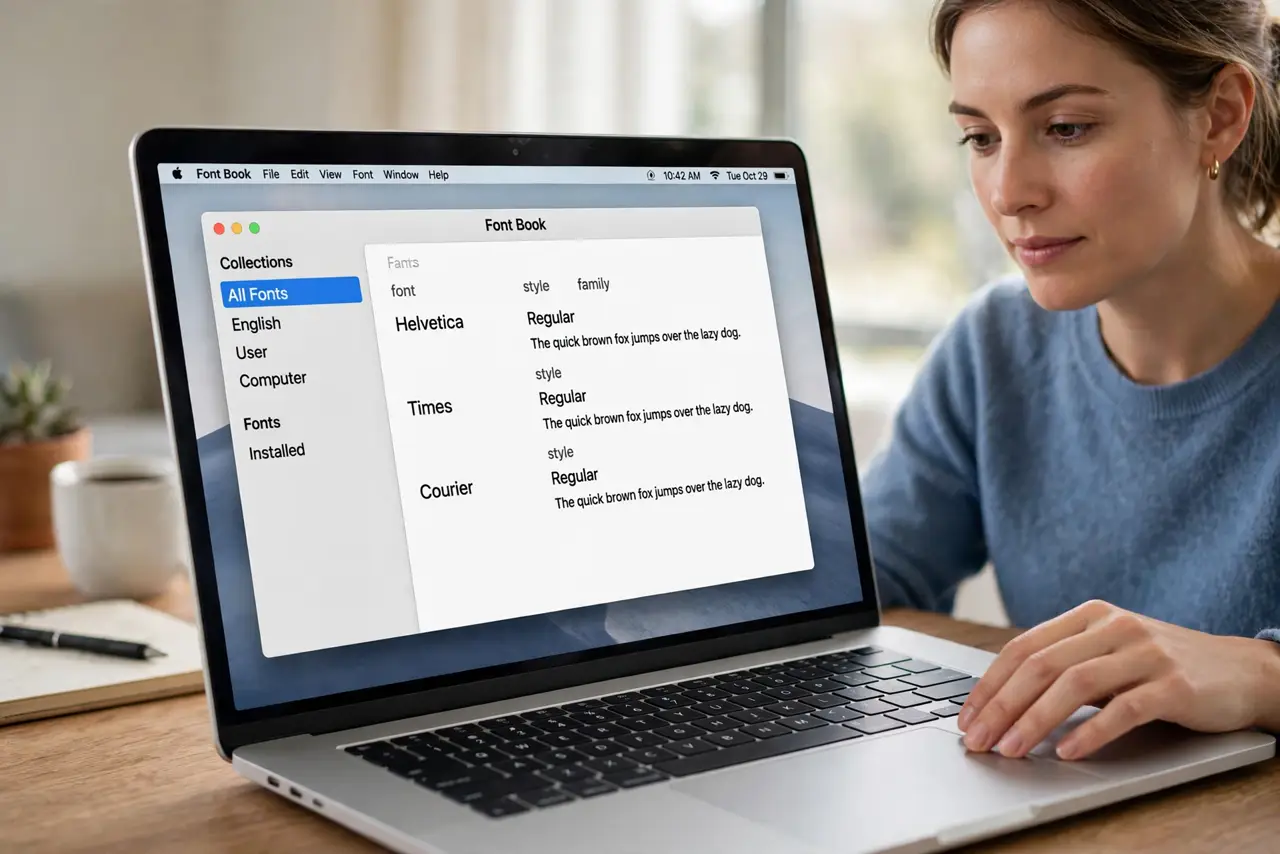
- Open Font Book. Find Font Book in Applications or launch it with Spotlight (Command-Space, type Font Book). It lists every font on your Mac, grouped by collection.
- Look for enabled duplicates. Choose Edit, then Look for Enabled Duplicates. Font Book selects every font installed more than once — these are your clashes, highlighted and ready.
- Resolve the duplicates. With duplicates selected, click Resolve Duplicates. Font Book keeps one copy active and disables the rest. When in doubt, it keeps the newest version, which is usually right.
- Validate the survivors. Select your fonts, then choose File and Validate File. Font Book flags damaged fonts with a warning icon — remove those, since a corrupt font can crash apps.
- Remove fonts you never use — carefully. Disable rather than delete fonts you do not recognize; some belong to macOS or apps. Your own added fonts can be removed freely; system ones should just stay disabled.
- Organize with collections. Create collections for projects — client work, personal, web-safe — so the font menu in apps stays short and you stop scrolling through hundreds of entries.
What NOT to do
- Do not delete system fonts. macOS and apps depend on them; deleting can break interfaces. Disable instead, and leave Apple's fonts alone.
- Do not install font managers from random sites to fix duplicates. Font Book handles this natively and safely.
- Do not ignore the validation warnings. A damaged font does not just look wrong — it can crash the app that loads it.
- Do not keep every free font you ever downloaded. A bloated font library slows app launches and font menus; curate it.
Frequently asked questions
What causes duplicate fonts?
The same font installed in multiple library folders — system, user, and app-specific. Each installer adds its own copy without checking for existing ones.
Will resolving duplicates change my documents?
No. The kept copy renders identically in almost all cases. Documents open with the same typeface, just from a single clean source.
Should I back up fonts before cleaning?
Font Book's resolve only disables extras rather than deleting, so recovery is easy. Exporting a collection first is still cheap insurance.