The Force Quit Window Will Not Appear
When the Force Quit window itself will not appear, the Mac is usually so busy with a frozen app that the window cannot draw. The fix is to give the Mac a simpler way to act, or to use Activity Monitor instead.
TL;DR / Quick Fix
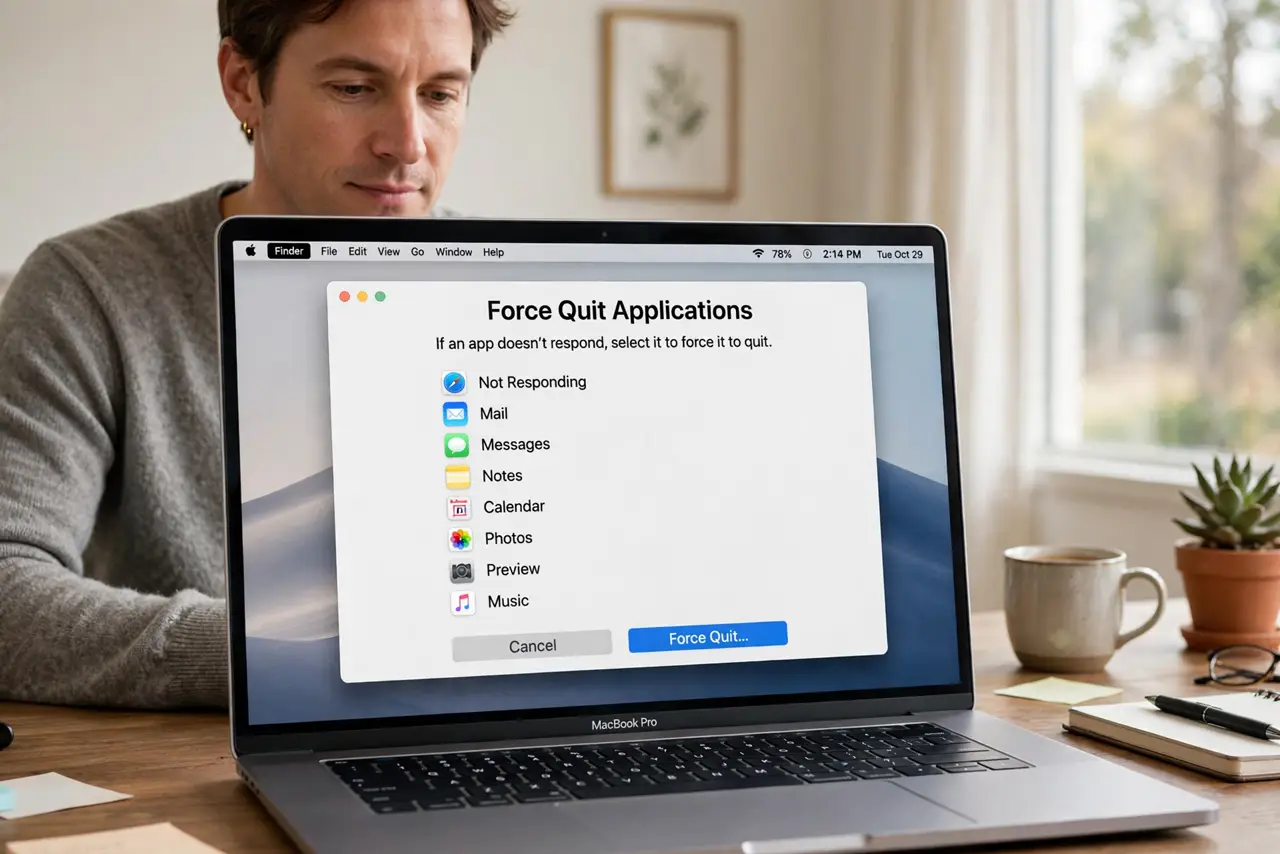
Quick fix: press Option, Command, and Escape together and wait ten seconds, since the window can be slow to appear on a busy Mac. If it still does not show, open Activity Monitor and quit the frozen app from there.
Follow these steps
- Try the keyboard shortcut slowly. Press Option, Command, and Escape together, then wait a full ten seconds. On a busy Mac the window appears late, and pressing again only queues more attempts.
- Try the Apple menu. Click the Apple menu and choose Force Quit. If the menu itself responds, this route can succeed even when the shortcut seemed dead.
- Wait out the busy moment. Leave the Mac alone for a minute if an app is thrashing. A frozen app sometimes finishes its worst moment, and the Force Quit window appears once the Mac can breathe.
- Open Activity Monitor. If the window still will not appear, open Activity Monitor from Applications, then Utilities, and quit the frozen app there. Activity Monitor is the reliable backup route.
- Force quit from Activity Monitor. Select the frozen app in Activity Monitor and stop it. Confirm the app closes, then check that the rest of the Mac responds normally again.
- Restart if nothing responds. If neither route works and the Mac stays frozen, hold the power button to force a shutdown, then start up normally. Use this only as a last resort.

What NOT to do
- Do not hammer the shortcut repeatedly. Repeated presses pile up and can make a busy Mac slower, not faster, to show the window.
- Do not force shut down at the first freeze. Try the shortcut, the menu, and Activity Monitor first, since a forced shutdown risks unsaved work.
- Do not force quit apps that are merely slow. Give a busy app a minute to finish, and force quit only when it is truly unresponsive.
- Do not ignore repeated freezes from the same app. One freeze is bad luck, but a pattern means the app needs updating, resetting, or replacing.
Frequently asked questions
Why will the Force Quit window not appear?
Because the Mac is too busy with the frozen app to draw it, or the shortcut press was too brief for a slow system to register.
What if the shortcut and menu both fail?
Use Activity Monitor to stop the frozen app. It is the backup route when the Force Quit window itself cannot appear.
Is a forced shutdown safe?
It is a last resort, not a routine fix. It can lose unsaved work, so try every gentler route first.