Full Screen vs Maximize? Difference
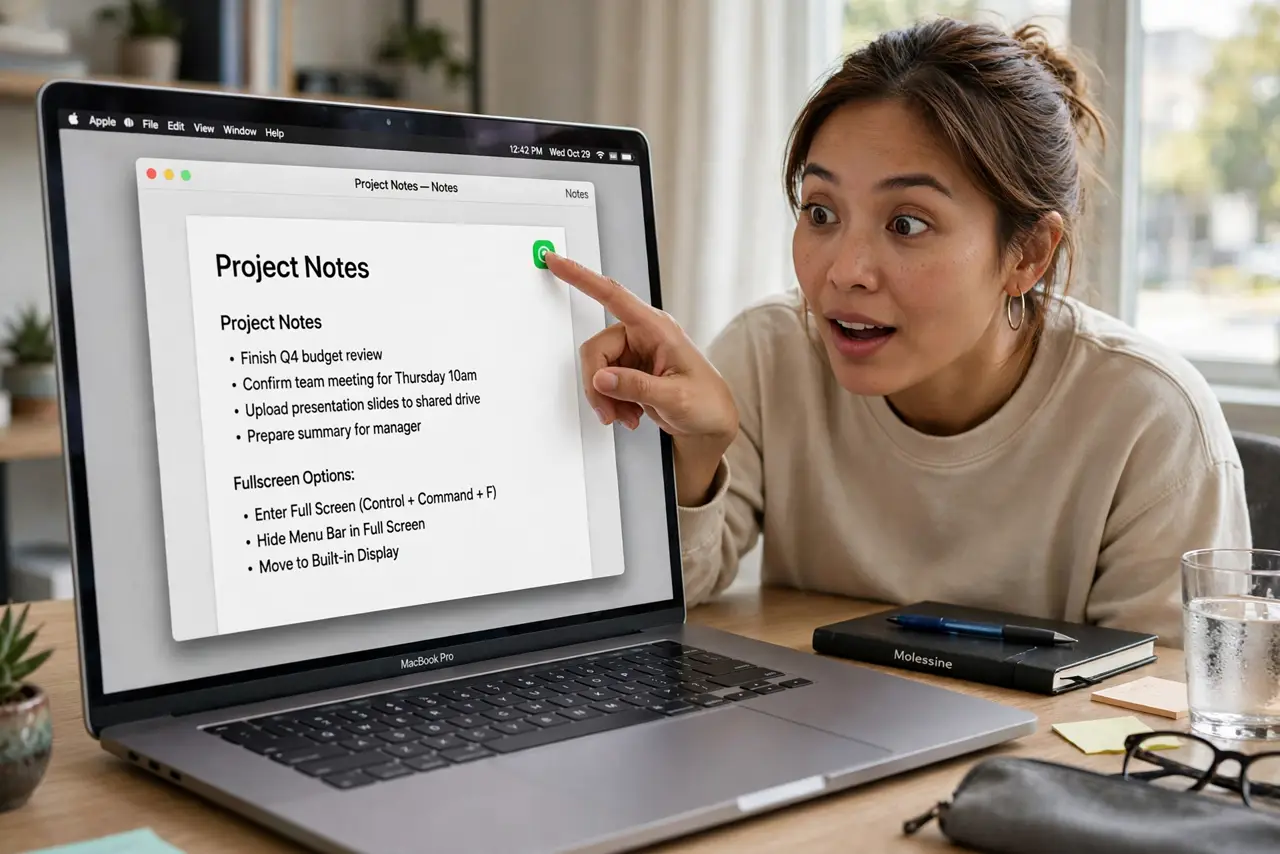
You click the green button expecting the window to fill the screen, and instead the app vanishes into its own Space. That's fullscreen, not maximize — macOS treats them as different things, and the green button's real behavior surprises almost everyone.
TL;DR / Quick Fix
Quick fix: clicking the green button enters fullscreen, which moves the app to its own Space. Option-click the green button (or double-click the title bar) to truly maximize the window in place. Learn both gestures and the surprise disappears forever.
Follow these steps
- Learn what the green button does. A plain click enters fullscreen: the window gets its own Space, the menu bar hides, and swiping moves between apps. It's a mode, not a size.
- Maximize with Option-click. Hold Option and click the green button — the window fills the screen but stays in its Space with the menu bar visible. This is the 'maximize' most people wanted.
- Or double-click the title bar. Double-clicking a window's title bar zooms it to fill available space (enable 'Double-click a window's title bar to zoom' in Desktop & Dock settings).
- Exit fullscreen with Esc or the green button. Hover at the top to reveal the menu bar, then click green again — or just press Esc. The window returns to its Space.
- Use fullscreen deliberately. Fullscreen shines for focused writing, video, and presentations — one app, zero distractions. For multitasking, maximized windows plus Split View win.
- Fix the Dock hiding confusion. In fullscreen the Dock hides by design. If the Dock won't hide in a merely maximized window, that's a separate setting.

What NOT to do
- Do not click green expecting maximize — that's the whole confusion. Option-click is the maximize gesture; plain click is fullscreen.
- Do not lose windows to fullscreen Spaces. Swipe up (Mission Control) to see all Spaces when an app 'disappears.'
- Do not fullscreen everything. A screen of fullscreen apps is just alt-tabbing with extra steps — reserve it for real focus work.
- Do not confuse this with window tiling. Tiling arranges windows side by side; fullscreen gives one window the whole stage.
Frequently asked questions
How do I get out of fullscreen?
Press Esc, or hover at the top of the screen and click the green button again. The window returns to its original Space.
Why did my app disappear when I clicked green?
It moved to its own fullscreen Space. Swipe left/right with three fingers, or open Mission Control, to find it.
Can I make green always maximize?
Not natively — but Option-click and title-bar double-click are one extra finger away, and muscle memory forms fast.