Tile Windows? How To
Split View only does two apps, and manual dragging never lines up cleanly. Window tiling — newer macOS's drag-to-edge snapping plus the tile menu — arranges windows in halves, quarters, and columns without the pixel-hunting. Here's the full toolkit.

TL;DR / Quick Fix
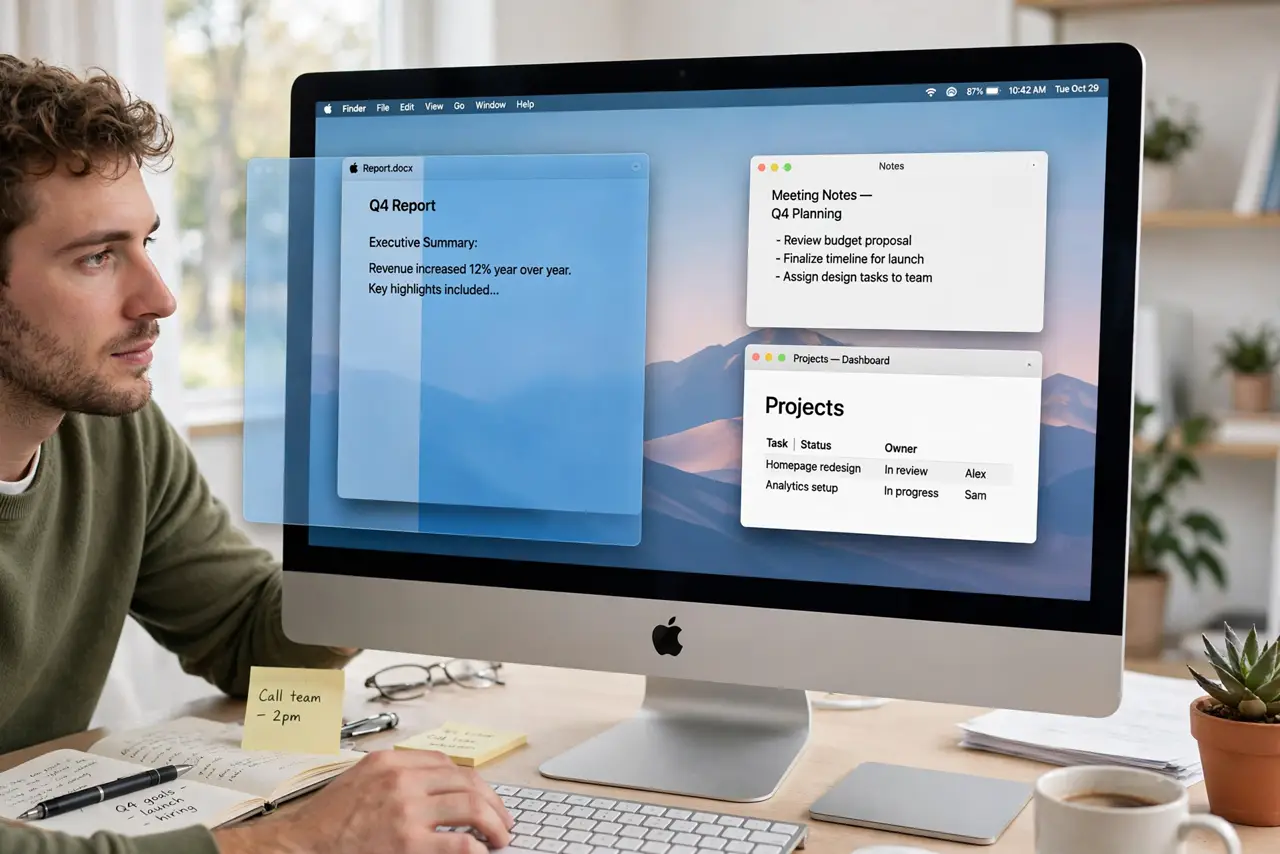
Quick fix: drag any window to a screen edge until the highlight appears, then drop it to tile it there. Or hover the green button for tile options including quarters. Drag windows away from edges to untile them freely again.
Follow these steps
- Drag to an edge. Drag a window to the left or right edge until the translucent highlight fills that half, then release. Top edge often maximizes; corners do quarters.
- Use the green-button menu. Hover the green traffic light for precise options: left/right half, top/bottom half, and quarters. More deliberate than dragging.
- Tile with keyboard shortcuts. Set shortcuts for tile actions in System Settings > Keyboard > Keyboard Shortcuts. Power users tile without touching the mouse.
- Combine with Spaces. Tiled groups live happily inside a Space — tile your work pair in Space 1, your comms pair in Space 2.
- Untile by dragging away. Drag a tiled window's title bar away from the edge and it floats free again. No mode to exit, unlike Split View.
- Know the limits. Some apps resist tiling or enforce minimum widths. When a window won't tile, that's the app's choice — float it and move on.
What NOT to do
- Do not expect pixel-perfect quarters on every display. Menu bar and Dock reserve space — tiles fill what's left, which is correct.
- Do not tile on a tiny screen and expect comfort. Two readable halves need roughly 13 inches or more; below that, Spaces beat tiling.
- Do not confuse tiling with fullscreen. Tiled windows share the desktop; fullscreen takes the window to its own Space.
- Do not fight an app that won't tile. Forcing layouts on unwilling apps wastes more time than the tiling saves.
Frequently asked questions
Why won't the window snap when I drag it?
You're not hitting the hot edge, or the app opts out of tiling. Try the green-button menu — if the options are grayed out, the app refuses.
Can I tile more than two windows?
Yes — quarters give you four, and you can mix halves and quarters. Beyond four, consider a second Space instead.
Is this the same as Split View?
No. Split View is a dedicated two-app fullscreen mode; tiling arranges regular windows on the normal desktop. Tiling is more flexible, Split View more focused.