Make Genmoji on Mac
Regular emoji are fine, but sometimes you need a taco-wearing-sombrero-riding-a-skateboard emoji that does not exist. Genmoji generates custom emoji from your description — type what you imagine, get an emoji that never existed. Here is where it lives on the Mac and how to make ones worth keeping.

TL;DR / Quick Fix
Quick fix: open Messages or Notes, tap the emoji button, and describe the Genmoji you want — the Mac generates custom emoji from your words. Save the ones you love for reuse. It needs Apple Intelligence on a supported Mac; without it, the option simply does not appear.
Follow these steps
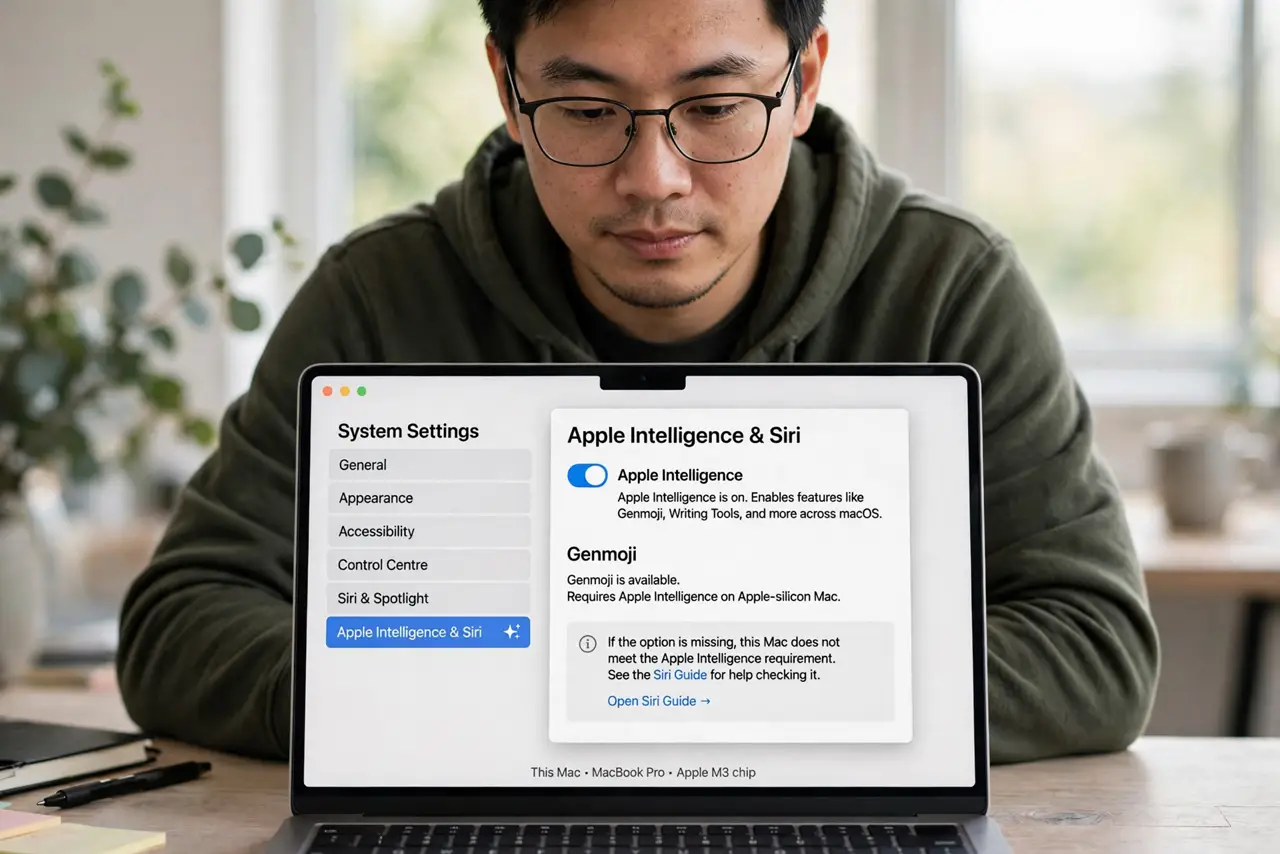
- Check Apple Intelligence is on. Genmoji needs Apple Intelligence on an Apple-silicon Mac. If the option is missing, that requirement is the reason — see the new Siri guide for checking it.
- Open the emoji picker. In Messages or Notes, click the emoji button in the toolbar or press the Globe key. The picker now includes a Genmoji option alongside standard emoji.
- Describe your emoji. Type a description — a smiling cactus wearing sunglasses works better than just cactus. Details in the description become details in the emoji. The iPhone Genmoji steps show the same flow on mobile.
- Generate and pick. The Mac offers several variations. Swipe through and choose the one that nails it — or tweak the description and regenerate.
- Save favorites. Keep the ones you love — they behave like regular emoji afterward, usable anywhere emoji work.
- Try the custom style trick. There is also a custom emoji style path for more control over the look — worth exploring once the basics click.
What NOT to do
- Do not expect Genmoji on Intel Macs. Apple Intelligence is Apple-silicon-only, and Genmoji comes with it — no setting changes that.
- Do not make Genmoji of real people. Generated likenesses can mislead or offend — keep creations fictional or yourself.
- Do not use them where clarity matters. A custom emoji in a work email can confuse; save the fun ones for friends.
- Do not forget they are AI-generated. Details can be odd on close look — check before sending something important.
Frequently asked questions
Why is Genmoji missing on my Mac?
You need Apple Intelligence, an Apple-silicon Mac, and a recent system version. Missing any one of those hides the option.
Do Genmoji work in all apps?
They work anywhere emoji work once created — Messages, Notes, Mail, and most third-party apps.
Can I share my Genmoji?
Yes — they send like regular emoji and appear on the recipient's device as images.