Styles in Image Playground
Image Playground turns your ideas into pictures, but the default look is not the only look. Every creation can be rendered in styles like Animation, Illustration, or Sketch — and the same prompt looks wildly different in each. If your experiments all look samey, you are probably stuck in one style. Here is how to switch.
TL;DR / Quick Fix
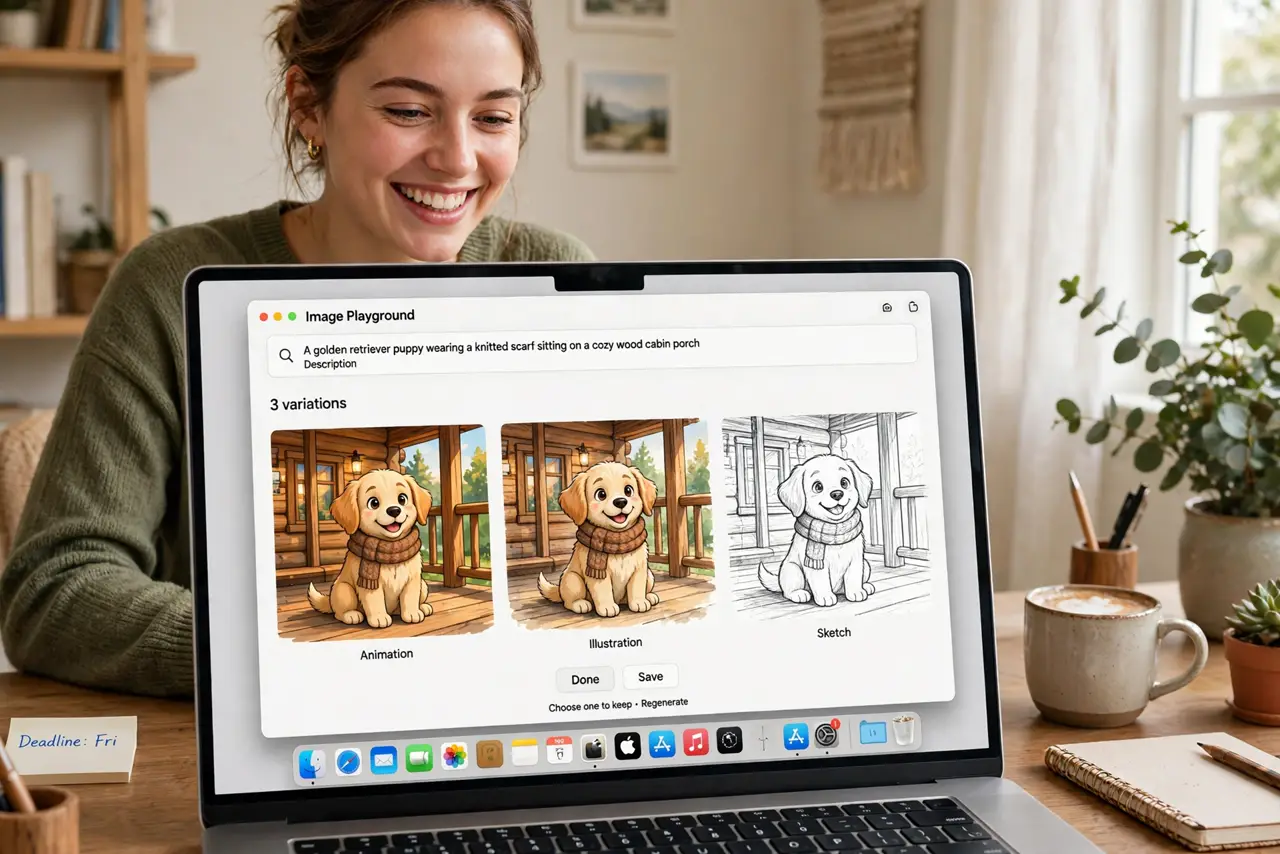
Quick fix: open Image Playground, start a creation, and tap the style button to switch between Animation, Illustration, and Sketch. Each style re-renders the same idea differently — try all three before settling. Styles apply per image, so one prompt can give you three distinct looks.
Follow these steps
- Start or open a creation. Open Image Playground from the Applications folder or Launchpad and start a new image or open an existing one. Styles can be changed on any creation, new or old.
- Find the style control. Look for the style button or menu near the prompt field — it shows the current style name. Tapping it reveals the available styles for your Mac.
- Try Animation first. Animation gives a polished 3D-cartoon look, great for avatars and playful images. It is the most popular style and the safest starting point.
- Compare with Illustration. Illustration is flatter and more graphic — better for icons, posters, and stylized art. The same prompt in this style can look like a different artist made it.
- Test the Sketch style. Sketch renders a hand-drawn pencil look, lovely for personal or artistic images. It is the subtlest of the three and suits portraits.
- Save each version you like. Styles apply per image, so generate your favorite prompt in all three and keep the winners. See the iPhone version if you want to experiment on the go too.

What NOT to do
- Do not expect photorealism. Image Playground styles are deliberately artistic — for realistic images, use a different tool.
- Do not use generated images of real people without care. Stylized or not, making images of real people can mislead — keep creations clearly fictional.
- Do not assume styles work on old Macs. Image Playground needs Apple Intelligence, so older or Intel Macs will not show it at all.
- Do not skip the prompt. Style changes the look, but a vague prompt still gives vague results — describe your idea clearly first.
Frequently asked questions
Which style looks best?
There is no best — Animation for playful, Illustration for graphic, Sketch for artistic. Try your prompt in all three; the winner is usually obvious.
Can I mix styles in one image?
No — one style per image. Generate separate versions and pick, or combine them in another app.
Why is Image Playground missing?
Your Mac needs Apple Intelligence and a recent system version. Check System Settings if the app is not in Applications.