Jump to Any Folder Instantly
Clicking through folder after folder to reach a deeply buried directory is slow and maddening — especially when you know exactly where you are going. The Mac's Go to Folder command jumps you straight there: type or paste the path, hit return, and the folder opens instantly. It is the fastest navigation trick in Finder, and most Mac users never touch it.
TL;DR / Quick Fix
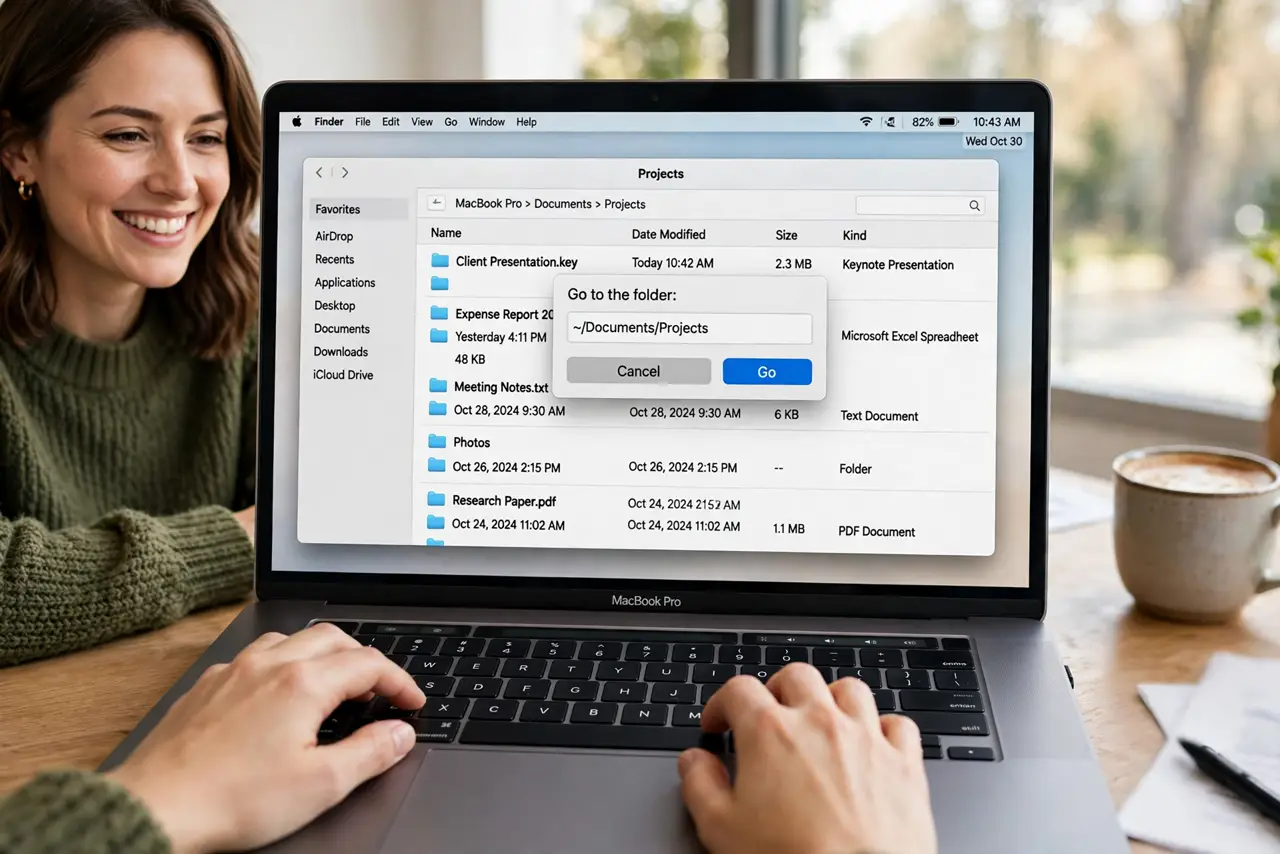
Quick fix: in Finder press Command-Shift-G, type or paste the folder path, and hit Return — the folder opens instantly. Use tab to autocomplete long paths, and drag any folder into the dialog to fill in its path. It works in Open and Save dialogs too.
Follow these steps
- Open Go to Folder. In Finder, press Command-Shift-G — or choose Go, Go to Folder from the menu bar. A small dialog appears asking for a path.
- Type or paste the path. Enter the folder path, like /Users/yourname/Documents/Projects. Tab autocompletes as you type, so long paths take seconds.
- Drag a folder to fill the path. Not sure of the exact path? Drag any folder from Finder into the dialog and its path appears automatically — zero typing, zero typos.
- Use it in Open and Save dialogs. Command-Shift-G works inside any app's Open or Save dialog too. Jump straight to the destination instead of clicking through the sidebar — a huge time-saver when saving.
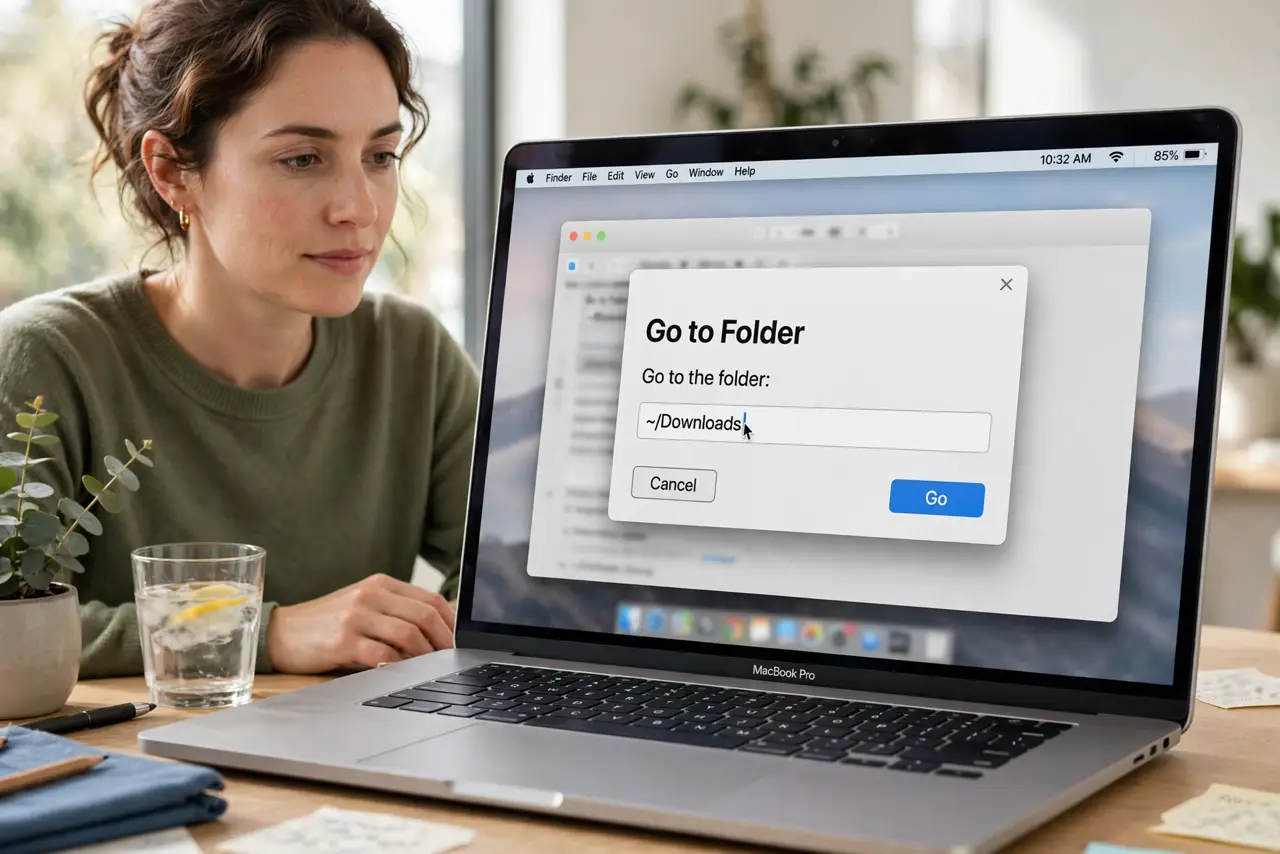
- Learn the handy shortcuts. The tilde (~) means your home folder, so ~/Downloads jumps to Downloads. Copying a path from Finder gives you paste-ready text for next time.
- Browse recent places from the Go menu. The Go menu also lists recent folders. Combine it with Go to Folder: jump precisely when you know the path, browse recents when you half-remember it.
What NOT to do
- Do not retype long paths from memory. One typo lands you in an error dialog — paste or drag instead.
- Do not forget it works in Save dialogs. Most people only discover this years in — it halves the clicks when filing downloads.
- Do not use it to poke around system folders. Jumping into /System or /private out of curiosity is how permissions get tangled.
- Do not skip tab completion. Typing every character of a deep path is slow; tab does the work.
Frequently asked questions
What is the fastest way to open a hidden folder?
Go to Folder is it — type the path including the hidden folder's name. Finder will open it even though it is invisible in normal browsing.
Does it remember previous paths?
The dialog keeps a dropdown of recently used paths — click the field to see them. Frequently used destinations are a keystroke away.
Can I use it to open a file?
It targets folders, but typing a file's full path opens the file in its default app. For files, though, Spotlight is usually faster.