Drag Files into Folders Faster
Dragging a file onto a folder icon and hoping it lands inside feels clumsy — especially when the folder you need is buried three levels deep. macOS has a built-in answer: spring-loaded folders, which pop open automatically when you hover a dragged file over them. You can drill down through nested folders without ever opening a Finder window, and the spring delay is adjustable so it matches your pace. Once it clicks, dragging files around the Mac feels effortless. It also works on the Dock and the Finder toolbar.
TL;DR / Quick Fix
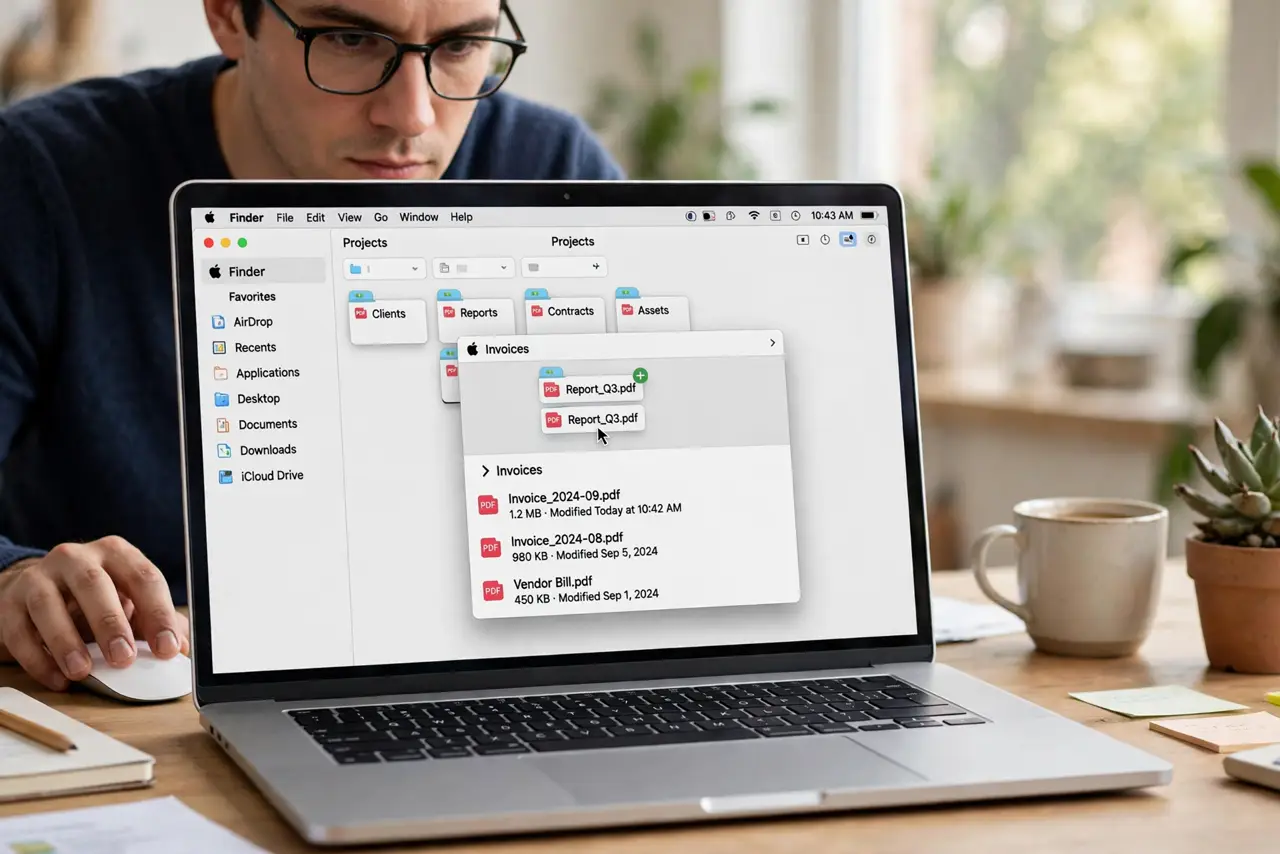
Quick fix: hover a dragged file over a folder and pause — the folder springs open so you can drop the file inside without opening windows. Adjust the spring delay in Finder settings if folders open too fast or too slow. It also works with the Dock and toolbar buttons.
Follow these steps
- Drag a file and hover over the target folder. Click and hold the file, then hover the cursor over the folder you want. Keep holding — after a short pause the folder springs open, showing its contents. You have not dropped anything yet, so nothing can go wrong.
- Drill down through nested folders. While still holding the file, hover over a subfolder inside the opened folder and it springs open too. You can descend as many levels as you need, all in one drag, then release to drop the file exactly where it belongs.
- Use the spacebar to force a folder open. If you do not want to wait for the spring delay, press the spacebar while hovering and the folder opens immediately. This is handy when you know exactly where you are going and want to move fast.
- Spring the Dock and toolbar too. Spring-loaded folders are not limited to Finder windows. Hover over a folder in the Dock or a folder button in the Finder toolbar and it opens the same way — great for filing screenshots straight into your working folder.
- Adjust the spring delay to your pace. Open Finder Settings, go to General, and move the spring-loading delay slider. A short delay feels snappy; a longer one stops folders from popping open while you merely pass over them. Try the middle and adjust from there.
- Turn it off if it gets in the way. If folders keep springing open when you do not want them to, uncheck spring-loaded folders in the same Finder Settings pane. Some people prefer navigating with the path bar instead — either way is valid.

What NOT to do
- Do not release the mouse button while hovering. Releasing drops the file into whatever is open — keep holding until you see the right folder.
- Do not drag across a crowded desktop expecting precision. Open the destination area first if icons are packed tightly.
- Do not assume it works with every app. Spring-loading is a Finder feature — dragging into other apps follows their own rules.
- Do not set the delay to the shortest notch on day one. Give your hand a day to learn the hover rhythm before making it twitchy.
Frequently asked questions
Can I spring open a folder on an external drive?
Yes — spring-loading works with any folder Finder can open, including USB drives and network shares. Slow drives just take a beat longer to display their contents.
Why do folders open when I am just passing over them?
Your spring delay is set too short. Lengthen it in Finder Settings so folders only open when you deliberately pause on them.
Does it work with the Trash?
Hovering over the Trash with a file does not spring it open — the Trash is a delete target, not a folder. Release to delete, or press Escape to cancel the drag.