Make Grocery Lists in Reminders
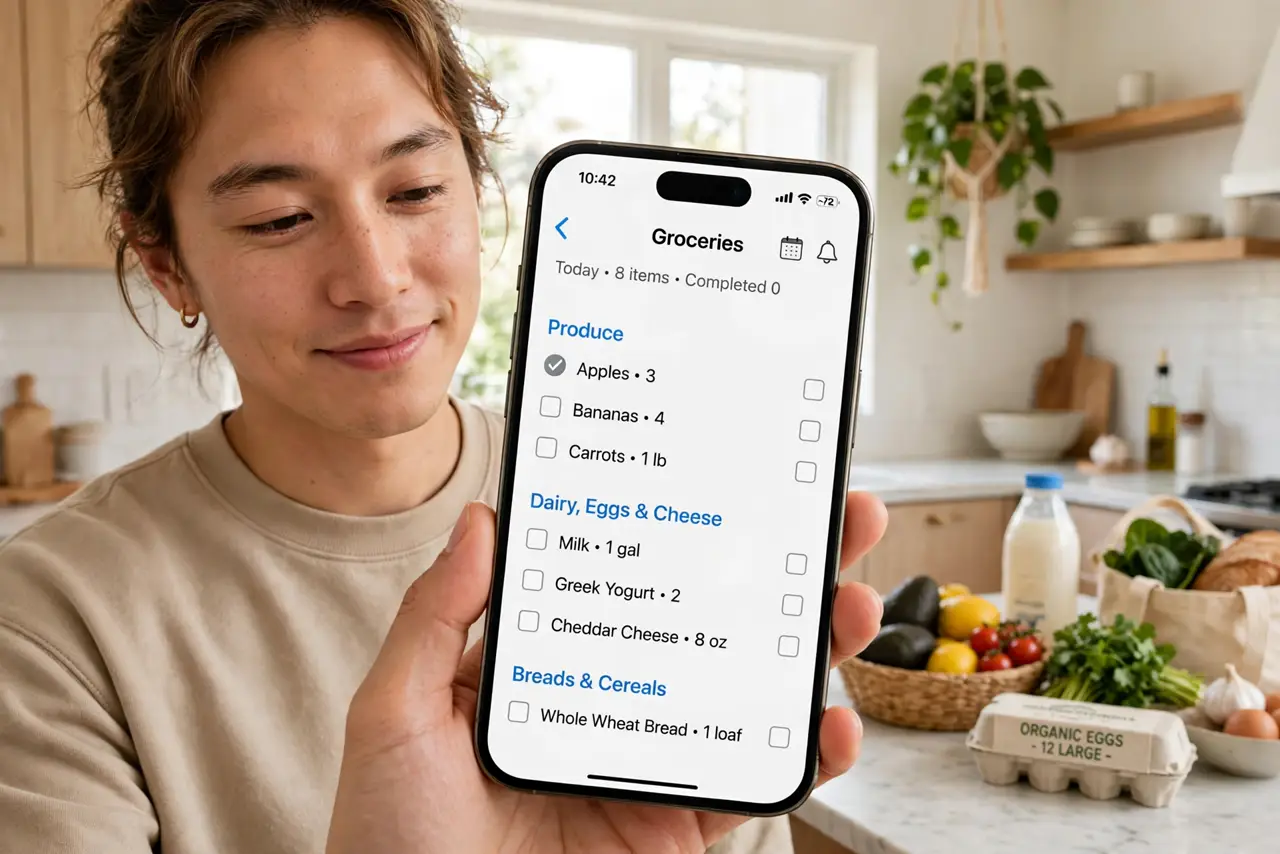
Your grocery list is a jumbled mess of half-remembered items in random order, and you always forget the one thing you went for. Apple's Reminders app has a dedicated Groceries list type that automatically sorts items into sections — Produce, Dairy, Frozen, and more — as you type them. It syncs across iPhone, iPad, and Mac, and the whole family can share one list.
TL;DR / Quick Fix
Quick fix: Apple's Reminders app auto-sorts groceries into sections like Produce and Dairy as you type — create a list, set its type to Groceries, and add items. It syncs to iPhone, iPad, and Mac instantly. Share the list with family so everyone adds what is needed before you shop.
Follow these steps
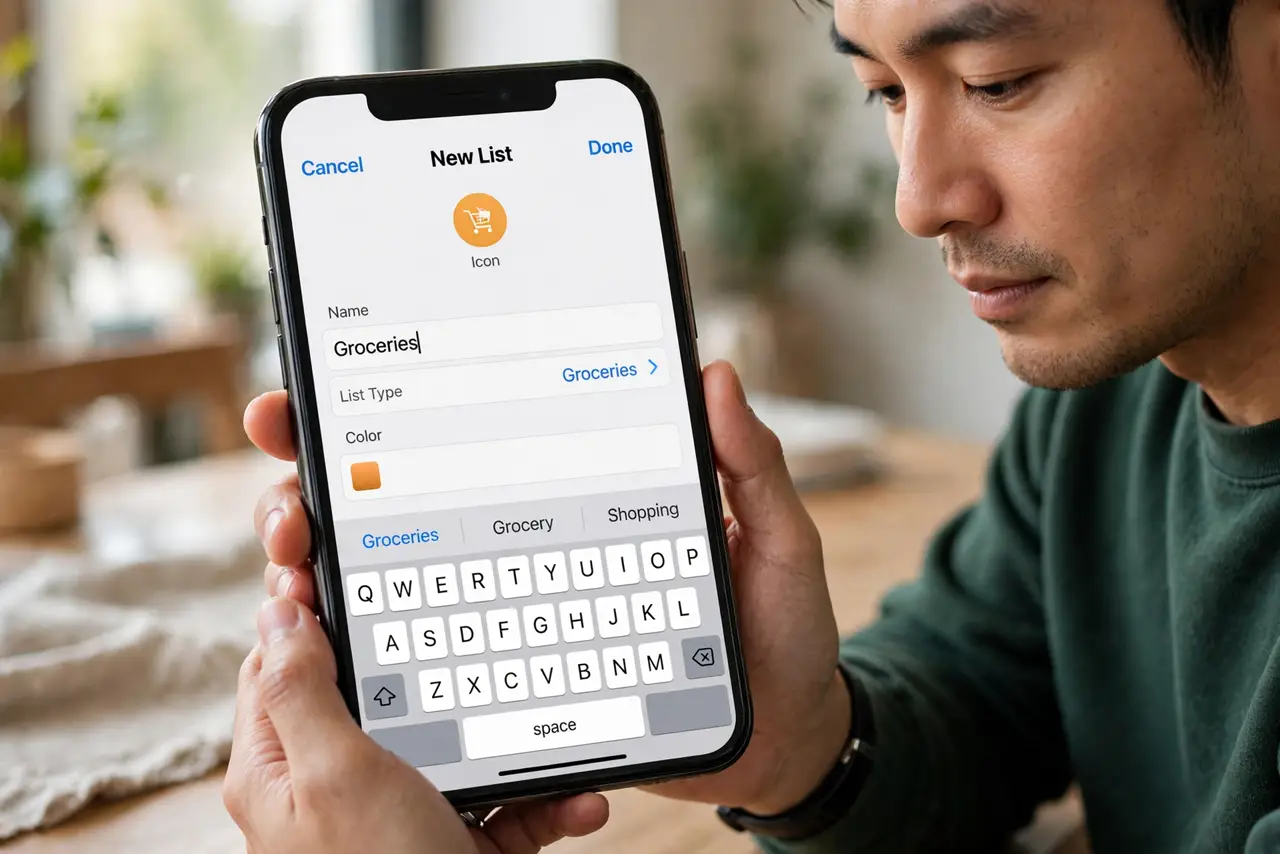
- Create a new list in Reminders. Open Reminders on iPhone or Mac, tap Add List, and give it a name like Groceries. This is the foundation — everything else builds on the list type you pick next.
- Set the list type to Groceries. When creating the list, choose Groceries as the list type. That single choice switches on the automatic sorting into store sections — a standard list will not do it.
- Add items naturally. Type items the way you say them — milk, bananas, chicken breast. Reminders recognizes common groceries and files each under the right section heading automatically as you type.
- Fix anything it sorts wrong. If an item lands in the wrong section, tap the i next to it and change its section manually. The app learns nothing from this, so check odd items — but most everyday groceries sort correctly.
- Share the list with your household. Tap the share icon on the list and invite family members. Everyone can add items from their own phone, so the list is complete before anyone leaves for the store — and you can reuse it as a template for weekly shops.
- Check items off as you shop. Tap the circle next to each item in the store. Completed items collapse out of the way, and unchecking later brings them back — perfect for staples you buy every week. You can also see the list alongside your calendar when planning the week.
What NOT to do
- Do not use a plain list and sort by hand. The Groceries list type does the sorting for you — manual sections are work you do not need.
- Do not keep the list only on one device. The whole point is that it syncs — sign into the same Apple Account everywhere.
- Do not let everyone keep separate lists. One shared list beats four partial ones; duplicates and forgotten items come from fragmentation.
- Do not add vague items like stuff for dinner. Specific items sort into sections correctly and get bought; vague ones get skipped.
Frequently asked questions
Does this work on Android or Windows?
Through iCloud.com in a browser, yes — you can view and edit the shared list there. The automatic grocery sorting is an Apple Reminders feature, so the native experience stays on Apple devices.
Why did my item land in the wrong section?
Unusual brand names or regional foods confuse the auto-sort. Tap the i on the item and set its section manually — it takes two seconds.
Can I get reminded when I arrive at the store?
Yes — add a location-based reminder to the list so your phone pings you when you reach the supermarket. Handy for the one item you always forget.