Reuse Lists with Templates
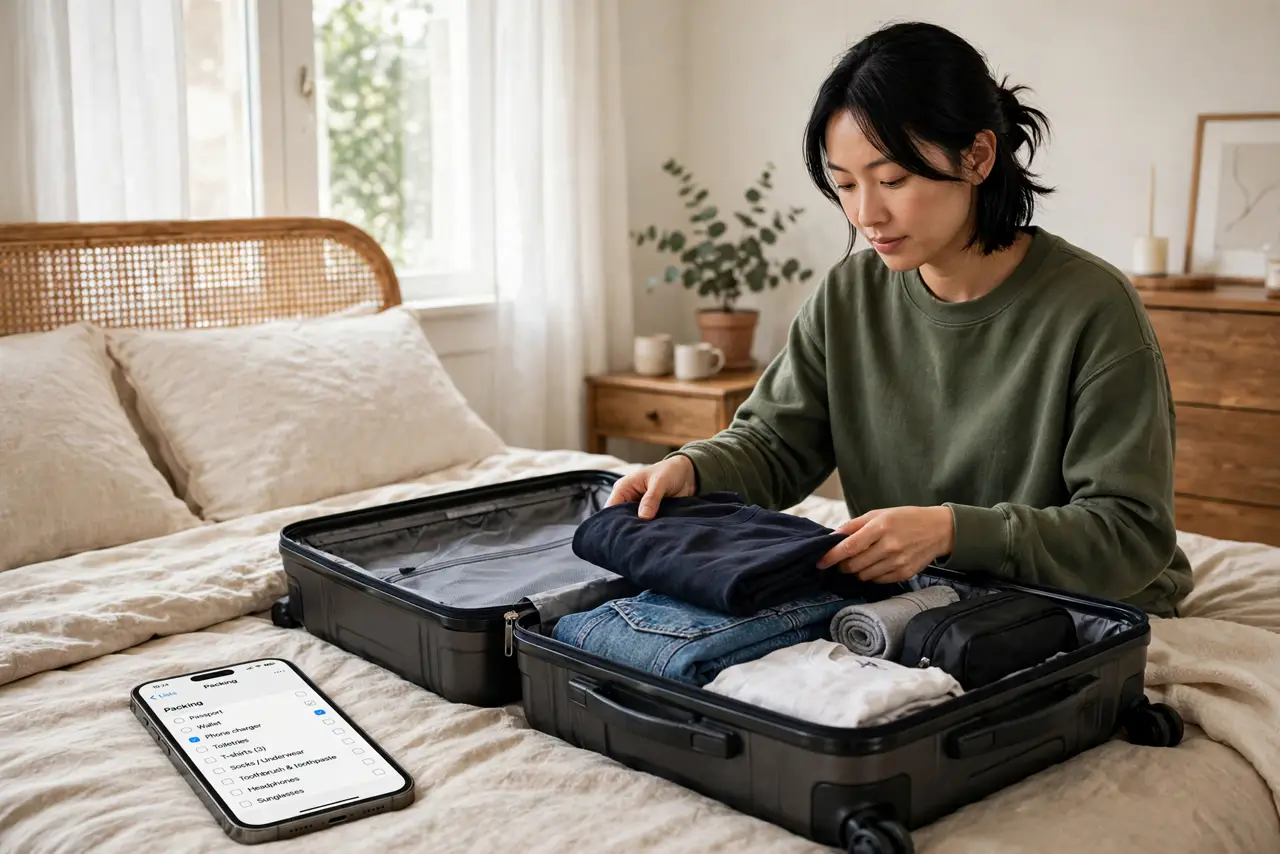
Every trip, you rebuild the same packing list from memory — and every trip, you forget the charger. Every weekly shop, you retype the same staples. Apple's Reminders lets you save any list as a template and stamp out a fresh copy whenever you need it, sections and items intact. Build the perfect list once, then never start from a blank page again.
TL;DR / Quick Fix
Quick fix: save any Reminders list as a template and reuse it instead of rebuilding packing lists from scratch — open the list, tap the three dots, choose Save as Template. Templates keep sections and items intact. Apply one in seconds, and name each so it is easy to find.
Follow these steps
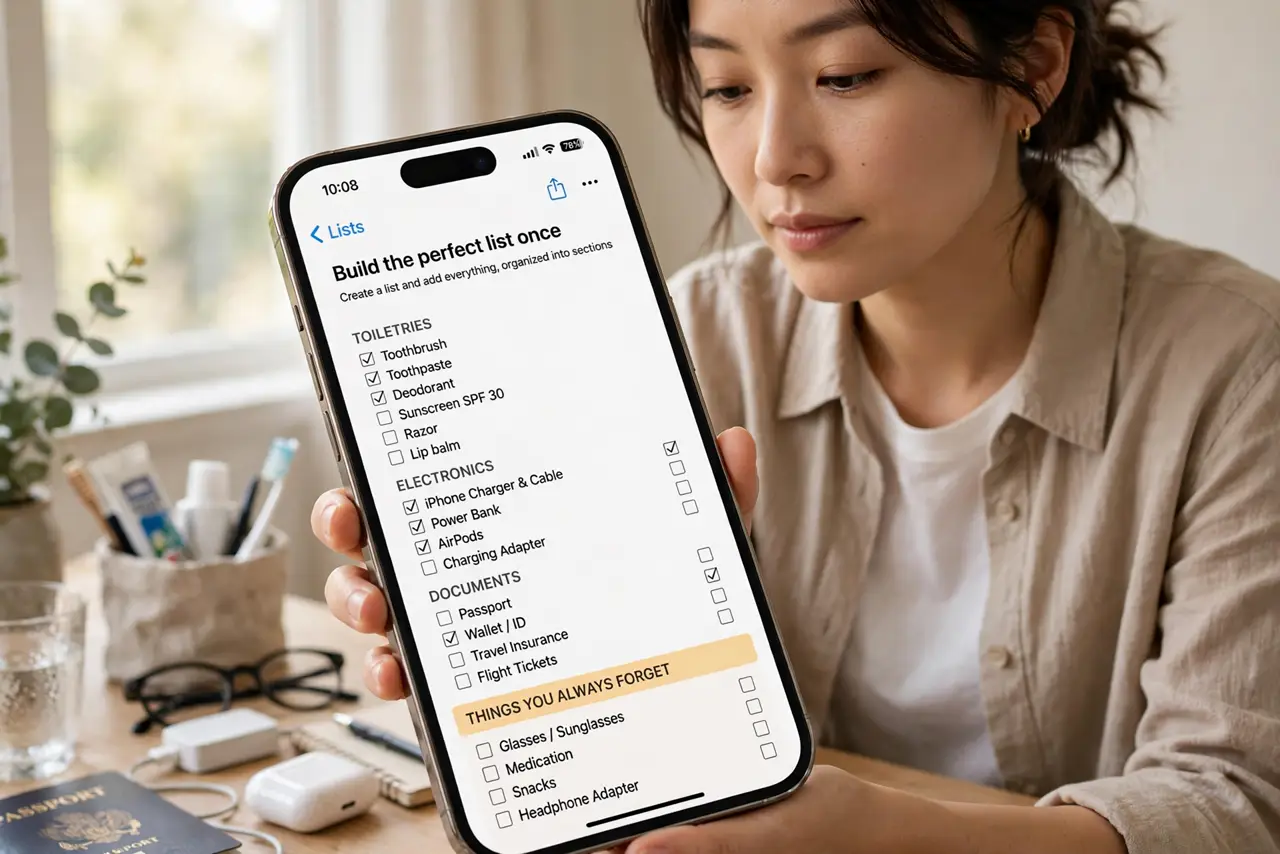
- Build the perfect list once. Create a list and add everything, organized into sections — toiletries, electronics, documents. Include the things you always forget; the template is only as good as this first draft. A grocery list makes a great first template to practice on.
- Save it as a template. Open the list, tap the three dots (or File — Save as Template on Mac), and choose Save as Template. Give it a clear name like Beach Trip Packing — future you will thank present you.
- Apply the template when you need it. When a new trip or shop comes up, create a list from the template instead of from scratch. A fresh copy appears with every section and item, all unchecked and ready.
- Tweak the copy, not the template. Delete or add items on the fresh copy for this specific trip. Leave the template pristine so the next copy starts clean — editing the copy is the workflow, editing the template is maintenance.
- Keep a small set of templates. Three to five templates cover most lives: packing, weekly groceries, trip checklist, maybe a project kickoff. More than that and finding the right one costs more time than it saves.
- Pair templates with your calendar. Apply the packing template a few days before a trip and see it next to your events — the visual nudge is what turns a template into actually being packed.
What NOT to do
- Do not template one-off lists. Templates pay off for repeating lists — a single dinner party menu is not worth templating.
- Do not forget to uncheck everything on the fresh copy. Applied templates sometimes carry checked-off items; reset them before you start.
- Do not edit the template for one trip's quirks. Change the copy — the template is the reusable master, not this week's draft.
- Do not name templates vaguely. List, List 2, and New Template are how templates go to die — names like Cabin Weekend Packing survive.
Frequently asked questions
Do templates sync across devices?
Yes — templates live in iCloud with your Reminders, so a template saved on iPhone is available on Mac and iPad signed into the same Apple Account.
Can I edit a template after saving it?
Yes — open the Templates section, edit the master, and future copies use the updated version. Existing copies already made are not affected.
Can I delete a template?
Yes, from the Templates list, without touching any lists you already created from it. The copies are independent once stamped out.