Lend Your Mac with Guest Mode
Lending your Mac feels risky — your email, your photos, your logged-in everything, one curious click away. The Guest account solves it: a temporary, locked-down session where the borrower gets a clean Mac with internet and apps, and zero access to your files. When they log out, the session wipes itself. Set it up before you need it. If a guest account appears that you did not create, check why it shows up.
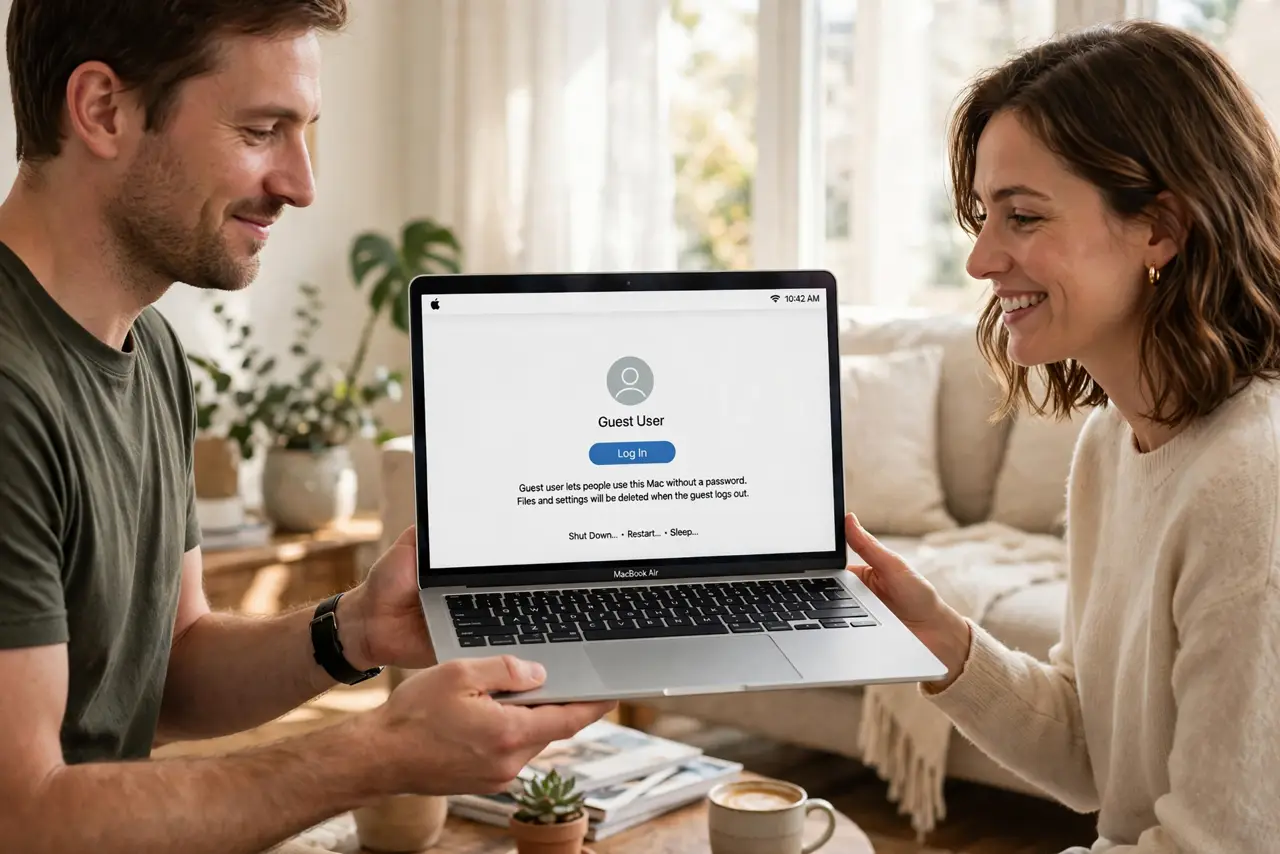
TL;DR / Quick Fix
Quick fix: enable the Guest user in System Settings, Users and Groups, so anyone borrowing your Mac gets a temporary session with no access to your files. Everything they do is wiped at logout. Lock your own account first, and never lend the Mac logged in as you.
Follow these steps
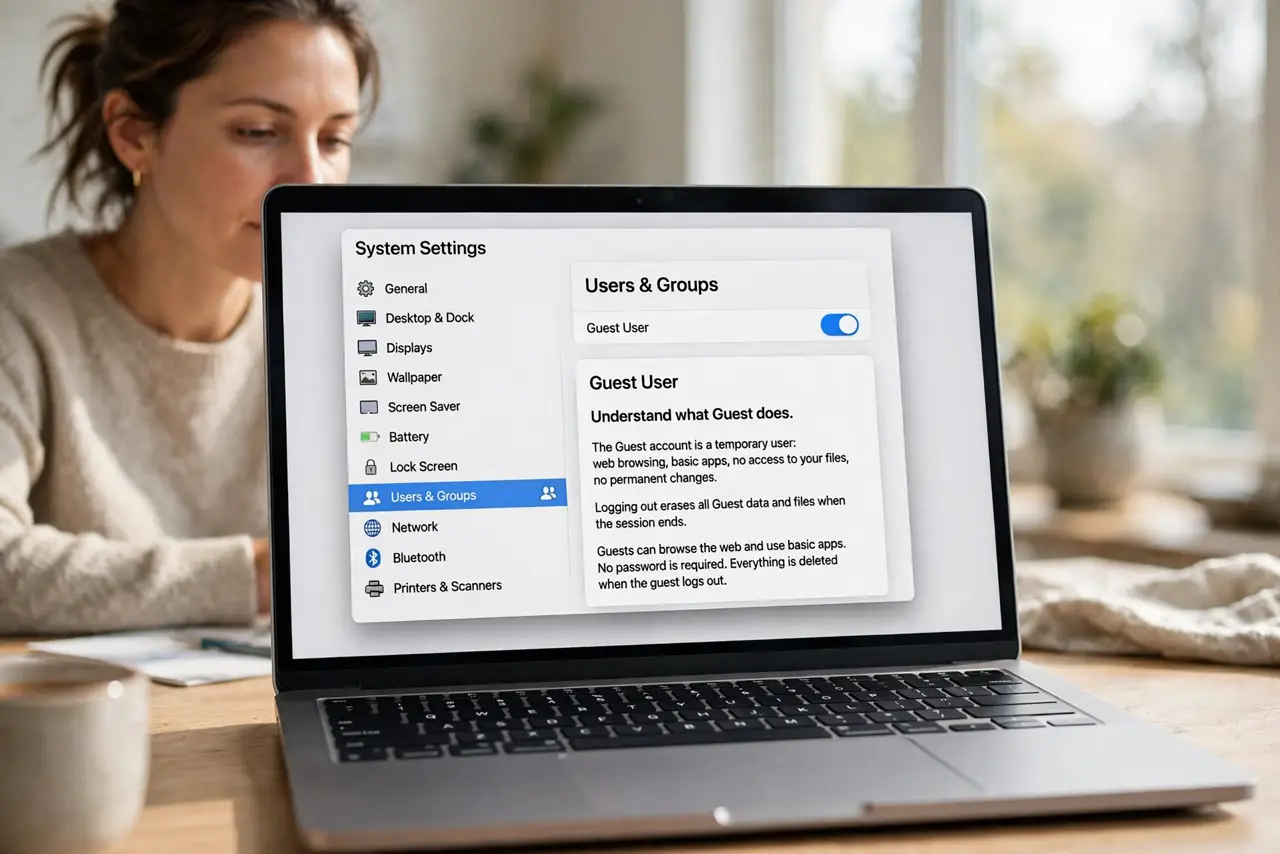
- Understand what Guest does. The Guest account is a temporary user: web browsing, basic apps, no access to your files, no permanent changes. Logging out erases the session completely — nothing lingers.
- Enable the Guest user. Open System Settings, Users and Groups, and turn on the Guest user. It then appears on the login screen as an option alongside your account.
- Know its limits. Guests cannot install software, change system settings, or see your home folder. It is deliberately a padded room — comfortable, but contained.
- Hand it over correctly. Log out of your own account first, then let the borrower choose Guest at the login screen. Never hand over the Mac still logged in as you — that defeats the entire purpose.
- Do not store anything as Guest. Warn the borrower: files saved in a Guest session vanish at logout. Anything important must go to their own email or cloud, not the desktop.
- Disable it when unneeded. If nobody borrows the Mac for months, turn the Guest user back off. Fewer login options mean a smaller attack surface and a cleaner login screen — see login screen options.
What NOT to do
- Do not lend the Mac logged in as yourself. One open session exposes email, passwords, and files — the Guest account exists so you never have to.
- Do not let the guest use your admin password for anything. If something needs installing, it waits until you are back — no exceptions.
- Do not assume Guest is private for the borrower. The session wipes, but network activity is still network activity — set expectations honestly.
- Do not leave Guest enabled forever unused. An option nobody uses is just clutter and surface — toggle it on when lending, off otherwise.
Frequently asked questions
Can the guest see my files?
No — the Guest session cannot access other users' home folders. Your files are invisible and unreachable from it.
Does Guest need a password?
No, it is password-free by design — the security comes from what it cannot touch, not from a login barrier.
Will it work without internet?
Yes for local apps, but most borrowing involves browsing. The Guest session uses whatever network the Mac is on.