Fix a Laggy Huion Tablet on Mac
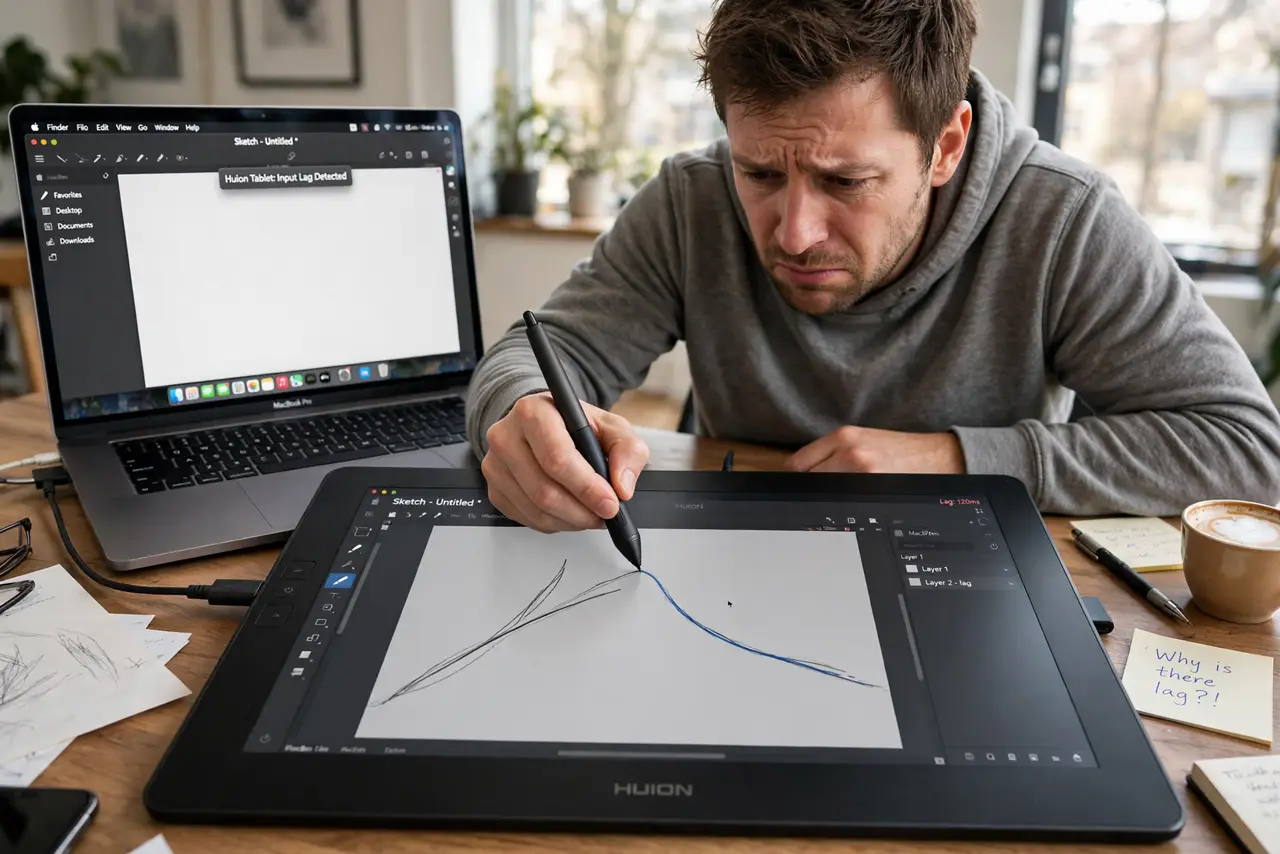
Your Huion pen trails behind your hand like it's wading through syrup — strokes land late, clicks feel mushy. On a Mac, tablet lag is usually a driver problem: outdated, missing permissions, or fighting another tablet's driver. This order of fixes resolves it for most people without new hardware.
TL;DR / Quick Fix
Quick fix: install the newest Huion driver from Huion's site, approve its permissions in System Settings, and restart. Try the tablet wired instead of wireless, and remove any old Wacom drivers — two tablet drivers fight each other. Map the tablet to one display if the cursor feels floaty.
Follow these steps
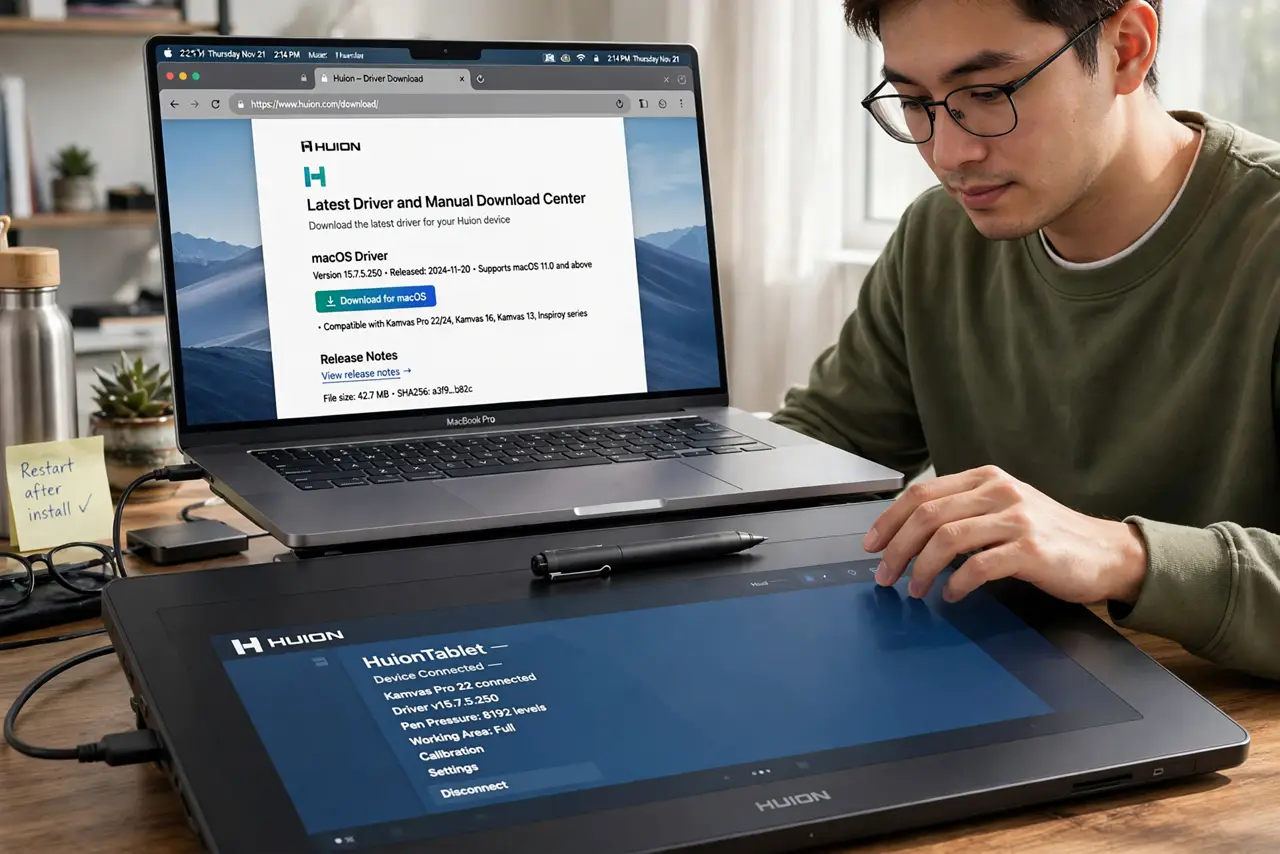
- Install the newest driver from Huion's site. Download the driver for your exact model — not a generic tablet driver, not a third-party bundle. Outdated drivers are the top cause of lag on current macOS.
- Approve the permissions and restart. Grant Accessibility and Input Monitoring access in System Settings under Privacy and Security, then restart your Mac. The driver can't deliver smooth input without both steps — see the permissions overview if prompts never appeared.
- Try the tablet wired instead of wireless. Plug it in directly and test. If the lag vanishes on cable, the issue is wireless interference or a weak receiver — not the tablet itself.
- Remove any competing tablet drivers. An old Wacom driver plus a Huion driver means two programs fighting over the same pen. Uninstall the one you don't use with its official uninstaller.
- Map the tablet to a single display. In the driver settings, map the pen area to one monitor. Spanning multiple displays stretches the mapping and makes the cursor feel floaty and imprecise.
- Check the pen nib and surface. A worn nib dragging on a rough surface adds friction that feels like lag. Swap in a fresh nib — it's the cheapest fix on this list.
What NOT to do
- Do not run Wacom and Huion drivers side by side. Two tablet drivers on one Mac fight over the pen and both lose — uninstall one.
- Do not blame the Mac's speed first. Tablet lag with a smooth everything-else is a driver issue, not a slow computer.
- Do not test over a flaky USB hub. Underpowered hubs cause exactly this stutter — plug directly into the Mac when troubleshooting.
- Do not ignore firmware updates for the tablet. Driver updates get the attention, but tablet firmware fixes ship too — check Huion's site.
Frequently asked questions
Is the lag the pen or the screen?
Test in the driver's own pressure area: if the test lags, it's driver or connection. If only your art app lags, it's the app's brush engine or canvas size.
Does it work better on Apple Silicon or Intel?
Both work with current drivers. The architecture isn't the issue — driver version and permissions are.
Why does the cursor feel floaty across two monitors?
The tablet is stretching its area over both screens. Map it to one display in the driver settings for precise control.