Privacy Permissions? Check Them
Your Mac keeps asking whether an app can use your camera, microphone, or files — those popups are macOS privacy permissions doing their job. The trouble starts when an app is blocked and you cannot find where to unblock it, or when an old app keeps access it should have lost long ago. The camera permission walkthrough covers the most common single case, but the full list lives under Privacy & Security in System Settings. This guide shows you how to review every category and clean up anything that no longer makes sense.
TL;DR / Quick Fix
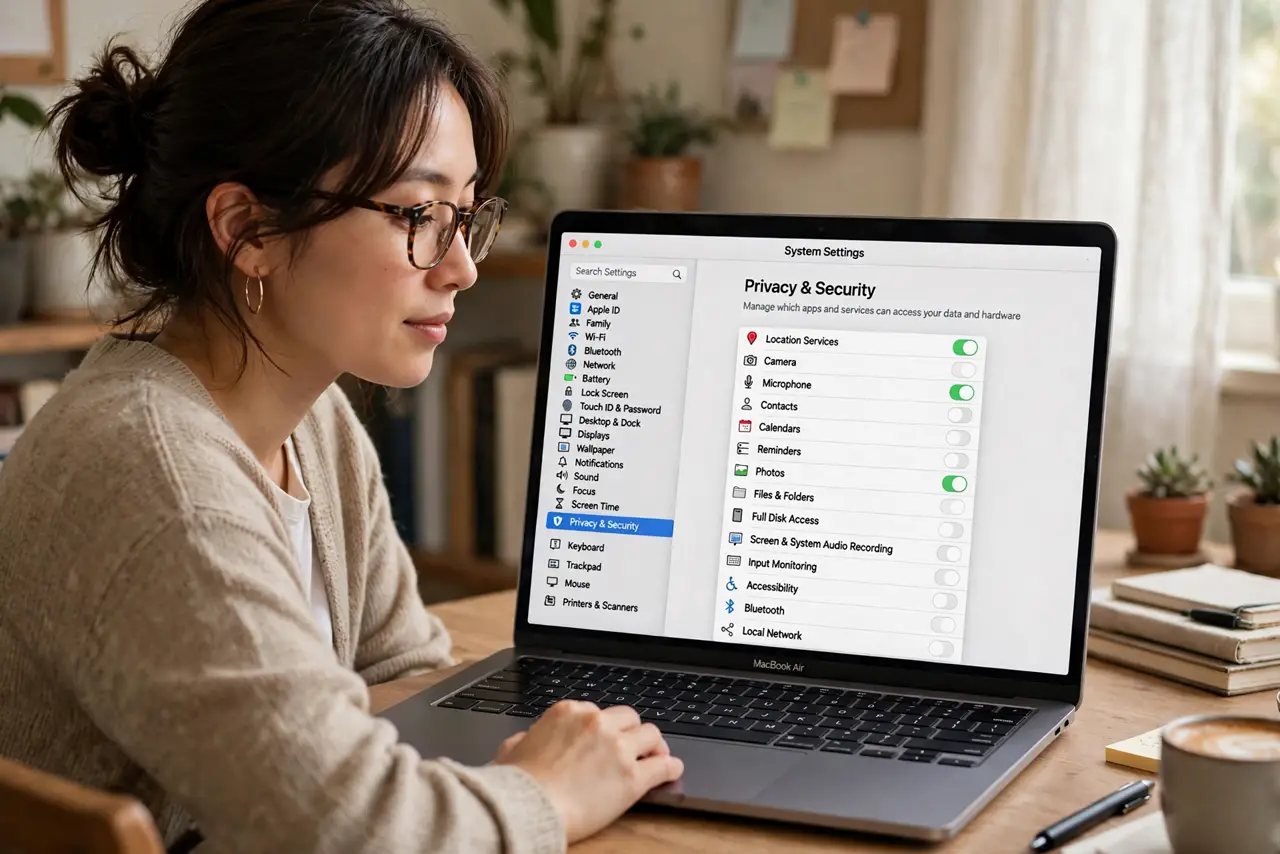
Quick fix: open System Settings, then Privacy & Security, and review each category, turning off apps that no longer need camera, microphone, or location access. Blocked apps usually just need their toggle switched back on. Recheck after macOS updates, which can reset permissions.
Follow these steps
- Open Privacy & Security. Click the Apple menu, then System Settings, then Privacy & Security in the sidebar. Every permission category — camera, microphone, location, files, contacts — lives in this one panel, so this is always your starting point.
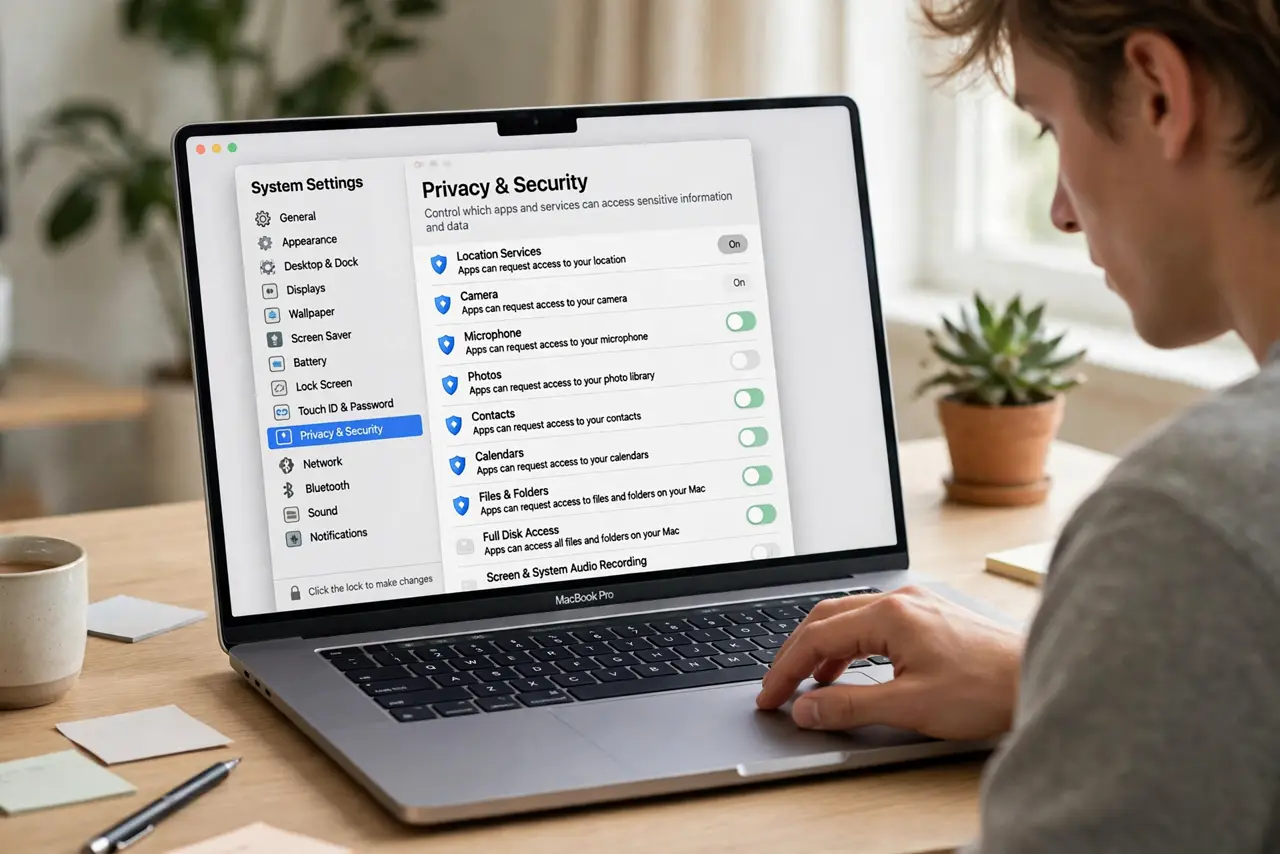
- Review camera and microphone first. Click Camera, then Microphone, and look at which apps have access. If an app you deleted still appears, or a video call app is blocked, the toggle here is the fix — the dedicated camera permission guide walks through the same screen in detail.
- Check Location Services. Location Services lists every app that knows where you are. Maps and weather need it; most others do not. Turn off anything that cannot justify knowing your location.
- Audit Files and Folders. The Files and Folders category shows which apps can read your Documents, Downloads, and Desktop. Old utilities you no longer use should not keep that access — revoke it.
- Look at Full Disk Access. Full Disk Access is the most powerful permission on the list, and very few apps need it. If anything unfamiliar sits here, remove it — legitimate apps will ask again when they truly need it.
- Revisit after every macOS update. Major macOS updates sometimes reset or re-prompt permissions. Make this panel part of your post-update routine: a two-minute scroll catches anything that changed without your say-so.
What NOT to do
- Do not grant Full Disk Access casually. It is the broadest permission on macOS — only backup tools and security software you trust should ever hold it.
- Do not panic at the length of the list. Most entries are system services and Apple apps; focus on third-party apps you recognize.
- Do not revoke a permission an app genuinely needs and then wonder why it broke. If your scanner app stops finding the scanner, its Files access was the reason.
- Do not ignore repeated permission prompts. If an app asks every launch, it may be installed in two copies or running from a disk image — the prompt is a symptom, not the disease.
Frequently asked questions
Why does an app keep asking for permission I already granted?
It may be running from a different copy than the one you approved — for example, still launched from the Downloads folder instead of Applications. Move it to Applications and approve once more.
Is it safe to remove everything I do not recognize?
For third-party apps, yes — they will ask again if needed. Leave Apple system services and anything with a lock-icon system name alone.
An app says it needs Screen Recording but the toggle is on. Now what?
Quit the app completely and reopen it. Screen Recording permission only takes effect on relaunch, which trips up almost everyone the first time.