Optimize iCloud Photos Storage
Your photo library has eaten the Mac's drive — tens of gigabytes of memories with no room left for actual work. Optimize Storage keeps featherweight previews on the Mac and the full originals in iCloud, freeing huge space without deleting a single photo. It is the single biggest space win on most Macs.
TL;DR / Quick Fix
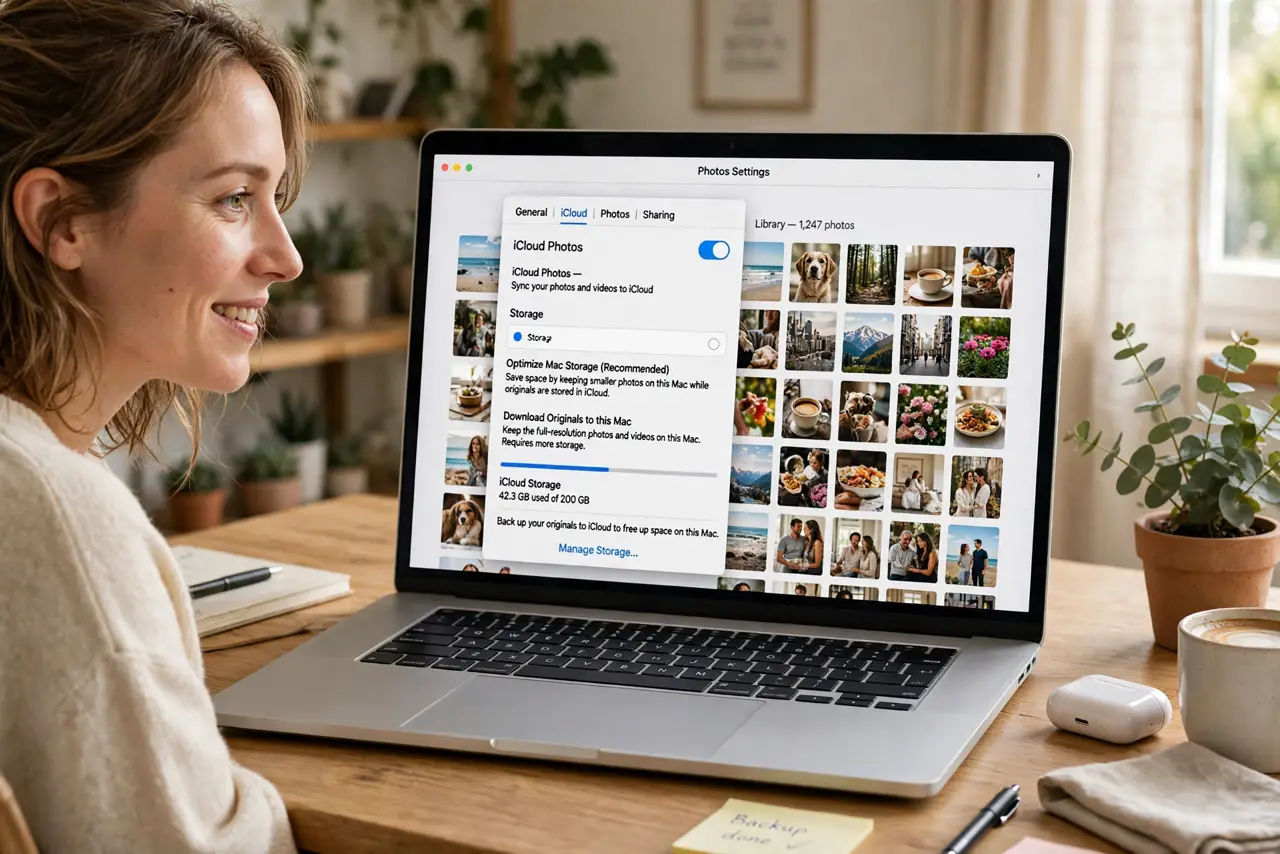
Quick fix: on your Mac, open Photos settings and turn on Optimize Mac Storage so full-resolution photos live in iCloud and light versions stay local. It frees gigabytes without deleting anything. You need enough iCloud storage — upgrade the plan if iCloud itself is full.
Follow these steps
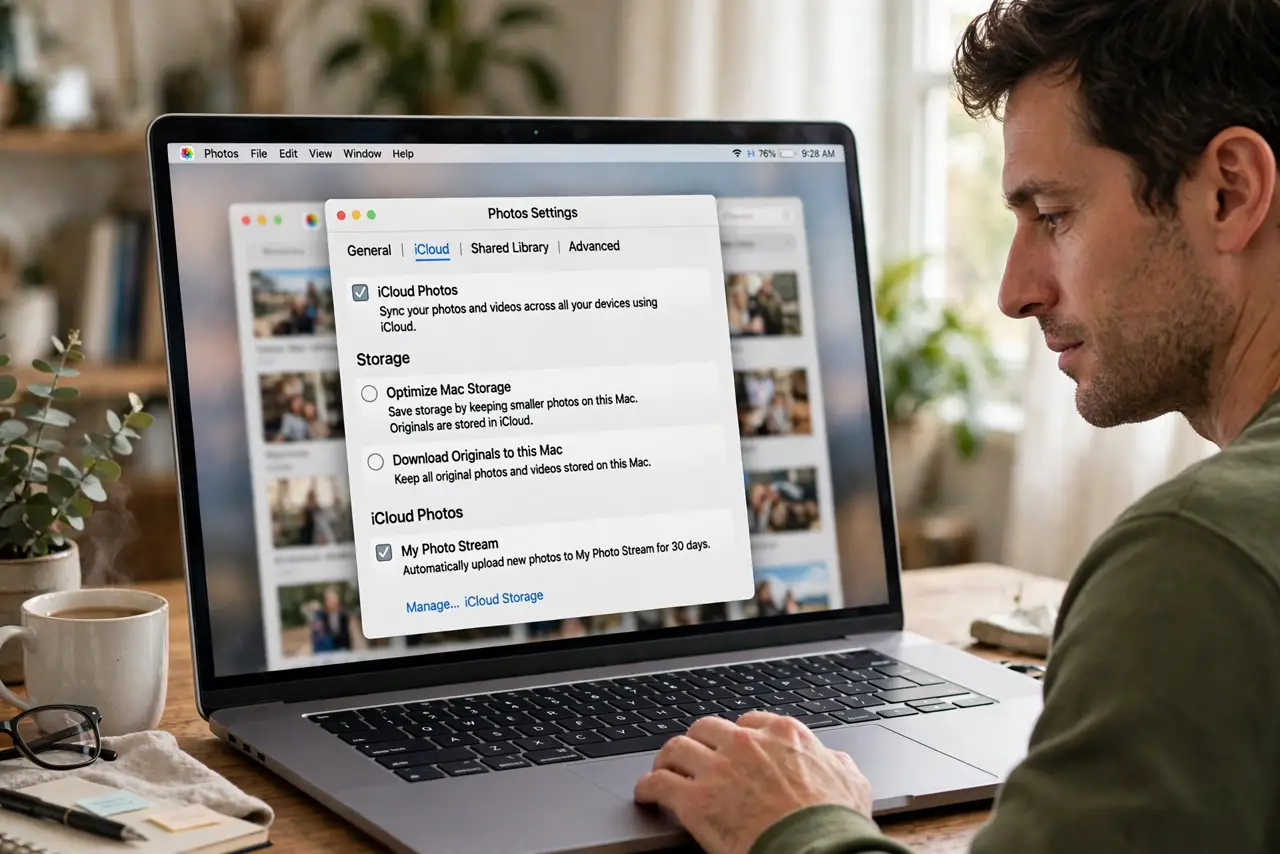
- Open Photos settings. In the Photos app, open Settings and go to the iCloud tab. This is separate from the system Optimized Storage toggle — Photos has its own.
- Turn on Optimize Mac Storage. Select it instead of Download Originals. Full-resolution files upload to iCloud; small previews stay on the Mac.
- Wait for the upload to finish. The Mac uploads originals first, then reclaims space. This takes hours or days on a big library — leave it plugged in on Wi-Fi.
- Check iCloud has room. Optimization needs iCloud space for every original. If iCloud is full, uploads stall and nothing is freed — upgrade the storage plan.
- Verify space was actually freed. Check storage before and after in System Settings. The Photos line should shrink dramatically once uploads complete.
- Keep a real backup too. iCloud is sync, not backup — see why that distinction matters before trusting one cloud with everything.
What NOT to do
- Do not enable it with a full iCloud account. Uploads stall, space never frees, and you will think the feature is broken.
- Do not delete the 'small' local versions thinking they are duplicates. They are placeholders — deleting them deletes the photo everywhere.
- Do not turn it off mid-upload. Interrupting the initial sync can leave the library in a half-optimized state that takes longer to settle.
- Do not treat iCloud as your only copy. Sync mirrors deletions — a backup like Time Machine protects against that.
Frequently asked questions
Will my photos look worse on the Mac?
Previews look identical at normal viewing size. Full resolution downloads automatically the moment you edit, zoom, or share.
What happens if I cancel iCloud?
You keep what is downloaded locally. With Optimize on, that may be previews only — download originals before downgrading.
Does it work without internet?
Previews work offline. Originals need a connection to download — plan ahead for flights and remote trips.