Optimized Storage? How It Helps
macOS keeps offering to 'optimize' your storage, promising more free space without deleting anything you need. Optimized Storage moves little-used files to iCloud and clears the obvious junk automatically. It's genuinely useful — as long as you understand what 'optimize' actually moves.
TL;DR / Quick Fix
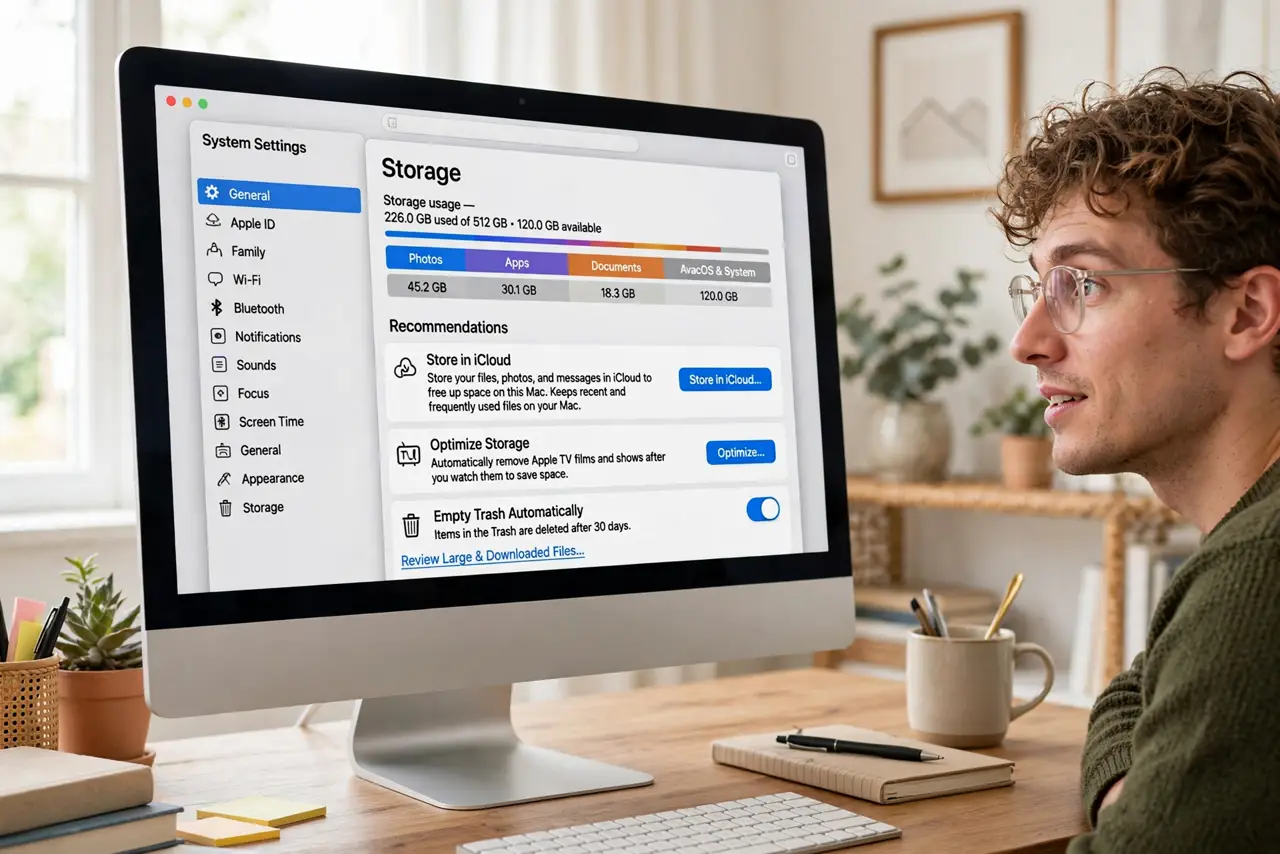
Quick fix: open System Settings, go to General, then Storage, and review the Recommendations. Enable Optimize Storage to move old files to iCloud automatically. Keep an eye on what's offloaded, since those files need internet to open. It is the easiest safe win against a full disk.
Follow these steps
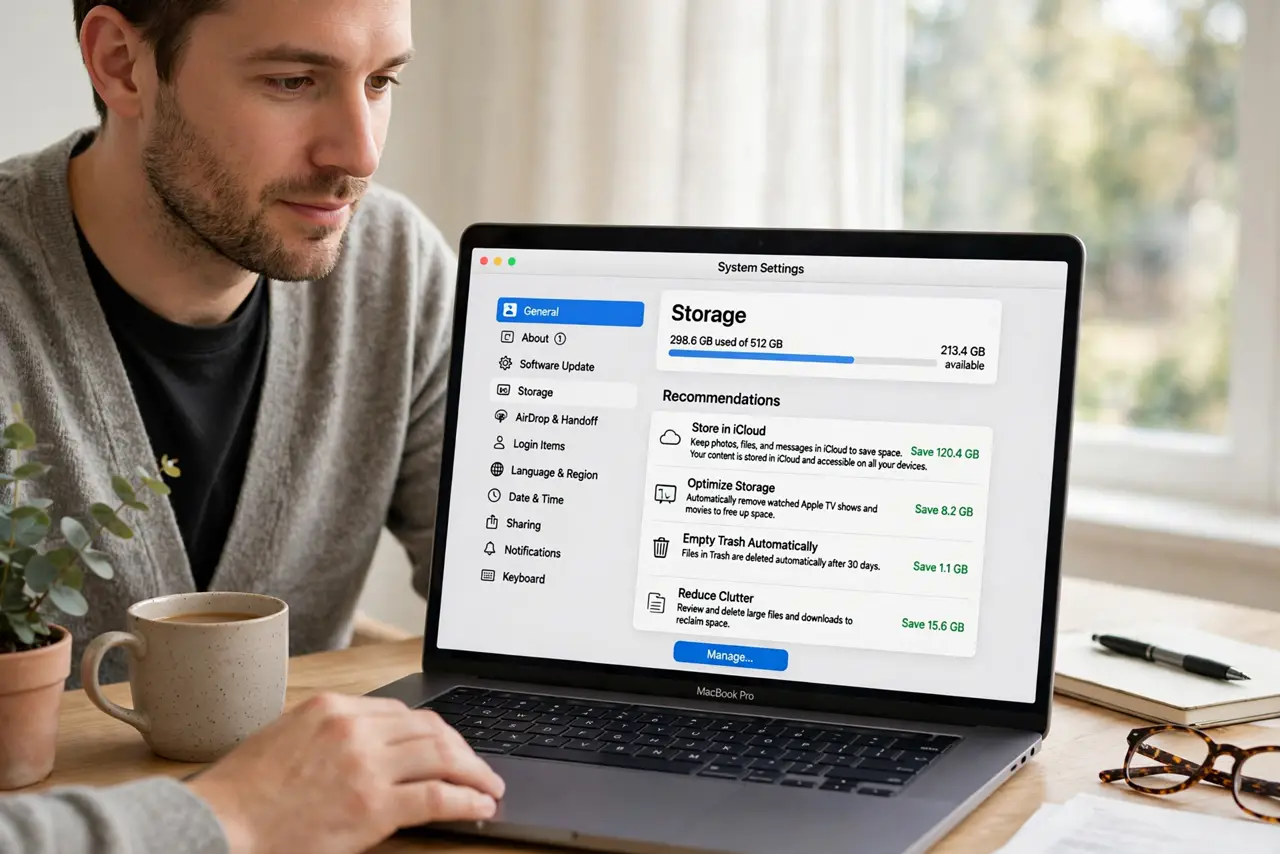
- Open the Storage recommendations. System Settings > General > Storage. macOS lists personalized recommendations with the space each would free.
- Enable Optimize Storage. This moves watched movies, old email attachments, and little-used files to iCloud, keeping placeholders on the Mac. The files aren't gone — they're one click and a download away.
- Empty Trash automatically. One recommendation auto-empties items trashed over 30 days ago. Safe, boring, effective.
- Review before enabling Store in iCloud. The Desktop & Documents option uploads those folders to iCloud — great with ample cloud space, painful without it. See how iCloud Desktop sync behaves first.
- Understand the offload icons. A cloud icon on a file means it's in iCloud only. Double-click downloads it on demand — fine on Wi-Fi, annoying on a plane.
- Watch for the removal gotcha. Some users report Optimize Storage removing files unexpectedly. Keep a real backup regardless — optimization is not backup.
What NOT to do
- Do not enable Store in iCloud without enough iCloud space. The free 5 GB fills instantly and then everything errors.
- Do not treat optimized files as backed up. iCloud sync is convenience, not a backup — keep a separate copy of what matters.
- Do not optimize right before a flight. Offloaded files need internet, and airplane Wi-Fi is where you'll miss them most.
- Do not ignore the selective sync alternative. For fine control over what lives locally, selective sync beats blanket optimization.
Frequently asked questions
Does Optimize Storage delete my files?
No — it moves them to iCloud and leaves placeholders. The file looks present but downloads on demand. Deletion is never part of optimization.
Why is my disk still full after optimizing?
Optimization moves the easy wins first. The remainder is likely Other storage or genuinely large files you keep locally — both need manual attention.
Can I turn it off later?
Yes, anytime. macOS re-downloads the offloaded files as space allows — make sure you actually have the space first.