Edit Video with iMovie
You have clips on your phone — a birthday, a trip, a project — and the idea of editing them feels like learning a new profession. iMovie, free on every Mac, is the gentlest possible start: drag clips in order, trim the boring bits, add a title, done. Here is the complete beginner workflow that produces a real finished video.
TL;DR / Quick Fix
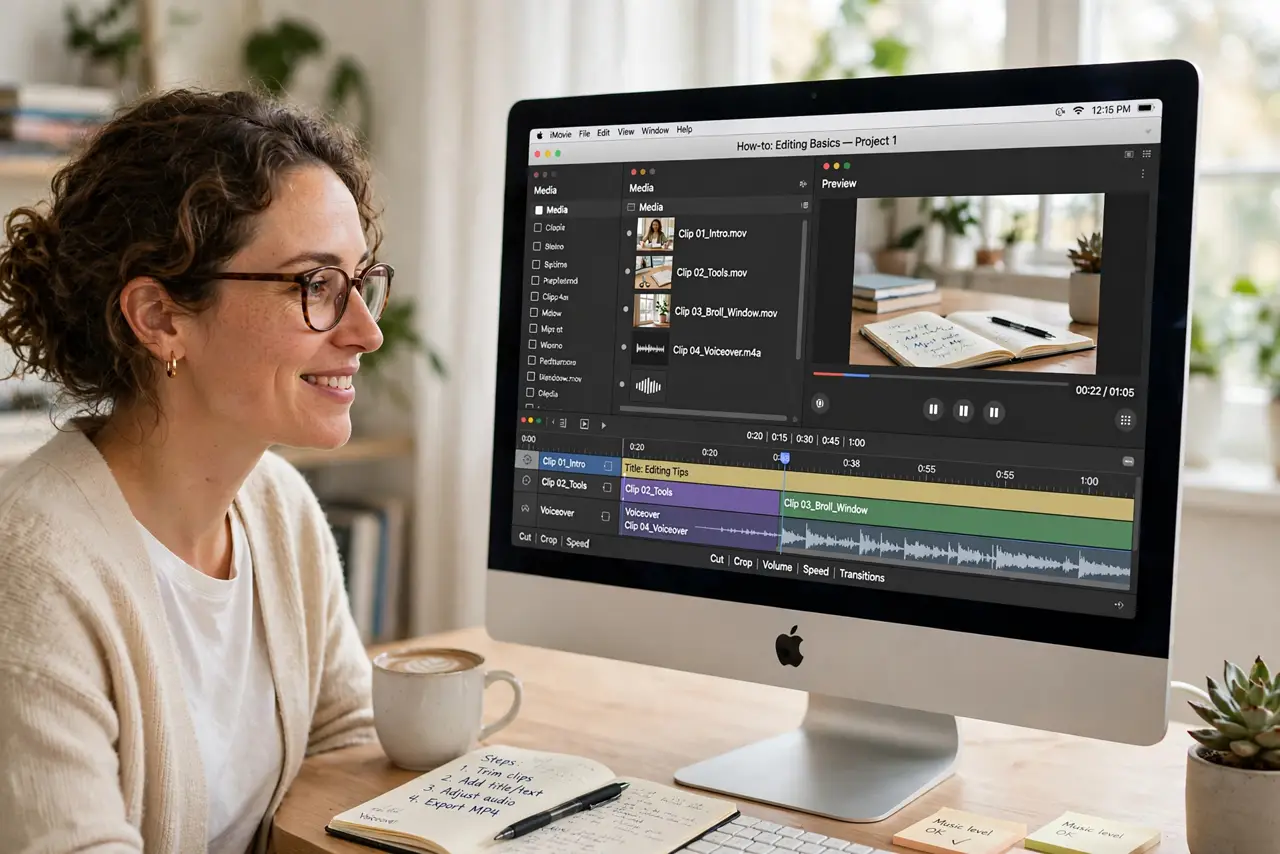
Quick fix: iMovie turns clips into a video with no learning curve — import footage, drag clips to the timeline, trim, add titles, and share. It's free on every Mac and handles 4K. Start with one project; skills transfer to any editor. Do not buy software until iMovie limits you.
Follow these steps
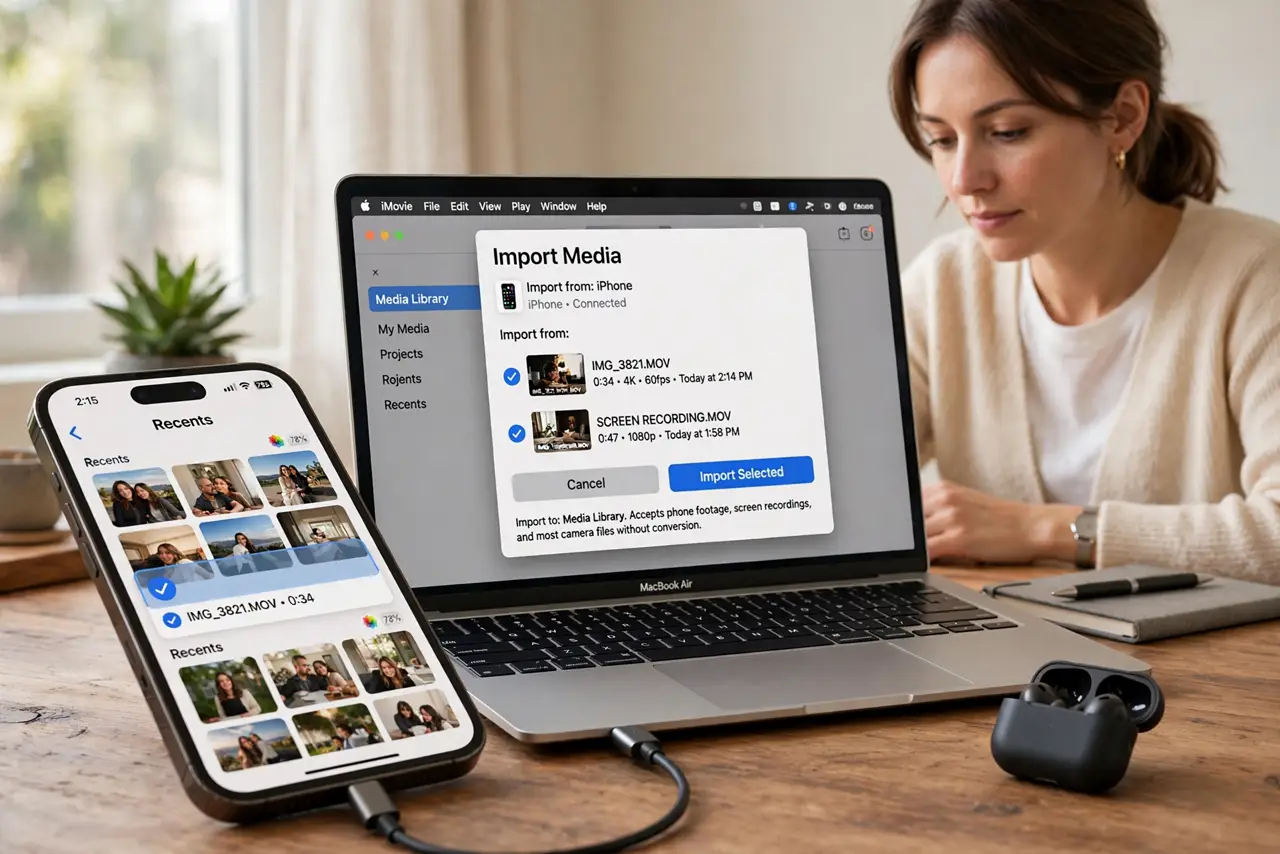
- Import your footage. File > Import Media, or drag clips straight into iMovie's media browser. It accepts phone footage, screen recordings, and most camera files without conversion.
- Build the timeline in order. Drag clips down to the timeline left to right — that is your movie's order. Do not fuss over perfection yet; rough order first, polish later.
- Trim ruthlessly. Drag clip edges to cut dead air, and split clips (Command-B) to remove the middle. Beginners keep too much — if a shot does not add something, cut it.
- Add titles and transitions sparingly. One clean title style, one simple transition (or none). Fancy effects scream beginner louder than plain cuts ever will.
- Fix the audio. Detach background music under dialogue, and use the audio adjustments to level volumes. Bad audio ruins videos faster than bad video — viewers forgive shaky footage, not muffled voices.
- Share it properly. File > Share > File gives you a finished video file. Pick 4K or 1080p depending on where it is going — video platforms handle either, messaging apps prefer smaller.
What NOT to do
- Do not start with a 30-minute project. A 2-minute finished video teaches more than a 30-minute timeline you will never complete.
- Do not drown it in transitions. Star wipes and 3D flips date your video instantly — hard cuts are the professional choice.
- Do not use copyrighted music for anything public. Platforms will mute or claim it — use the built-in soundtracks or royalty-free libraries.
- Do not edit on a nearly full drive. Video eats gigabytes fast; a full disk causes crashes mid-render and corrupted projects.
Frequently asked questions
Is iMovie really free?
Yes — free on every Mac, iPhone, and iPad, no subscription, no watermark. It is the best free editor deal in existence.
Can iMovie handle 4K video?
Yes — it edits and exports 4K on modern Macs. Very old Macs may struggle with playback, but the export still works.
When should I upgrade to Final Cut?
When you consistently hit iMovie's limits: multicam, advanced color, complex audio. Until then, iMovie's ceiling is higher than most beginners think.