Internet Recovery? Basics
Your Mac will not start normally, and the built-in recovery partition is damaged or missing — this is the moment macOS Internet Recovery exists for. Instead of booting from the disk, the Mac downloads recovery tools straight from Apple over Wi-Fi and lets you reinstall macOS or repair the disk. It is slower than normal recovery, but it works when nothing else will.
TL;DR / Quick Fix
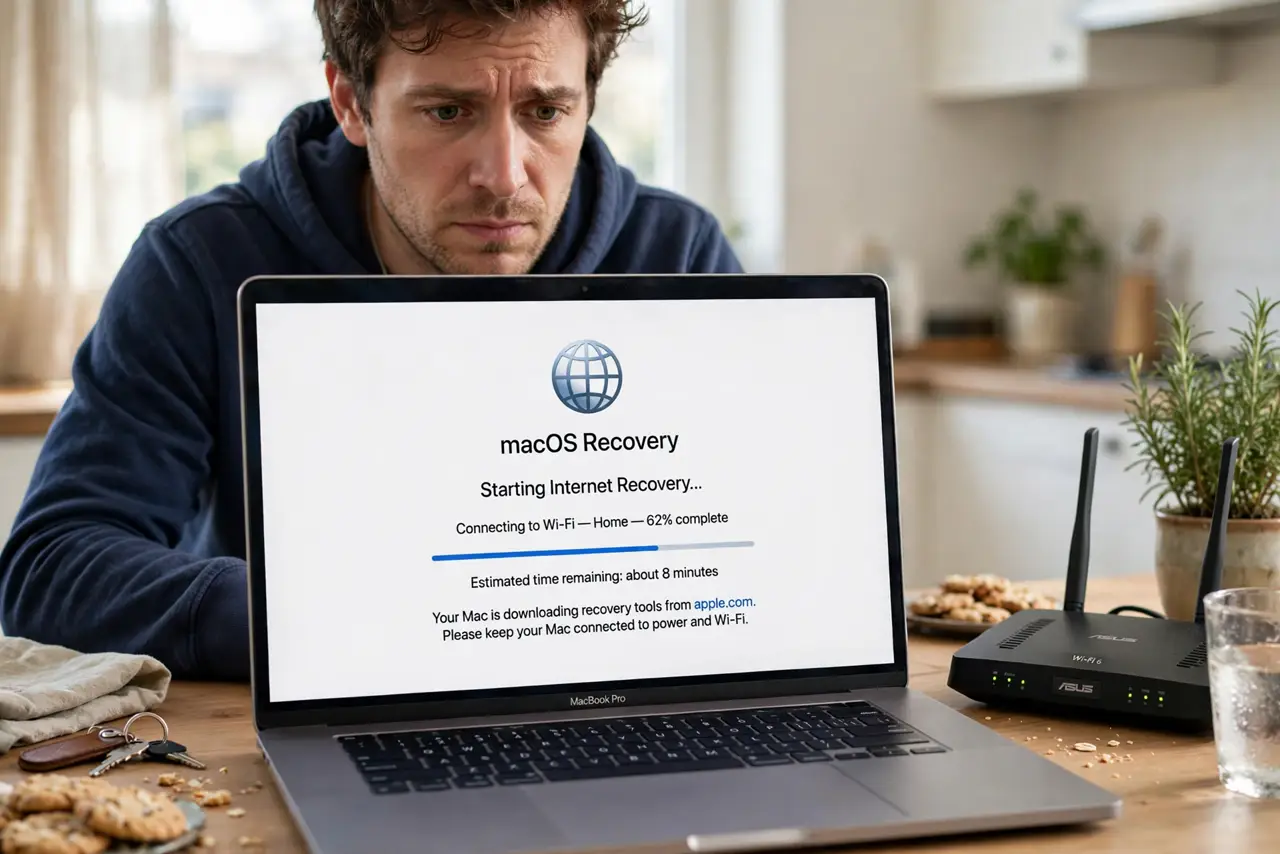
Quick fix: hold Option + Command + R at startup to launch Internet Recovery, which downloads recovery tools from Apple over Wi-Fi. You need a stable connection and patience — the download can take 20 minutes or more. From there you can reinstall macOS or run Disk Utility.
Follow these steps
- Start Internet Recovery with the right keys. Shut the Mac down, then power it on while holding Option + Command + R until you see a spinning globe. (On Apple silicon Macs, hold the power button instead to reach startup options, then pick Options.)
- Connect to reliable Wi-Fi first. The globe screen will ask for a Wi-Fi network and password. Pick your most stable network — a weak connection can stall the download for a long time, and there is no progress resume worth relying on.
- Wait out the download patiently. The progress bar moves slowly and sometimes appears stuck. Give it at least 30 minutes on a decent connection before assuming failure; interrupting it just forces a restart of the download.
- Try Disk Utility before reinstalling. Once recovery loads, open Disk Utility and run First Aid on your drive. A repairable disk problem is far better news than a reinstall, and this check costs you nothing.
- Reinstall macOS without fear of your files. Choosing Reinstall macOS replaces the system, not your documents — but a backup is still wise. If you have no backup, this is the moment to learn the new Mac migration habit for next time.
- Know when Internet Recovery will not help. If the Mac cannot reach Apple's servers (very old models, blocked networks) or the drive itself has failed, the globe just spins forever. A failed drive needs replacement, not recovery.

What NOT to do
- Do not interrupt the globe download because it looks stuck. Slow progress is normal; restarting only begins the download again.
- Do not erase the disk before trying First Aid and reinstall. Erasing is the last resort — most recovery cases do not need it.
- Do not use hotel or captive-portal Wi-Fi. Login-page networks block the download; use a home network or phone hotspot instead.
- Do not assume your files are gone. Internet Recovery is a repair tool, not a deletion tool — your data usually survives a reinstall.
Frequently asked questions
How long does Internet Recovery take?
The download alone runs 15 to 45 minutes on a good connection, plus the repair or reinstall time. Budget an hour and do not rush it.
Will I lose my files if I reinstall macOS?
A standard reinstall keeps your user files and apps. Only the Erase step in Disk Utility wipes the disk — and it warns you clearly first.
What if the globe screen asks for a firmware password?
That means a firmware password was set on this Mac. You will need it to continue — Apple cannot reset it remotely.