Move to a New Mac? Basics
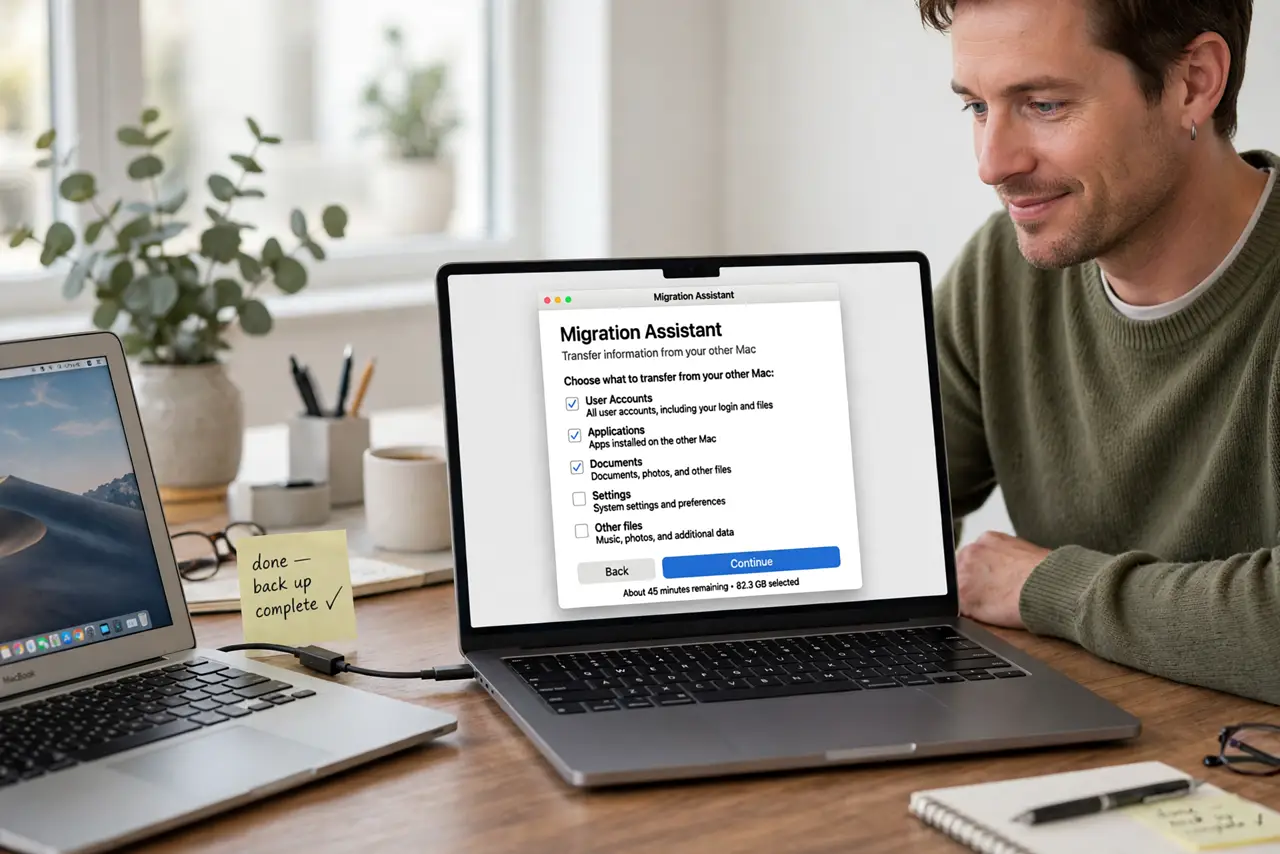
New Mac, old life — Migration Assistant exists so you do not spend a weekend reinstalling everything by hand. It copies your user accounts, apps, documents, and most settings from the old Mac (or a Time Machine backup) to the new one, over Wi-Fi, cable, or Thunderbolt. Done right, the new Mac feels like the old one, only faster.
TL;DR / Quick Fix
Quick fix: use Migration Assistant on the new Mac during setup and point it at the old Mac or a Time Machine backup. A cable connection is far faster and more reliable than Wi-Fi. Let it finish completely — interrupting a migration is the main way things go wrong.
Follow these steps
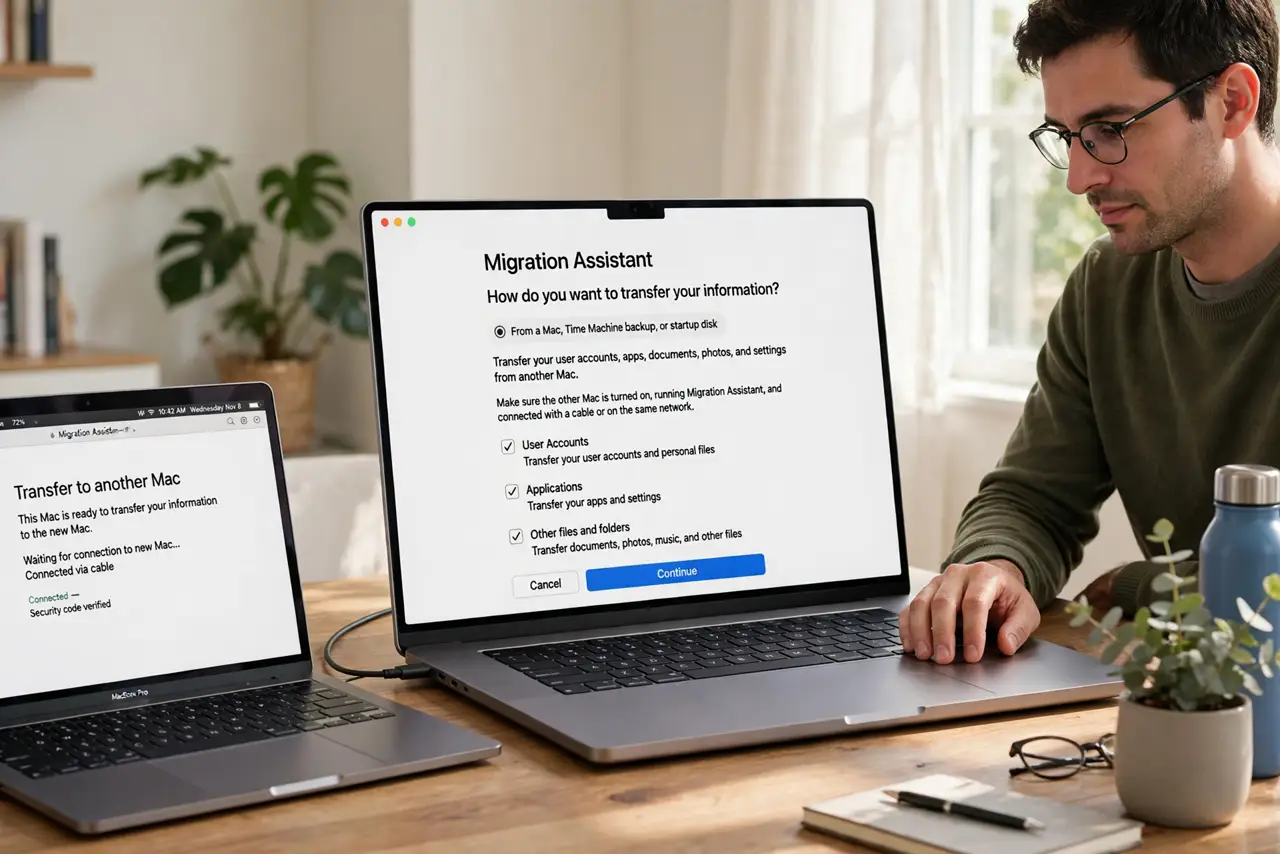
- Start from the new Mac's setup or Utilities. Migration Assistant runs during the new Mac's first setup, or later from Applications, then Utilities. Run it on the new Mac — it pulls from the old one, not the other way around.
- Pick your transfer method. Direct Mac-to-Mac over cable or Thunderbolt is fastest and most reliable. Wi-Fi works but crawls with large photo libraries. A Time Machine backup is the best option if the old Mac is already gone or dead.
- Update both Macs first. Old macOS versions sometimes refuse to talk to new ones. Run software updates on both machines before starting — ten minutes of updating saves hours of failed transfers.
- Let it run to completion. Migrations take anywhere from 30 minutes to several hours. Do not sleep, restart, or unplug either Mac mid-transfer — interruptions corrupt the migration and force a start-over.
- Check the big three afterward. Open your photos, your documents, and your main apps. Migration is excellent but not perfect — verify the irreplaceable stuff before you wipe or sell the old Mac.
- Keep the old Mac for a week. Do not erase or sell the old machine immediately. Live on the new Mac for several days; if something is missing, the old Mac is still there to fetch it from.
What NOT to do
- Do not wipe the old Mac the same day. Live on the new one for a week first — missing items are easy to recover while the old Mac exists.
- Do not migrate over weak Wi-Fi with a huge library. A stalled transfer wastes hours; use a cable or a Time Machine backup instead.
- Do not interrupt the transfer to 'check something.' Pausing or restarting mid-migration is the top cause of corrupted transfers.
- Do not assume every app transfers perfectly. Licensed and very old apps sometimes need reinstalling — check your critical ones before wiping.
Frequently asked questions
Can I migrate from a Time Machine backup?
Yes — it is often the smoothest route. Point Migration Assistant at the backup drive and it restores everything as of the last backup.
How long does a Mac migration take?
From 30 minutes for a light setup to several hours for terabytes of photos and video. Cable beats Wi-Fi by a wide margin.
Will my passwords transfer?
Keychain items usually transfer with your user account. Have your Apple ID password handy regardless — the new Mac will ask for it.