Reinstall macOS Without a Disk
Macs have not shipped with install disks for years — the installer lives in a hidden recovery partition, and if that is damaged you can download macOS straight from the internet instead. This is Internet Recovery, and it works even when the internal drive is blank. Here is how to start it and reinstall cleanly.
TL;DR / Quick Fix
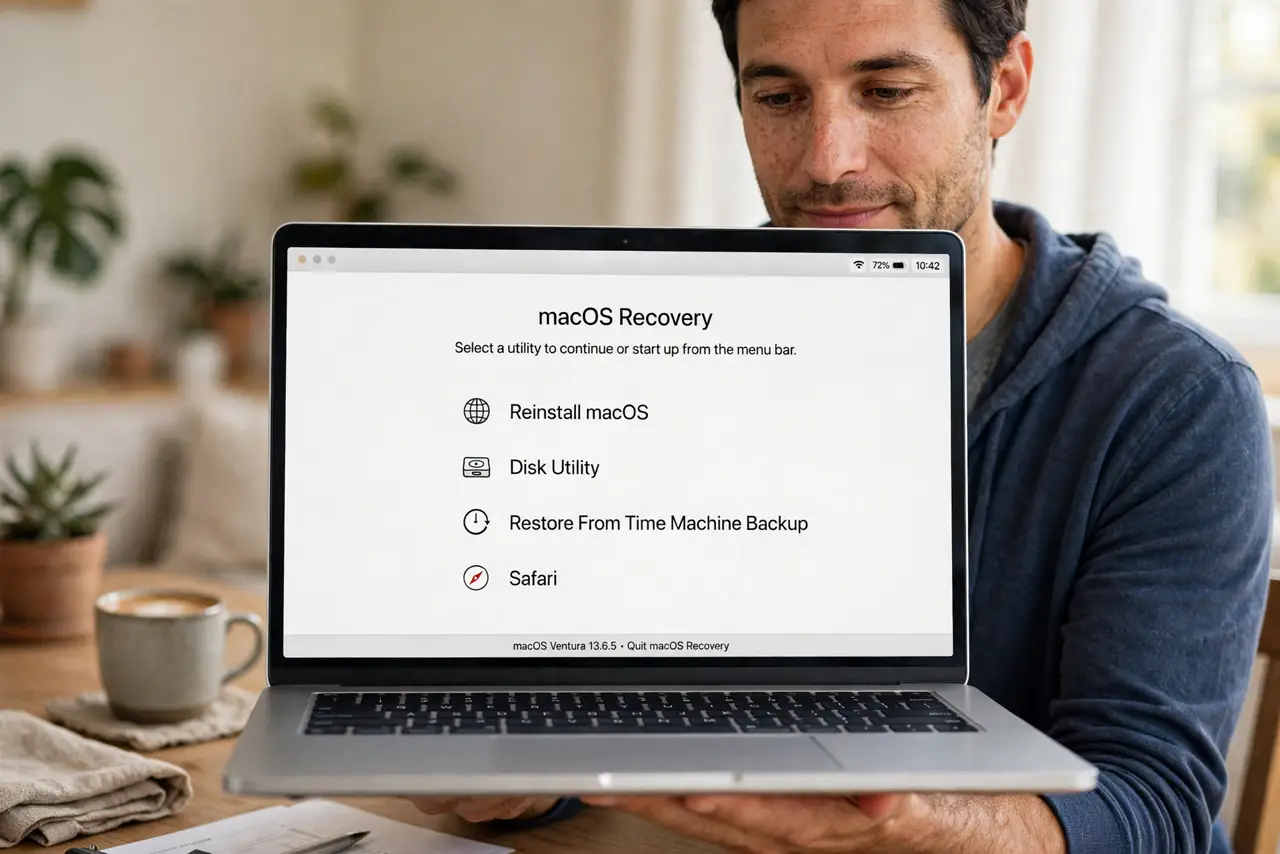
Macs reinstall macOS from a hidden recovery partition or, if that is damaged, from Apple's servers via Internet Recovery. Hold Option-Command-R at startup on Intel Macs (or hold power on Apple silicon), connect to Wi-Fi, and choose Reinstall macOS. Back up first — reinstalling keeps files; a wipe does not.
Follow these steps
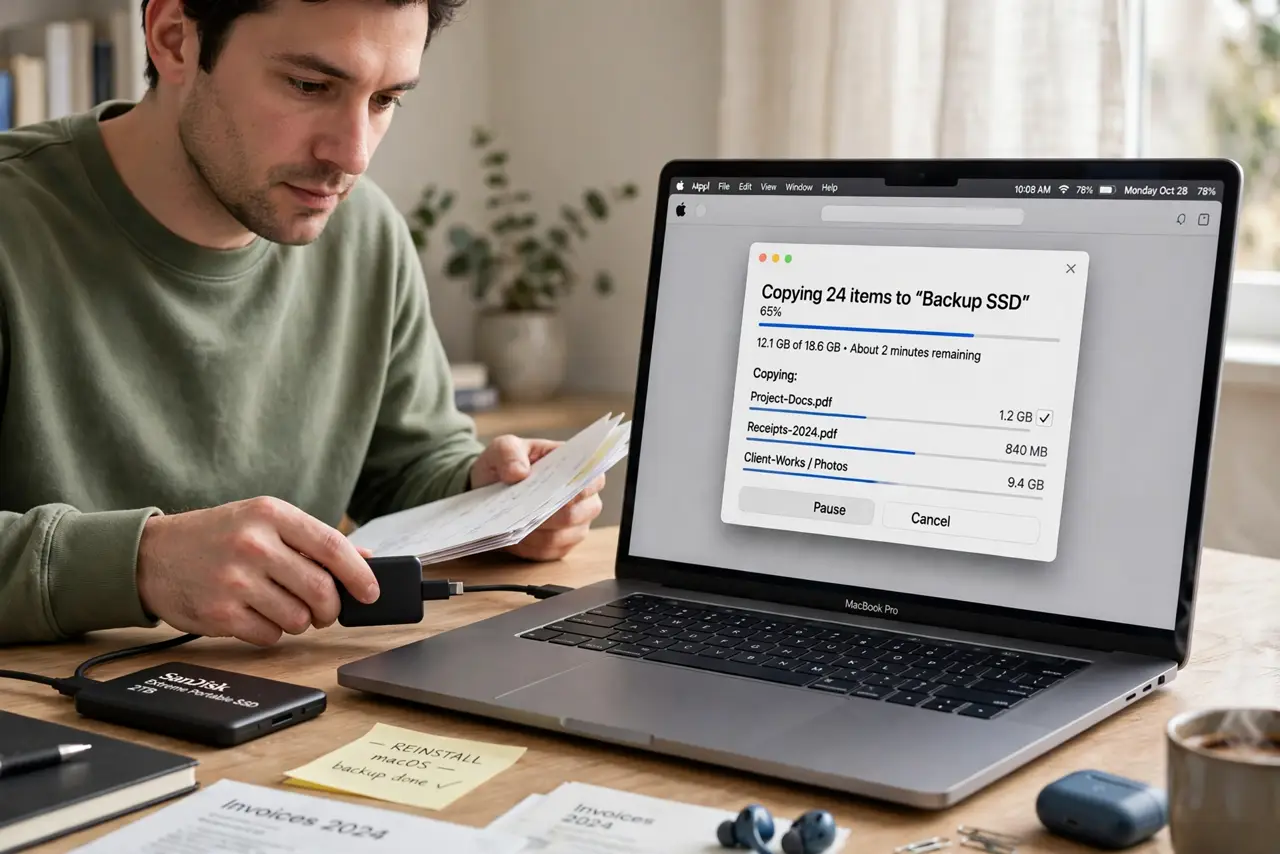
- Back up anything you care about. A standard reinstall keeps your files, but anything can go wrong. Copy important documents to an external drive or cloud storage before you start — ten minutes now beats regret later.
- Start Internet Recovery with the right keys. On an Intel Mac, shut down, then power on while holding Option-Command-R until you see a spinning globe. On Apple silicon, press and hold the power button until startup options appear, then open Recovery. The standard Recovery Mode keys differ slightly, so use the globe version when the local partition is suspect.
- Connect to Wi-Fi when prompted. Internet Recovery downloads the installer from Apple, so it needs a network. Choose your Wi-Fi network and enter the password — a slow connection just means a longer wait, not a failure.
- Open Disk Utility if the drive misbehaves. If the installer cannot see your drive, open Disk Utility from the Recovery menu and check whether the disk appears. A missing disk can mean hardware trouble rather than a software problem.
- Choose Reinstall macOS and follow the prompts. Select Reinstall macOS from the utilities window, pick your startup disk, and let it download and install. The Mac may restart several times — that is normal.
- Set up as new or restore from backup. After installation, either sign in and restore from your backup or set up as a fresh Mac. Verify your files and apps before wiping the old backup drive.
What NOT to do
- Do not interrupt the download or install. Power loss mid-reinstall can leave the Mac unbootable — use a charger and a stable connection.
- Do not confuse a reinstall with an erase. Reinstall keeps your data; Erase in Disk Utility wipes everything. Read the button before you click it.
- Do not use Internet Recovery on metered or hotel Wi-Fi if you can avoid it. The download is many gigabytes; a phone hotspot can burn through a data plan fast.
- Do not forget your Apple ID password. Activation Lock can ask for it after a reinstall — sort that out before you wipe anything.
Frequently asked questions
How long does Internet Recovery take?
The download alone can take 30 minutes to a few hours depending on your connection, plus install time. Plan for an unhurried afternoon.
Will reinstalling delete my files?
A plain Reinstall macOS preserves user data. Only Disk Utility's Erase (or choosing to erase during setup) deletes files — they are different operations.
What if the globe never appears?
On very old Macs the key combo may differ, and on Apple silicon the process uses the power-button hold instead. Check the key combination for your specific model year.