Use Your iPhone as a Webcam?
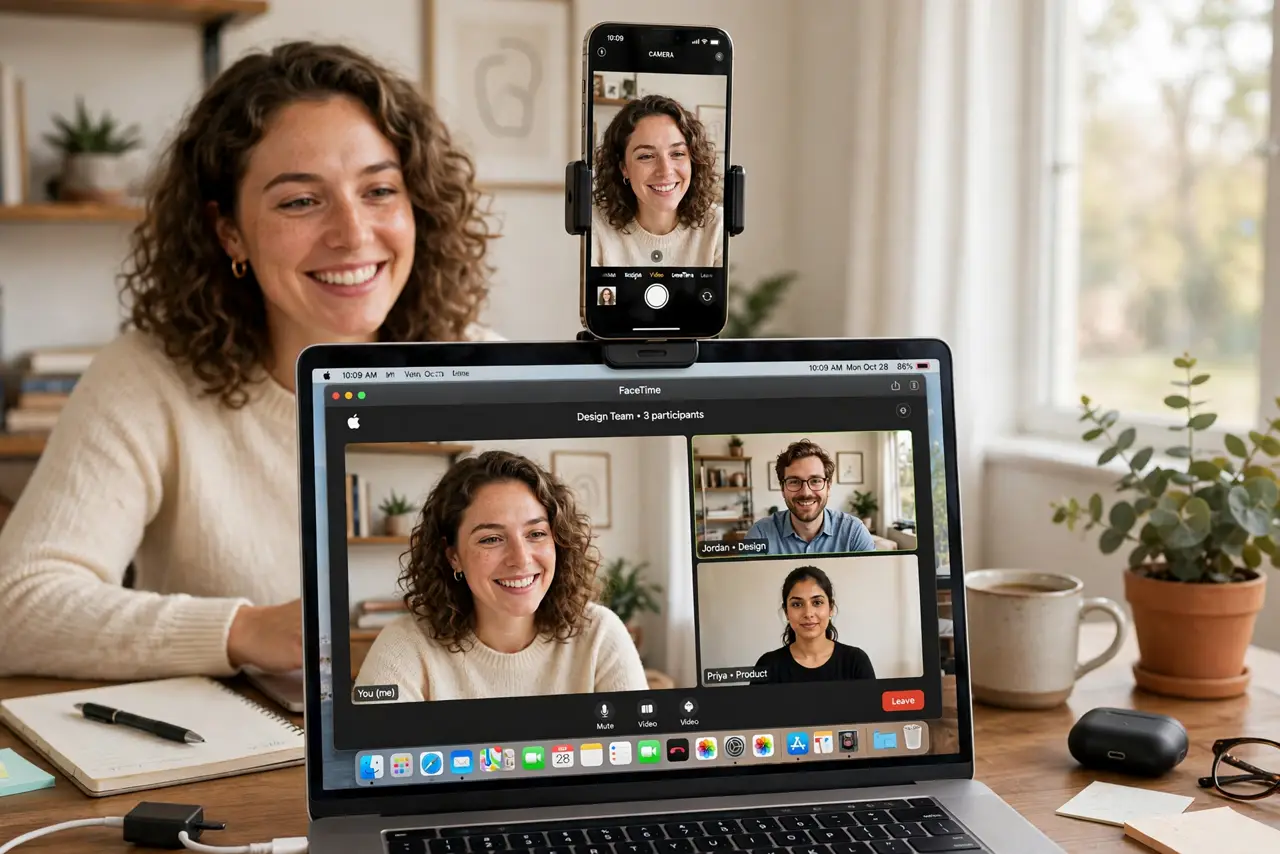
Your MacBook's webcam is fine, but your iPhone's cameras are dramatically better — sharper, better in low light, with portrait blur. Continuity Camera turns your iPhone into a wireless Mac webcam automatically, no apps or cables needed. If your video calls could look better, this is the easiest upgrade there is.
TL;DR / Quick Fix
Quick fix: mount your iPhone near the top of your Mac, make sure both are on the same Wi-Fi with Bluetooth on, and pick your iPhone as the camera in your video app's settings. It connects automatically — no pairing dance. Your calls instantly look sharper with better low-light performance.
Follow these steps
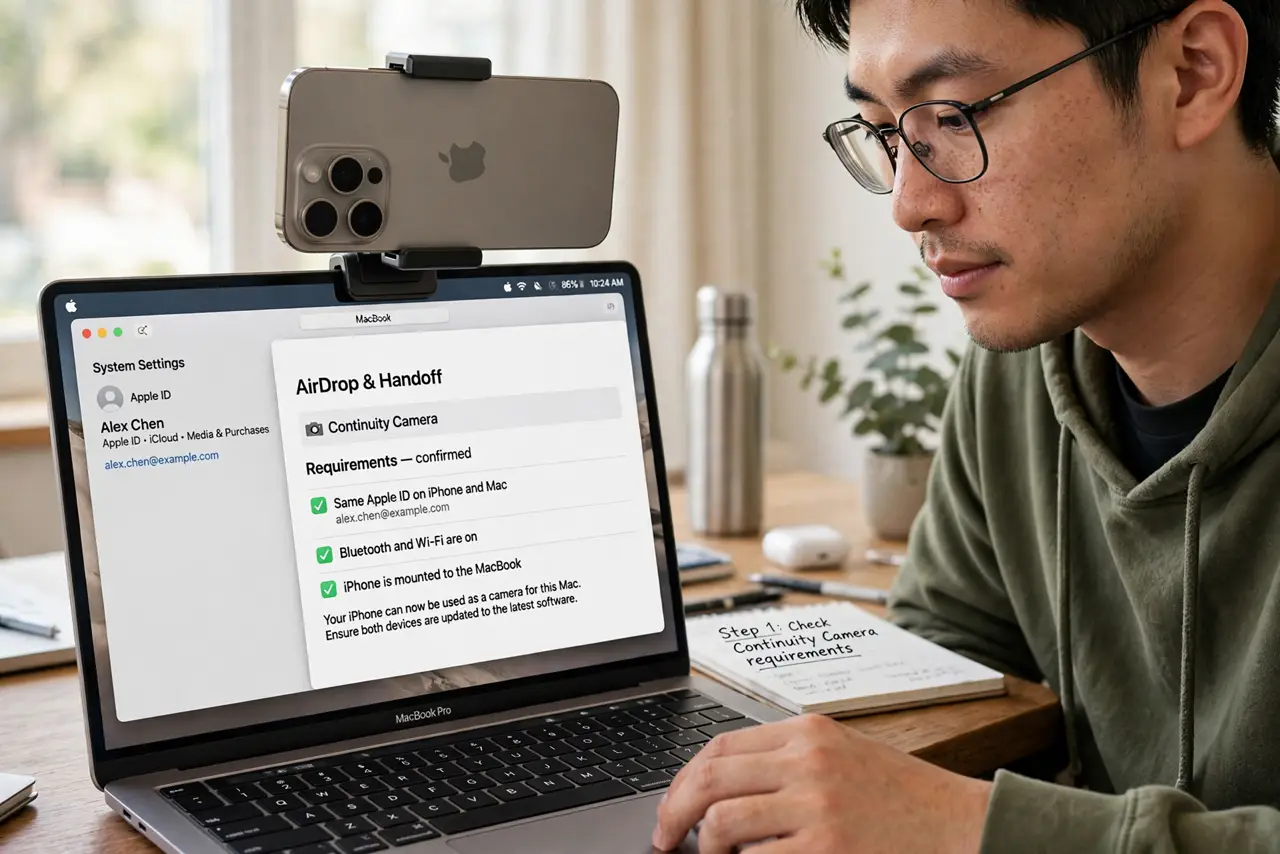
- Check the requirements. You need a recent iPhone and Mac on the same Apple ID, with Wi-Fi and Bluetooth on. Most hardware from the last several years qualifies — update both devices if the option doesn't appear.
- Mount the iPhone. Clip it to the top of your Mac's display with a MagSafe mount, or prop it nearby facing you. Position matters more than anything — eye-level, facing a light source, not a window behind you.
- Select it in your video app. In Zoom, Meet, or FaceTime settings, choose your iPhone as the camera. The Mac hands off automatically in most apps; see connection troubleshooting if it doesn't appear.
- Try Desk View and portrait. Continuity Camera offers Desk View (a top-down of your desk) and portrait blur. Desk View is brilliant for demos; portrait blur flatters terrible backgrounds — see the Desk View guide for setup.
- Keep the iPhone charged. Wireless camera use drains the battery steadily. Plug the iPhone into power during long calls — a dead camera mid-meeting is worse than the built-in one.
- Know when the built-in wins. For quick calls, the built-in camera's convenience beats the iPhone's quality. Save Continuity Camera for important meetings, interviews, and recordings where you want to look your best.
What NOT to do
- Do not mount it where it overheats. Direct sun plus camera streaming cooks iPhones — shade the phone or expect thermal throttling mid-call.
- Do not forget it's still your phone. Calls and notifications can interrupt the camera feed — enable Do Not Disturb on the iPhone during important meetings.
- Do not use it across the room. Continuity Camera needs the iPhone close to the Mac — Bluetooth range limits apply, so keep them near each other.
- Do not ignore the mic choice. The iPhone's mics are good, but a dedicated headset still beats any camera mic for call audio — see webcam audio basics for the full picture.
Frequently asked questions
Why isn't my iPhone showing as a camera?
Usually Wi-Fi/Bluetooth mismatch, different Apple IDs, or outdated software. Walk through the connection checklist step by step.
Can I use the rear cameras?
Yes — and you should. The rear cameras are far better than the front one; most mounts position the rear cameras facing you automatically.
Does it work with Windows?
Not natively — Continuity Camera is Apple-only. Windows users need third-party apps to use an iPhone as a webcam.