Mirror Your iPhone on the Mac
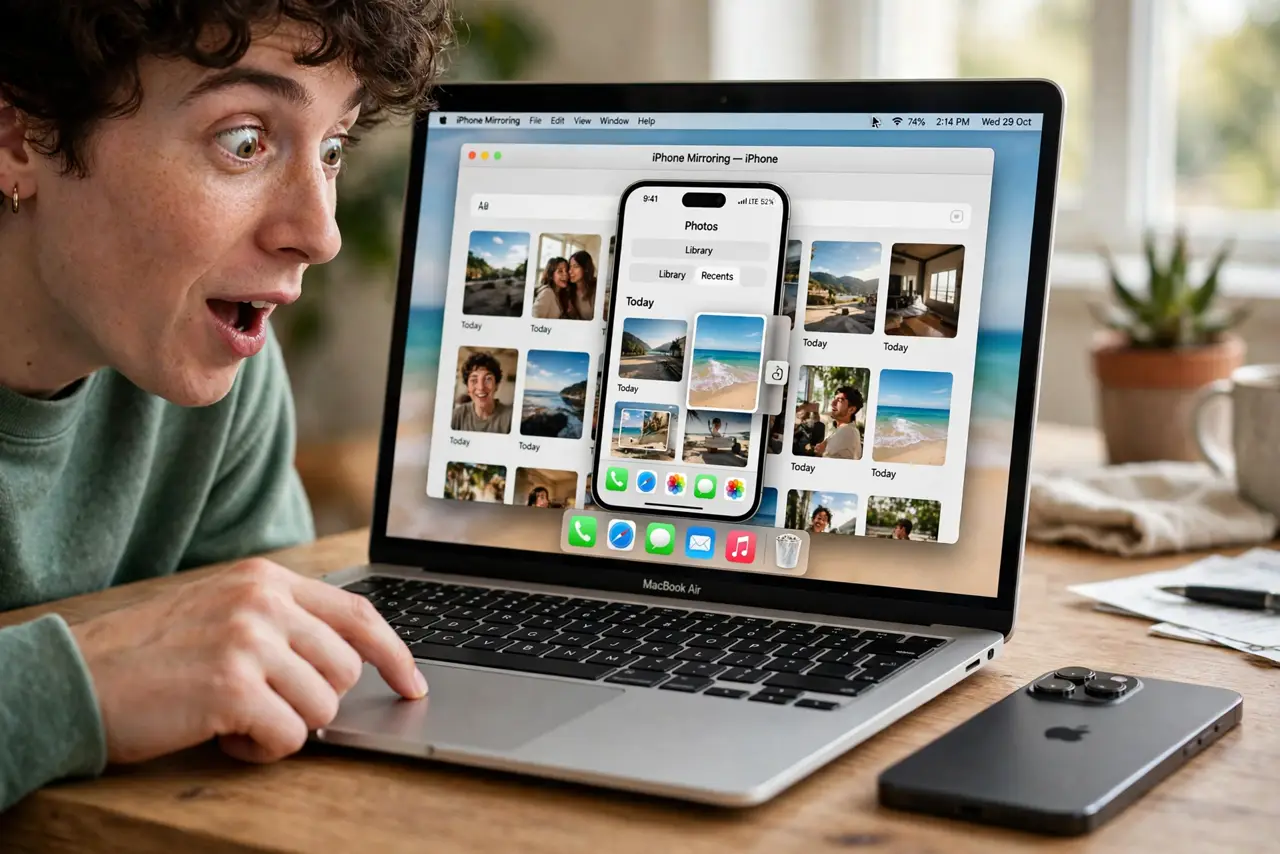
Your iPhone's screen, live on your Mac — readable, clickable, fully usable while the iPhone itself stays locked. iPhone Mirroring arrived with macOS Sequoia and iOS 18, and it is genuinely useful for demos, typing long messages, and dragging files. The requirements are strict but short.
TL;DR / Quick Fix
Quick fix: you need a Mac with Apple silicon or T2 on macOS Sequoia or later and an iPhone on iOS 18 or later, both on the same Apple ID, with Wi-Fi and Bluetooth on and the devices nearby. Open iPhone Mirroring on the Mac and follow the prompts.
Follow these steps
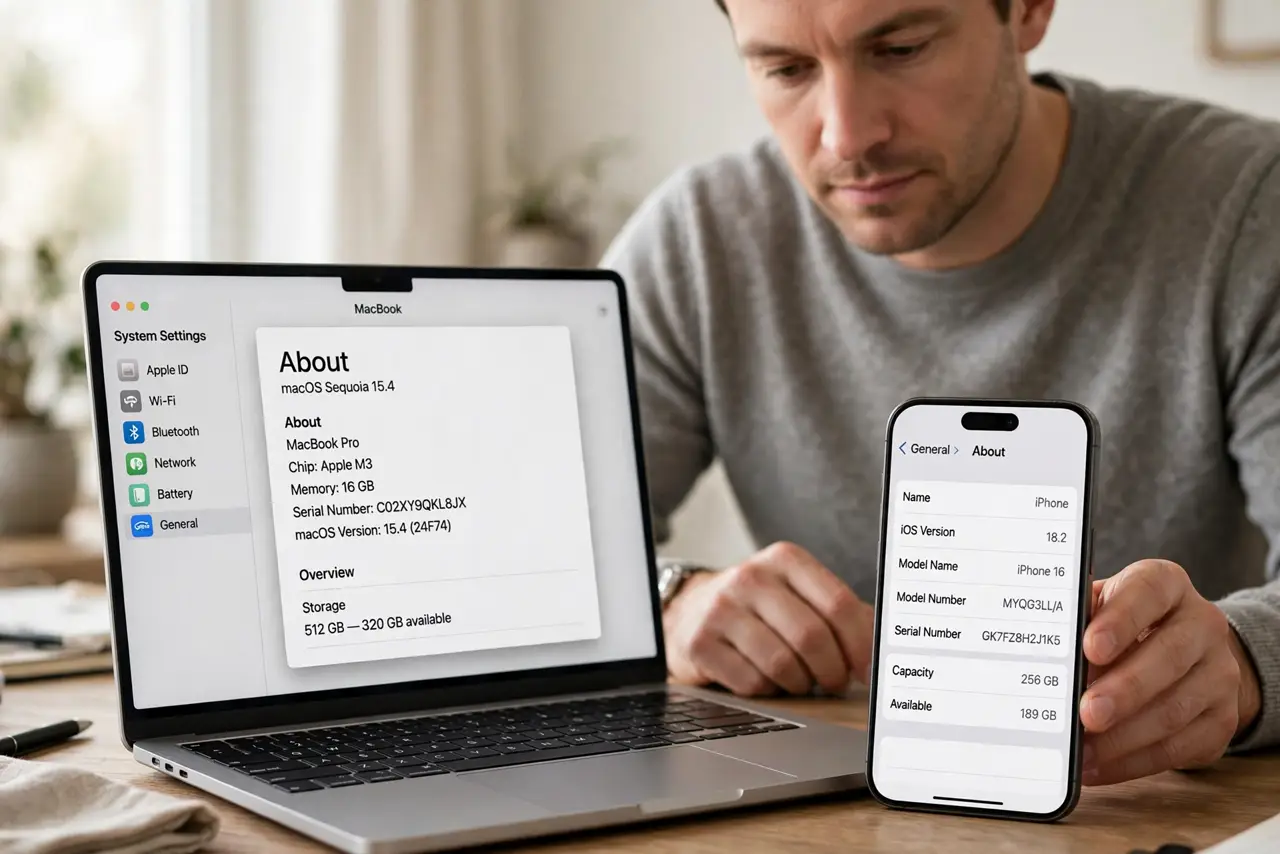
- Check the hardware and software floor. Mac: Apple silicon or T2 chip, macOS Sequoia or later. iPhone: iOS 18 or later. Anything older does not get the feature at all.
- Sign both into the same Apple ID. Two-factor authentication must be on. Mirroring is a trusted-device feature — different accounts are a hard stop.
- Turn on Wi-Fi and Bluetooth, keep them close. The iPhone must be nearby and locked. Unlocking or moving it away pauses the mirror — that is by design.
- Open iPhone Mirroring on the Mac. Find it in the Dock or Applications. First launch walks through authentication — approve on the iPhone when asked.
- Allow it to connect automatically. After the first approval, choose to allow automatic connection. Future sessions start with one click instead of a fresh approval dance.
- Learn the edges: drag and type. You can drag files between the mirror and the Mac, and type with the Mac keyboard. Notifications from the iPhone can appear on the Mac too — tame them if they get noisy.
What NOT to do
- Do not unlock the iPhone mid-session and wonder why it paused. A locked, nearby iPhone is a requirement, not a suggestion.
- Do not expect it over long distances. Walk to the next room and the mirror drops — proximity is part of the security model.
- Do not use it for DRM video. Protected content like streaming apps shows a black screen in the mirror — that is intentional.
- Do not forget the iPhone is still usable. Calls and alarms ring through normally; the mirror just pauses while you answer.
Frequently asked questions
Why does it ask for authentication every time?
You skipped the automatic-connection approval on first launch. Remove the device from the mirroring settings and re-add it, choosing automatic this time.
Can I mirror two iPhones to one Mac?
No — one iPhone at a time. Switch devices by disconnecting the first.
Does it work with the iPhone in another room?
Briefly, maybe — but it is designed for nearby use and drops quickly with distance or walls.