iPhone Lock Screen Widgets Blank? Fix Them
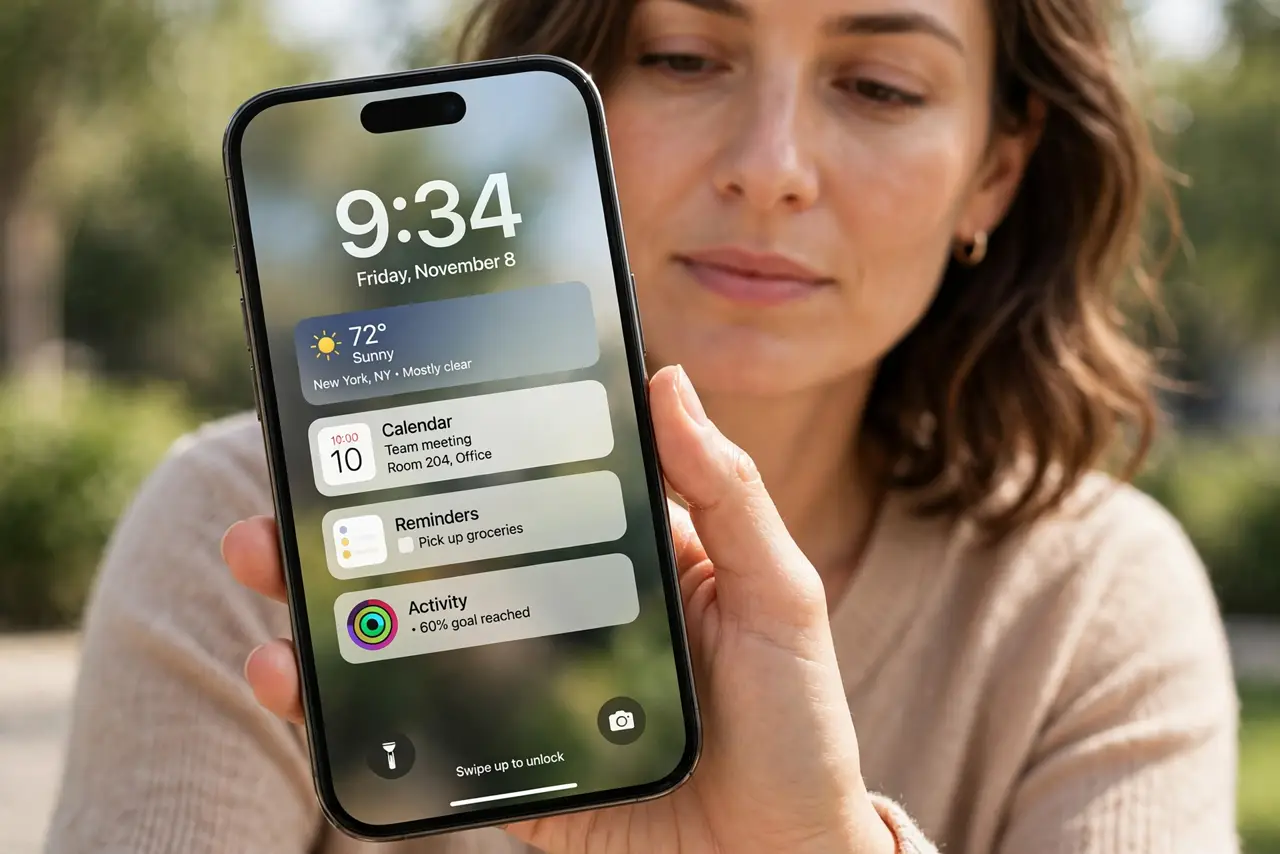
Lock Screen widgets show empty boxes or dashes instead of weather, calendar, or battery details. The widget is usually waiting on permission, on the app, or on a Focus-linked Lock Screen that hides it.
TL;DR / Quick Fix
Quick fix: unlock the phone, open the app behind the widget, and confirm it shows fresh data. If it does, remove the blank widget from the Lock Screen and add it again, then check the app permissions. Write down what worked for next time.
Follow these steps
- Open the app first. Unlock the phone and open the app behind the blank widget. If the app itself is empty or signed out, the widget has nothing to show, so fix the app first.
- Remove and re-add the widget. Touch and hold the Lock Screen, tap Customize, and remove the blank widget, then add it again. A fresh widget often fixes a widget that stopped loading.
- Check the app permissions. Open Settings, find the app, and confirm the permissions it needs, such as location for weather or calendar access, are allowed. A widget cannot show data the app is not allowed to read.
- Check the Focus-linked Lock Screen. If the blank widget appears only under one Focus, that Focus may use a different Lock Screen. Open Settings, then Focus, and check which Lock Screen each Focus uses.
- Update the app and iOS. Update the app in the App Store and check for an iOS update in Settings, then General, then Software Update. Widget problems are often fixed in app or system updates.
- Restart and wait a few minutes. Restart the iPhone, lock it, and wait a few minutes before checking. Widgets can take a short while to load fresh data after a restart.
What NOT to do
- Do not remove every widget at once. Fix one blank widget first, so you learn whether the cause is the widget, the app, or the Lock Screen.
- Do not sign out of the app as a first step. Signing out can hide more data and adds a sign-in problem on top of a widget problem.
- Do not assume the widget is broken when the app is signed out. Open the app and sign in first, then check the widget again.
- Do not keep adding the same widget repeatedly. If a fresh widget stays blank, the cause is permission or the app, not the widget itself.
Frequently asked questions
Why is my Lock Screen widget blank but the Home Screen one works?
The Lock Screen widget may be on a different Lock Screen, or its permissions differ. Re-add it on the Lock Screen you actually use.
Do widgets need location permission?
Only widgets that show location-based data, like weather, need it. Calendar widgets need calendar access instead.
How long should I wait after a restart?
Give widgets a few minutes after a restart. They load fresh data in the background and may stay blank briefly.