Mac Keyboard Layout Changed? Restore Your Layout
After an update, familiar keys type the wrong characters, and typing feels broken. The update likely changed or reordered your input sources. Reselect your layout, remove extras, and test the moved keys.
TL;DR / Quick Fix
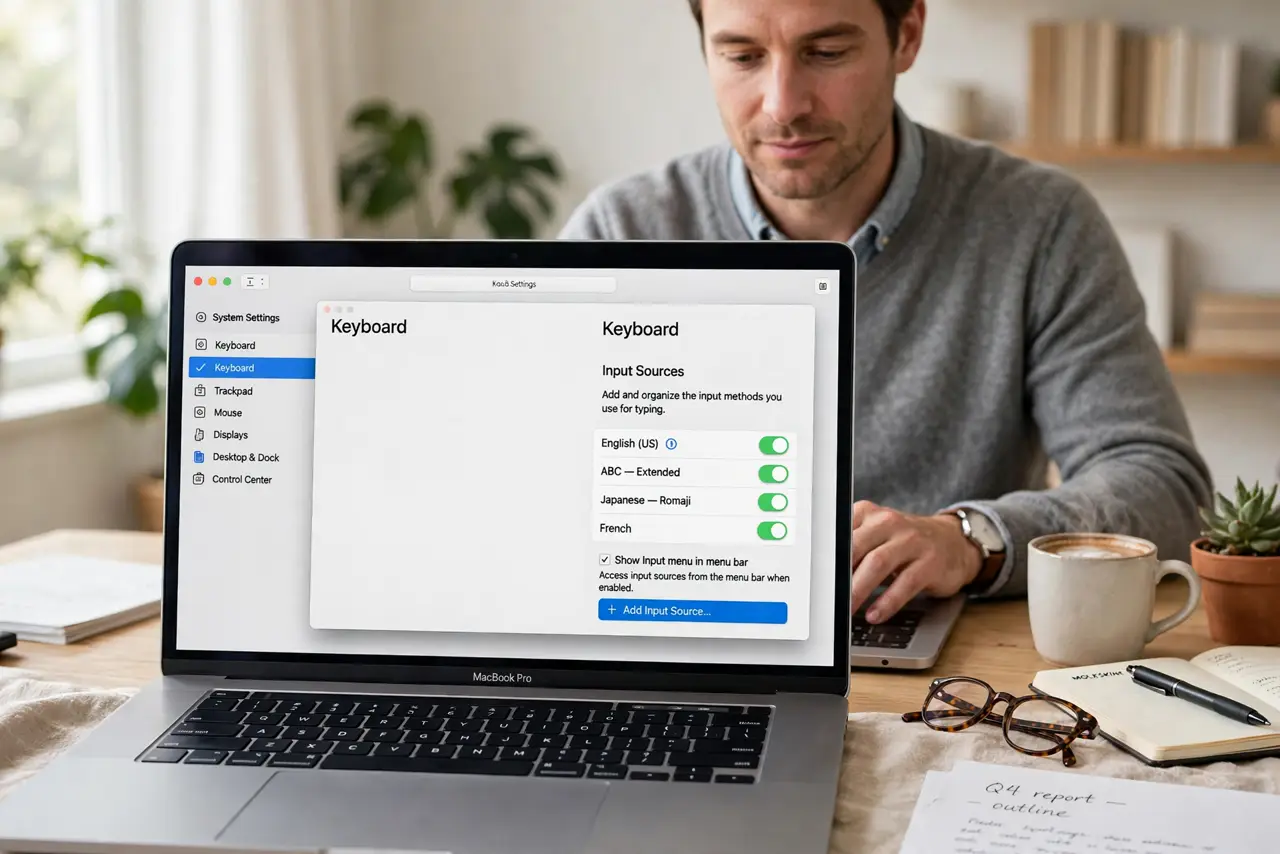
Quick fix: open System Settings, then Keyboard, then Input Sources, and select your usual layout. Remove layouts you do not use, then type a test sentence with symbols and accents. Then test the fix for a full day before changing anything else.
Follow these steps
- Open Input Sources. Open System Settings, then Keyboard, then Input Sources, and look at the list. Your usual layout should be there, possibly below a new default.
- Select your usual layout. Click your normal layout to make it active. Type a few symbols, such as @ and #, to confirm the keys now match your keyboard.
- Remove layouts you do not use. Select each extra layout and remove it, keeping only the ones you actually type with. Fewer layouts means fewer accidental switches.
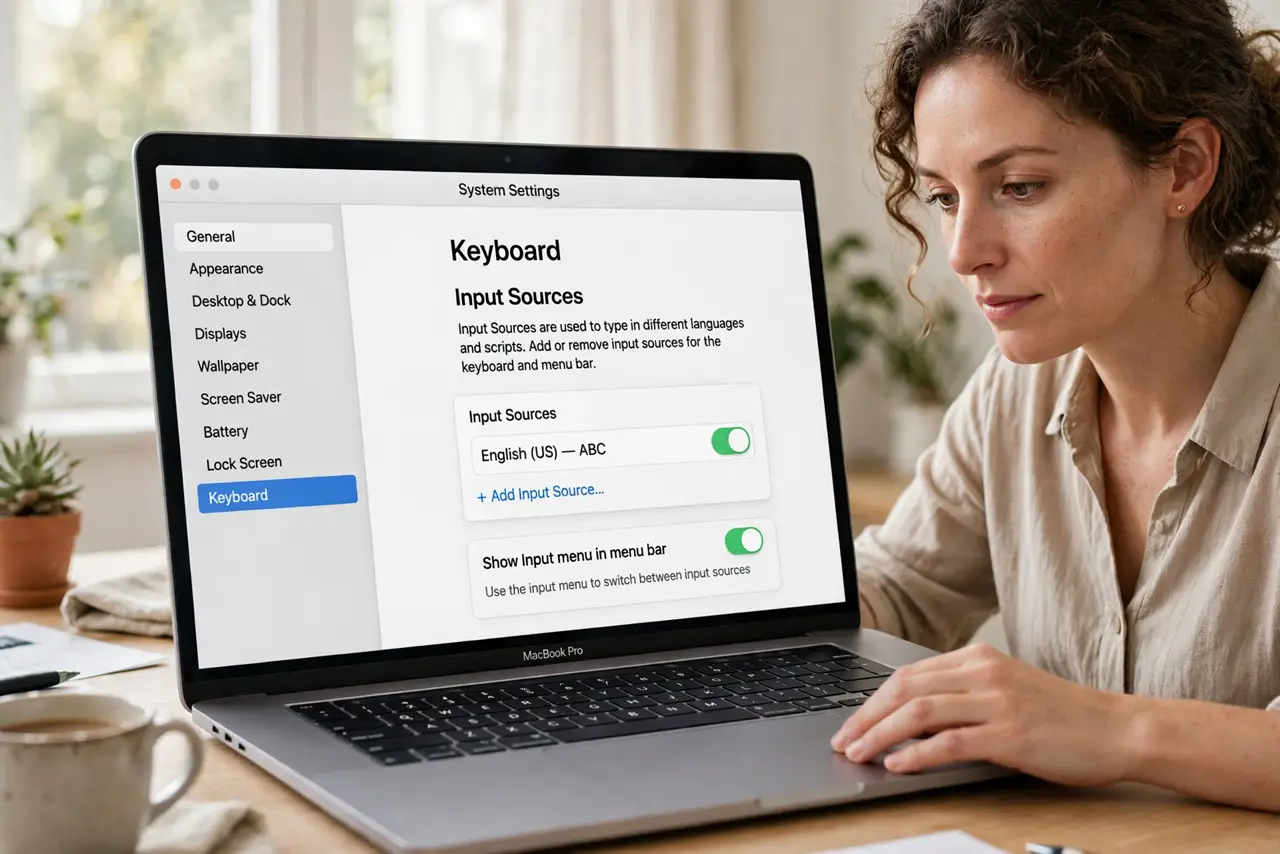
- Check the input menu. Turn on Show Input menu in menu bar if it is off, so you can see which layout is active. A visible menu prevents silent layout switches.
- Test after a restart. Restart the Mac and type the same test sentence. If the layout holds after restart, the fix is complete; if not, repeat the selection.
- Check for a stuck layout shortcut. If the layout still switches, check Keyboard Shortcuts for the input source shortcut. You may be switching layouts by accident while typing.
What NOT to do
- Do not buy a new keyboard for a layout change. The physical keyboard is fine; the software layout is what moved.
- Do not remap keys one by one to compensate. Fixing the layout itself is faster and avoids a confusing custom map.
- Do not keep every layout installed just in case. Extra layouts are the main cause of accidental switches.
- Do not ignore the input menu. Without it, you cannot tell at a glance which layout is active when keys feel wrong.
Frequently asked questions
Why did an update change my layout?
Updates can reset or reorder input sources. Reselecting your layout and removing extras restores normal typing.
What if symbols still type wrong?
You may still be on the wrong layout. Check the input menu and select your layout again, then retest symbols.
How do I stop accidental layout switches?
Remove unused layouts and check the shortcut that switches input sources, so typing does not trigger a change.