Create Custom Shortcuts
You open the same menu item fifty times a day — Export, Duplicate Tab, whatever your workflow demands — and clicking through menus each time is death by a thousand cuts. macOS lets you assign your own keyboard shortcuts to any menu item in any app. This guide creates shortcuts that stick, avoids conflicts, and backs them up. For pointer-side customization, tune trackpad clicks next.
TL;DR / Quick Fix
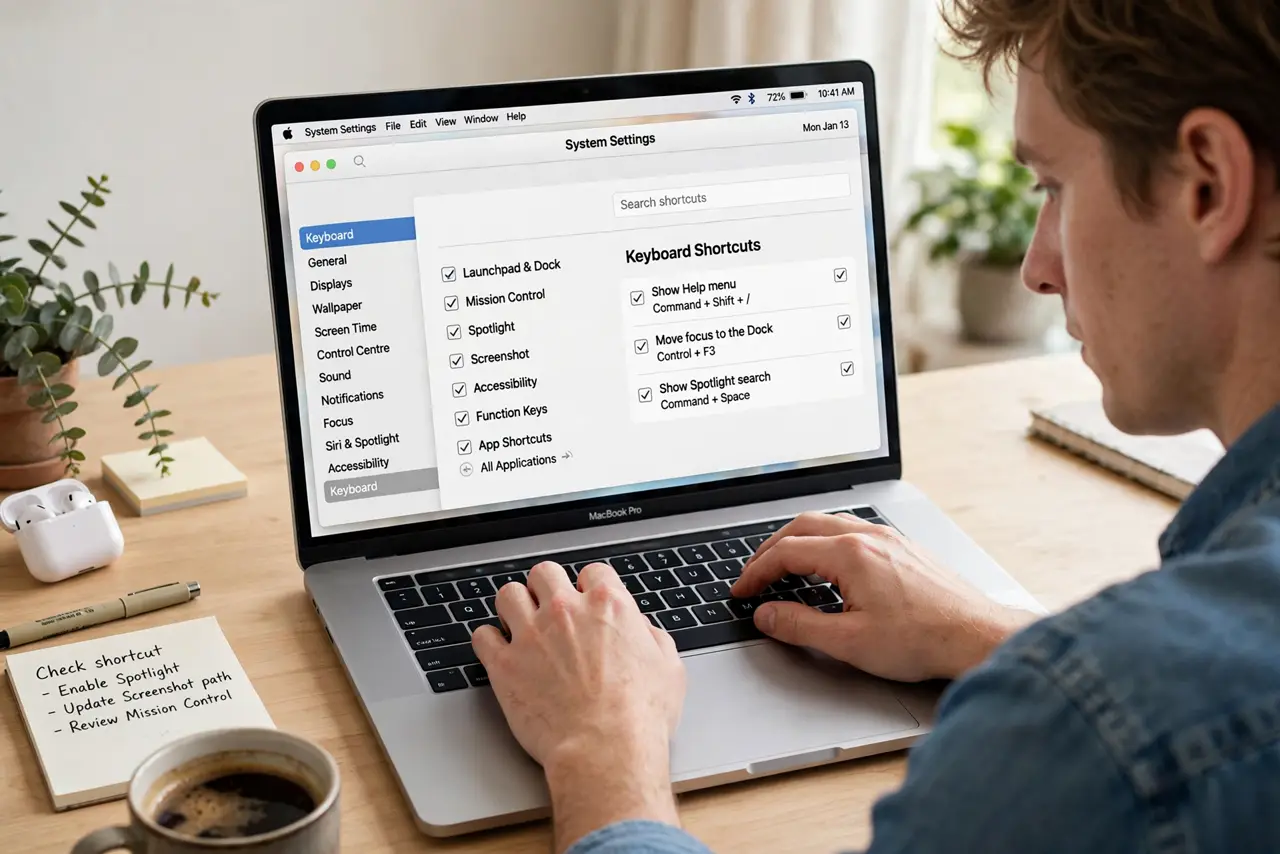
Quick fix: open System Settings, go to Keyboard, then Keyboard Shortcuts, then App Shortcuts, and add the exact menu item name with your chosen keys. Type the menu name precisely — capitalization matters. Test immediately; conflicts with existing shortcuts fail silently.
Follow these steps
- Open App Shortcuts. Go to System Settings, then Keyboard, then Keyboard Shortcuts, then App Shortcuts. This is where custom menu shortcuts live for all apps or specific ones.
- Add the exact menu title. Click the plus, choose the app (or All Applications), and type the menu item's name exactly as it appears — capitalization and punctuation must match, or the shortcut will not attach.
- Choose non-conflicting keys. Pick a combination the app does not already use. Command-Option-Control plus a letter is usually free; plain Command letters are almost all taken.
- Test it immediately. Open the app and try the shortcut. If nothing happens, the menu name is slightly off — open the menu and copy the title character for character.
- Scope it per app when needed. The same keys can do different things in different apps. Create app-specific shortcuts rather than global ones when workflows differ.
- Keep a cheat sheet. Custom shortcuts are invisible to future-you. A note with your ten most-used ones, pinned where you can see it, turns them into habit.
What NOT to do
- Do not mistype the menu name. 'Export…' with the ellipsis character is different from 'Export' — precision is everything here.
- Do not override universal shortcuts lightly. Stealing Command-S for something exotic will confuse every app and every guest user.
- Do not create dozens at once. Five well-chosen shortcuts beat fifty forgotten ones — add them as the need proves itself.
- Do not forget shortcuts are per-user. They do not transfer to a new Mac unless you migrate settings — keep that cheat sheet.
Frequently asked questions
Why does my shortcut not work?
Nine times out of ten, the menu title does not match exactly. Check for trailing ellipses, capitalization, and extra spaces.
Can I change built-in shortcuts?
For many system functions, yes, in the same Keyboard Shortcuts pane under other categories. App menu shortcuts are the most useful custom ones.
Do these sync to my other Macs?
Only with full settings sync, which is unreliable for this. Treat each Mac's shortcuts as its own setup.