Turn On Live Captions on Mac
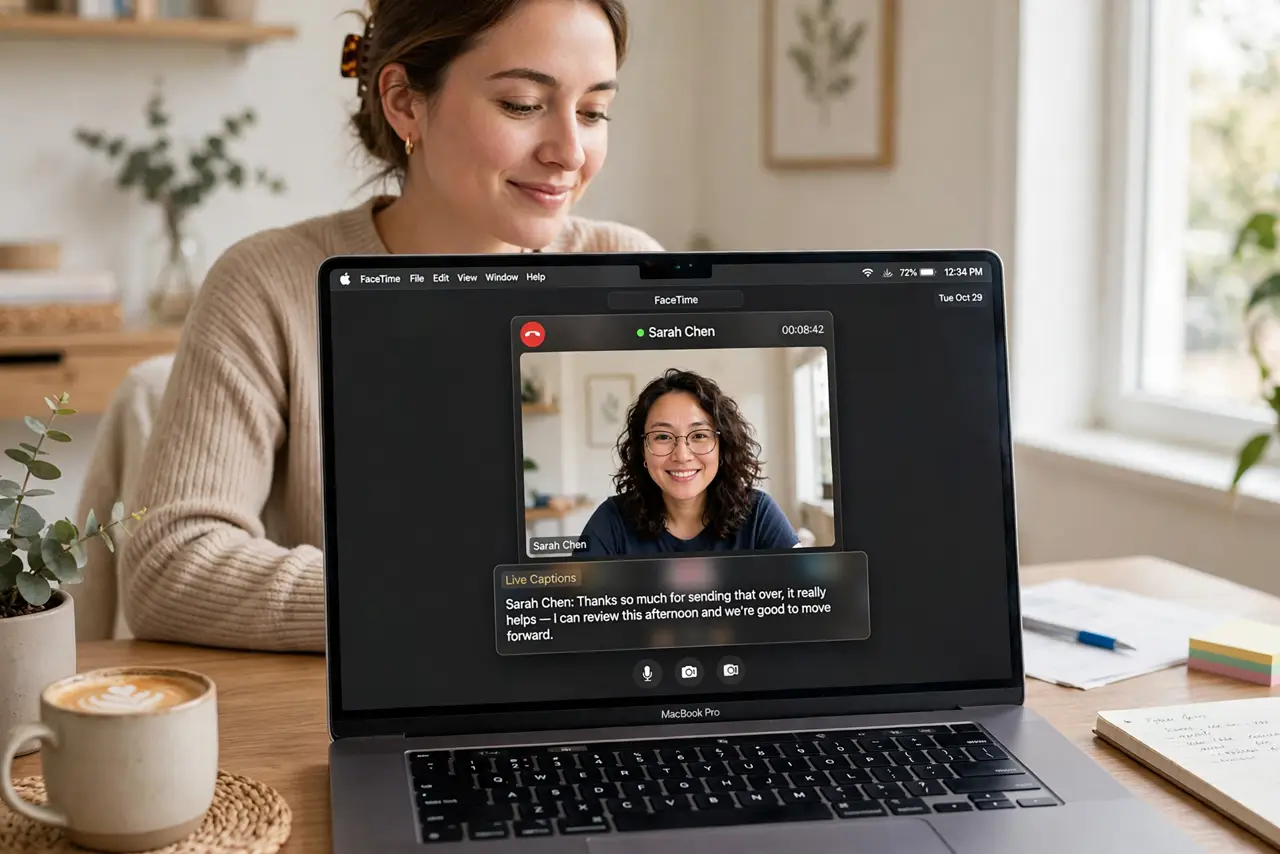
You're on a call in a noisy room — or a quiet one where you can't unmute — and you need to read what's being said. macOS has system-wide Live Captions that transcribe any audio on your Mac in real time, in a little window you can park anywhere. Here's how to switch them on.
TL;DR / Quick Fix
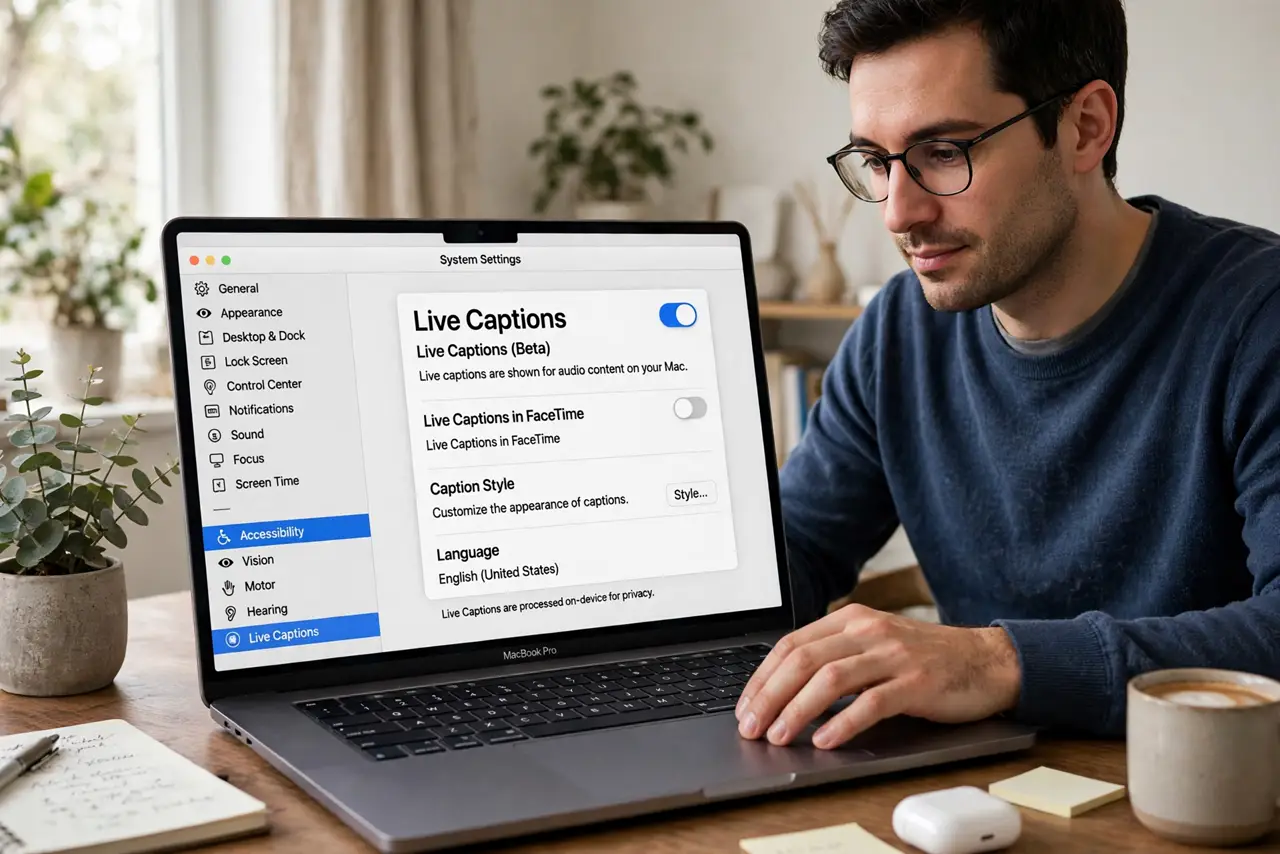
Quick fix: open System Settings, go to Accessibility, and turn on Live Captions. Captions appear in a small movable window for calls, videos, and anything playing audio — processed on your Mac, not sent anywhere. Drag the window where it won't cover faces, and pick your language.
Follow these steps
- Open System Settings to Accessibility. Apple menu, System Settings, then Accessibility in the sidebar. Live Captions lives here alongside the Mac's other hearing features.
- Turn on Live Captions. Find Live Captions in the Hearing section and switch it on. The caption window appears — it starts transcribing system audio immediately.
- Position the caption window. Drag it where it won't cover faces or controls — the top or bottom edge usually works. It stays on top while you work.
- Choose your language. Set the transcription language to match what you're hearing. Accuracy depends heavily on this matching the actual speech.
- Use it in calls and media alike. It captions FaceTime, Zoom, web videos, podcasts — anything playing audio through the Mac. See the FaceTime-specific notes for call tips.
- Know its limits. It's live transcription, not a court reporter — accents, crosstalk, and jargon reduce accuracy. For anything legally or medically important, get a human transcript.
What NOT to do
- Do not expect perfect accuracy. Live captions are impressive but fallible — don't rely on them for medical, legal, or safety-critical information.
- Do not confuse Live Captions with video subtitles. Subtitles come baked into the video; Live Captions transcribe any audio, including calls with no captions at all.
- Do not worry it's uploading your audio. Transcription happens on-device — that's why it works offline and why Apple can't hear your calls through it.
- Do not leave it in the middle of your screen. Park the window at an edge during calls so it never covers the person speaking.
Frequently asked questions
Which languages does it support?
A growing list — check the language picker in the Live Captions settings on your macOS version. Major languages are well covered.
Does it work in FaceTime?
Yes, beautifully — it's one of the best uses. The FaceTime captions guide covers call-specific setup.
How does it compare to Windows?
Windows has its own live captions with similar on-device transcription — see the Windows version if you use both platforms.