Slow Down VoiceOver
VoiceOver is talking so fast you can't catch a word — it feels like the Mac is auctioning off your screen. The speaking rate is just a slider in the VoiceOver Utility, and picking a clearer voice helps too. Two minutes here makes VoiceOver genuinely usable.
TL;DR / Quick Fix
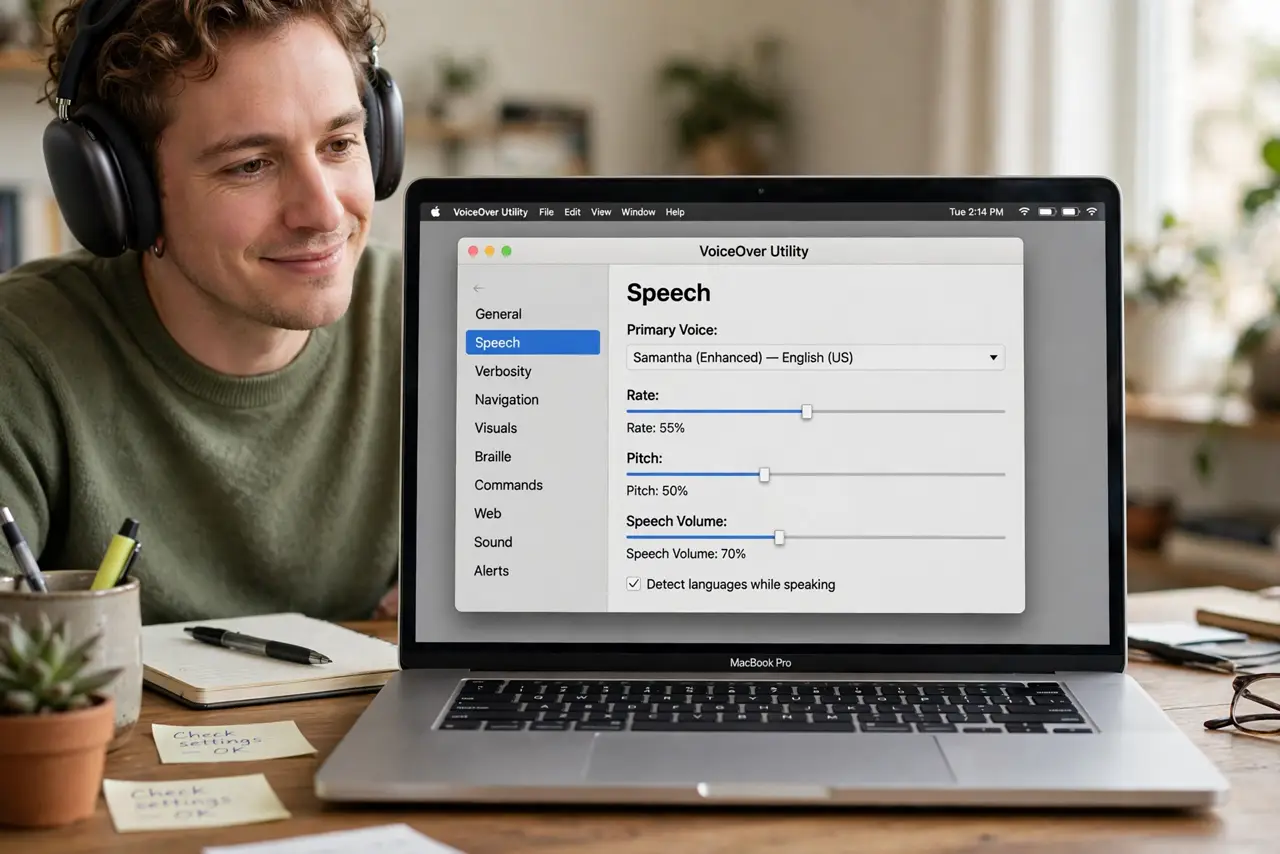
Quick fix: open System Settings, go to Accessibility, then VoiceOver, and open VoiceOver Utility. Under Speech, drag the rate slider left until it feels comfortable. You can also change the voice here — a clearer voice at a moderate speed beats a fast mumble.
Follow these steps
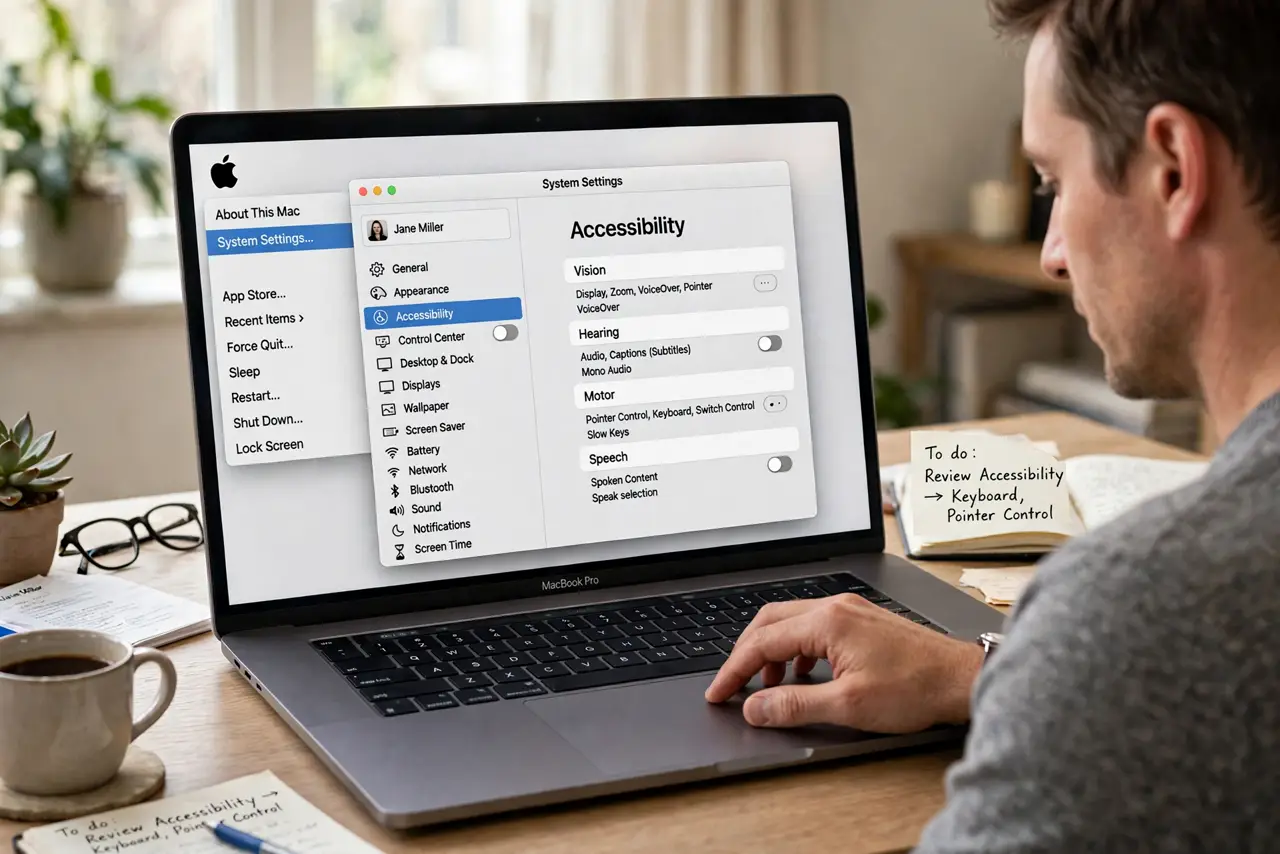
- Open System Settings to Accessibility. Click the Apple menu, choose System Settings, then Accessibility in the sidebar. This is home base for all Mac accessibility controls.
- Open the VoiceOver Utility. In the Accessibility pane, find VoiceOver and click to open its Utility window. The Utility holds the detailed controls the main toggle doesn't show.
- Drag the speech rate slider left. Under the Speech section, move the Rate slider toward slower until words are comfortable. Test with the sample — your ears, not the number, decide.
- Try a different voice. Some voices stay clearer at speed than others. Preview a few in the same Speech section — a voice you understand at moderate speed beats a fast one you don't.
- Adjust verbosity while you're there. VoiceOver can announce everything or just the essentials. Lowering verbosity reduces the chatter that makes fast speech feel overwhelming.
- Learn the quick toggle. Press Command+F5 to turn VoiceOver on and off. Knowing the toggle by heart means you can experiment fearlessly — help is one keystroke away.
What NOT to do
- Do not confuse VoiceOver speed with Siri's speed. They're separate settings — changing Siri does nothing for VoiceOver.
- Do not crank every setting at once. Change the rate first, test, then adjust voice and verbosity — one variable at a time.
- Do not pick the fastest rate to 'get used to it.' Comprehension first; speed comes naturally with practice, not with suffering.
- Do not change the system voice before trying the rate slider. Most 'too fast' complaints are rate, not voice — fix the actual problem.
Frequently asked questions
Is there a keyboard shortcut to slow it down on the fly?
VoiceOver has rotor and commander options for quick adjustments, but the Utility slider is the reliable starting point — set your baseline there first.
Why does VoiceOver keep turning itself on?
You may be triple-clicking the side button or pressing Command+F5 accidentally — see the accidental activation guide.
Can I use VoiceOver in another language?
Yes — add voices for other languages in the Speech section. VoiceOver switches with the content's language when voices are installed.