Log In Automatically
Typing your password every single time the Mac boots gets old fast — especially on a desktop that never leaves your home office. macOS can log you straight to the desktop, no password prompt. It is convenient, with one security tradeoff you should understand first.
TL;DR / Quick Fix
Quick fix: on a Mac with no FileVault encryption, go to System Settings, then Users and Groups, and set automatic login for your account. It skips the password at boot only — the screen lock still protects you when you step away.
Follow these steps
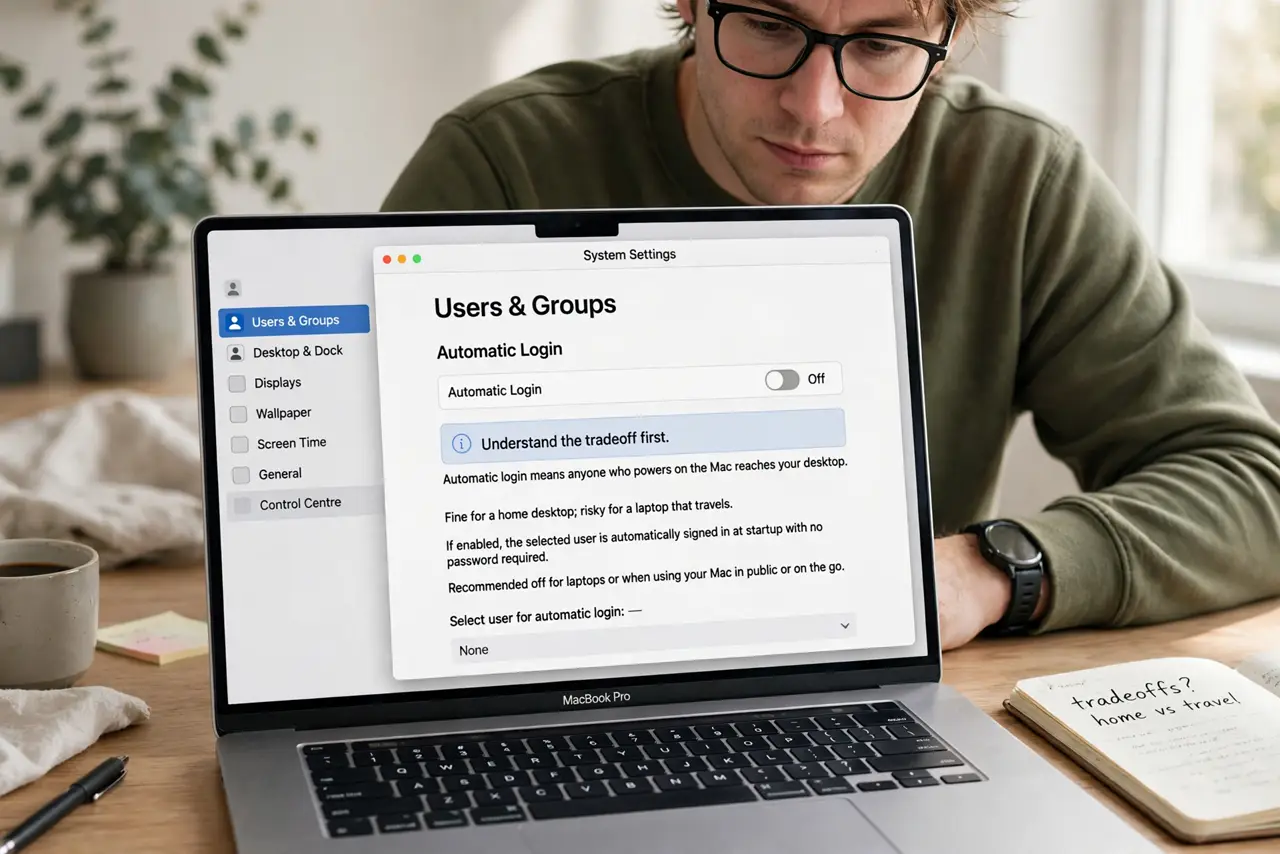
- Understand the tradeoff first. Automatic login means anyone who powers on the Mac reaches your desktop. Fine for a home desktop; risky for a laptop that travels.
- Check FileVault status. Automatic login is unavailable when FileVault disk encryption is on — the password decrypts the drive at boot. Decide which protection matters more to you.
- Open Users and Groups. In System Settings, go to Users and Groups. You may need to click the lock and authenticate as an admin.
- Set automatic login. Choose your account in the 'Log in automatically as' dropdown and enter the password once to confirm. That is the last time you type it at boot.
- Keep the screen lock strict. Set the screen saver to require a password after a few minutes. Boot convenience plus a strict lock is the balanced setup.
- Revisit if your situation changes. If the Mac starts traveling with you, turn automatic login back off. Convenience settings should match the risk.
What NOT to do
- Do not enable it on a portable Mac. A stolen laptop with automatic login hands over everything.
- Do not skip the screen-lock password. Boot convenience is fine; an unlocked desktop when you step away is not.
- Do not forget FileVault blocks it. If the option is grayed out, encryption — not a bug — is the reason.
- Do not enable it on a shared Mac. Automatic login picks one account; everyone else's privacy goes out the window.
Frequently asked questions
Is automatic login unsafe?
It removes one layer: physical access at boot. With FileVault off and the Mac at home, the practical risk is small; with a laptop in a cafe, it is real.
Why is the option grayed out?
FileVault encryption is on, or a configuration profile from work or school forbids it.
Does it skip the password after sleep too?
No — only at boot. Wake-from-sleep still asks, which is exactly the balance you want.