Stop Apps Opening at Login
You press the power button, walk away to make coffee, and come back to a dozen apps you never asked to open. Login items are apps and helpers macOS launches at startup — useful for a few, maddening when every installer adds itself. The list is easy to find and easier to trim. Here is where it lives and what is safe to remove.
TL;DR / Quick Fix
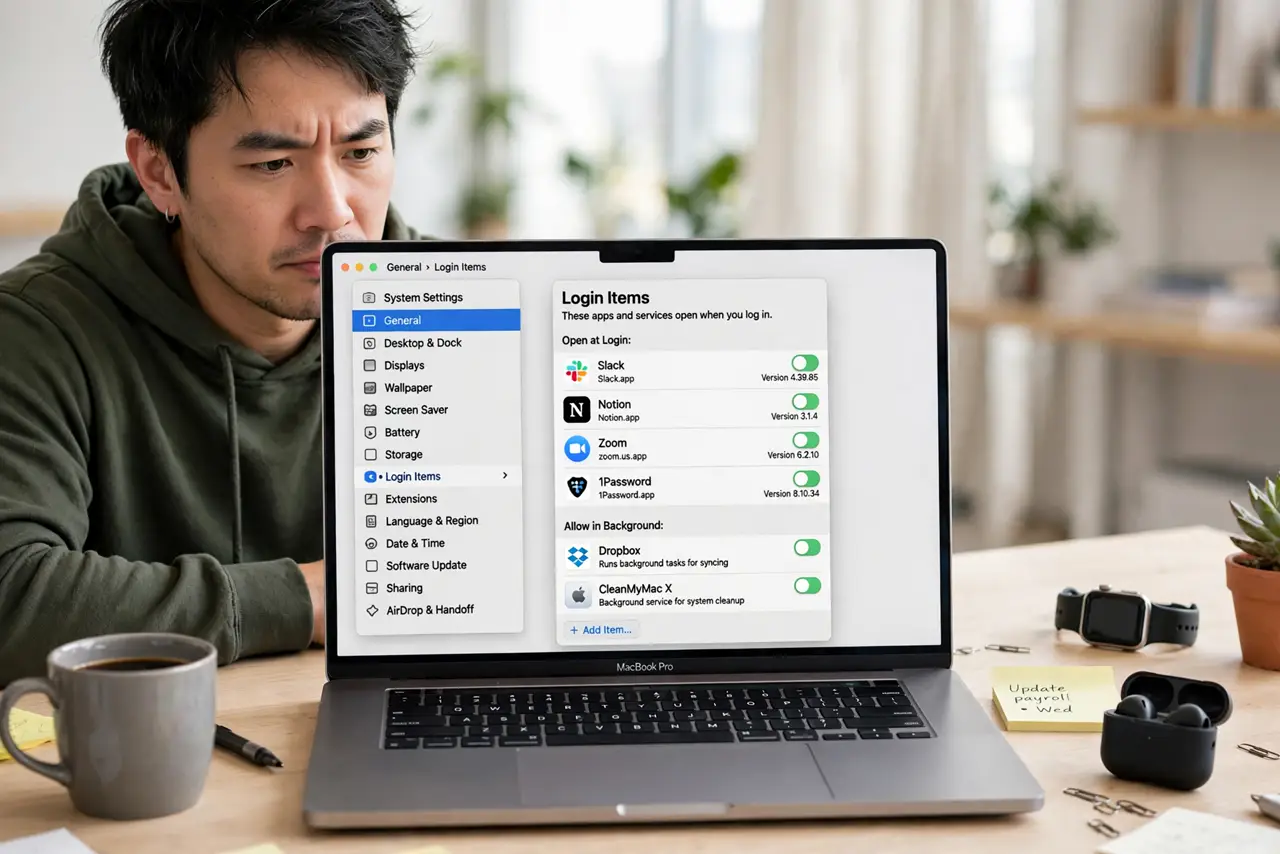
Quick fix: open System Settings, go to General, then Login Items, and remove apps you do not want auto-starting. Keep only what you truly use every session. If an item keeps coming back, the app itself is re-adding it — check its preferences.
Follow these steps
- Open the Login Items list. Go to System Settings, General, Login Items. You will see two sections: apps that open at login, and background helpers allowed to run — both affect startup, so review both.
- Remove the obvious offenders. Select apps you never asked to auto-start — chat clients, updaters, helpers from uninstalled software — and click the minus button. This stops them launching; it does not delete the apps.
- Check the background helpers too. The 'Allow in the Background' section lists helper processes. Disable helpers from software you removed long ago — they are pure dead weight at startup.
- Handle the ones that come back. If a removed item reappears after reboot, the parent app is re-adding itself — the reappearing login items guide covers that fight. Check the app's own preferences for a 'launch at startup' checkbox first.
- Do not nuke everything at once. Remove in small batches and restart between rounds. If something you actually need stops working, you will know exactly which removal caused it.
- Time your startup before and after. Restart and notice how long the desktop takes to settle. Fewer login items means a faster, calmer startup — the difference is often dramatic.
What NOT to do
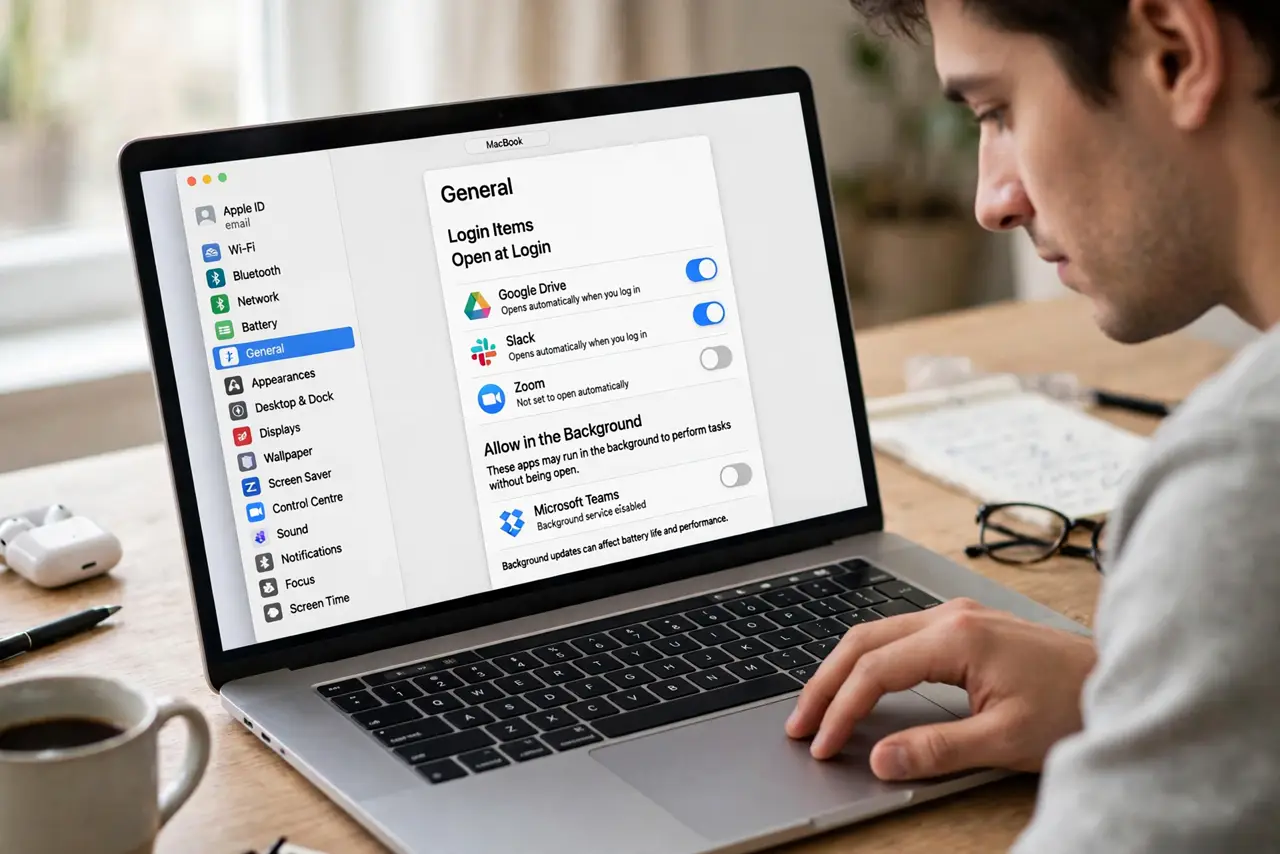
- Do not remove items you do not recognize without checking. Some belong to security software or drivers — Google the name before deleting.
- Do not confuse Login Items with browser startup pages. If Chrome opens ten tabs, that is a Chrome setting, not a macOS login item.
- Do not delete the app to stop it launching. Removing the login item is cleaner and reversible; deleting the app may break other things.
- Do not expect instant boot miracles. Login items affect the time until the desktop is usable, not the Apple-logo phase — both matter, they are just different.
Frequently asked questions
Will removing a login item delete the app?
No. It only stops the app from launching automatically — the app stays installed and works normally when you open it yourself.
Why is the minus button greyed out?
A management profile or parental controls may lock the list. Check System Settings for profiles, or ask whoever administers the Mac.
An app I removed keeps coming back. Why?
The app re-registers itself on launch — common with chat and cloud apps. Turn off its own 'open at login' preference inside the app, not just in System Settings.