Control Login Items
Your Mac boots and then... keeps booting — a parade of apps launching themselves, each one slowing the morning. Login items are the culprits, and they accumulate silently with every installer that 'helpfully' adds itself. Auditing the list takes two minutes and the mornings get their snap back.
TL;DR / Quick Fix
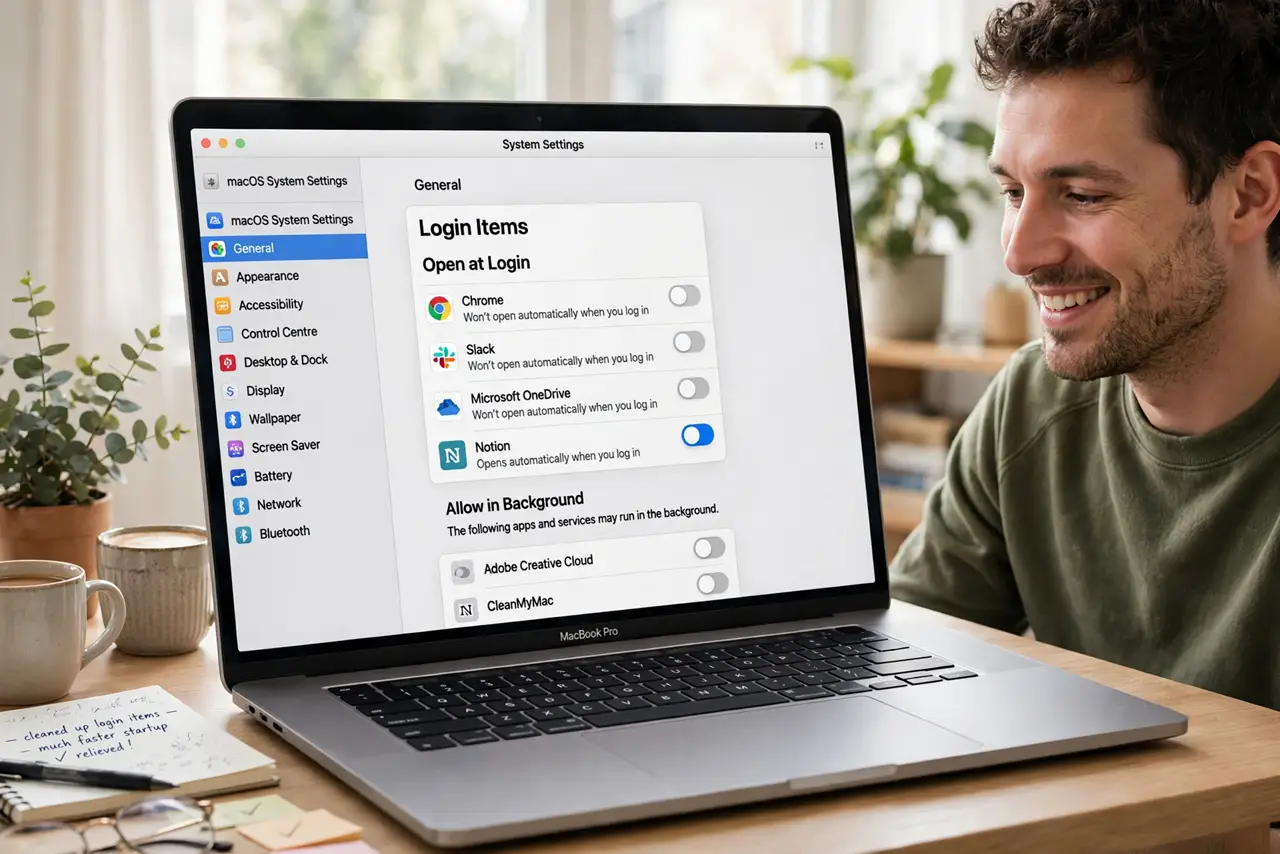
Quick fix: open System Settings, then General, then Login Items. Turn off everything you do not need at boot — keep only the essentials like cloud sync. Restart and feel the difference. Nothing is uninstalled; toggled-off apps still launch manually.
Follow these steps
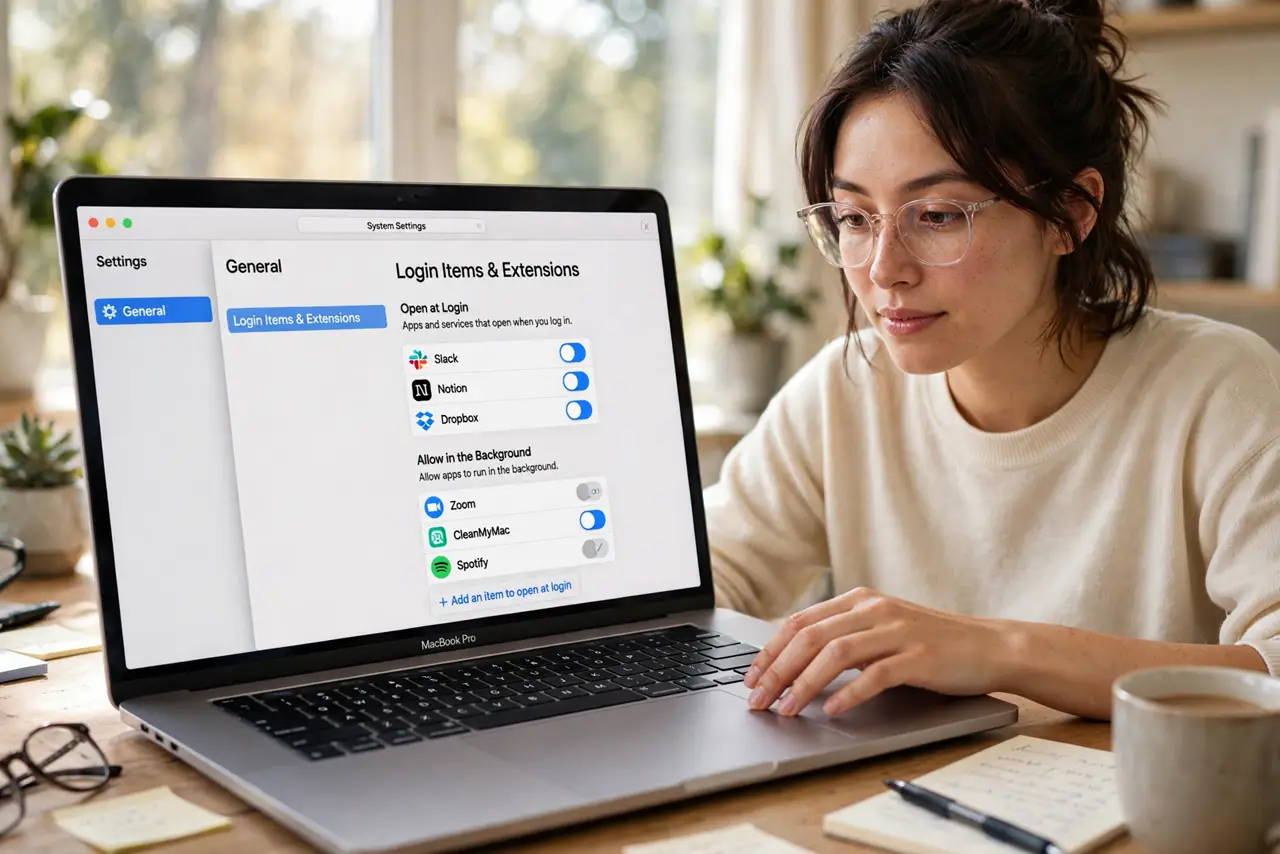
- Open Login Items. Go to System Settings, then General, then Login Items. The list shows everything set to launch at login — the full parade, in one place.
- Audit ruthlessly. For each item ask: do I need this within a minute of booting? Cloud sync and security tools: yes. That game launcher and printer utility: no. Be honest — installers are optimistic.
- Toggle off the non-essentials. Switch off everything that failed the audit. This disables auto-launch only — the apps remain installed and launch fine manually whenever you want them.
- Check background items too. Below the main list, the Allow in Background section holds helpers and updaters. Trim these as well — they sip resources all day, not just at boot.
- Restart and compare. Reboot and time the difference — or just feel it. The morning should be noticeably snappier with half the parade dismissed.
- Revisit quarterly. Installers keep re-adding themselves. A two-minute audit every few months keeps the list honest — set a calendar reminder.
What NOT to do
- Do not disable your security tools. Antivirus and backup helpers earn their login slot — trim the conveniences, not the guards.
- Do not delete apps to stop auto-launch. Toggling off is enough; uninstalling is overkill for a login-speed complaint.
- Do not ignore background items. The visible list is half the story — background helpers are the silent resource sippers.
- Do not expect miracles on old hardware. Login trimming helps every Mac, but a 2015 machine has limits no setting removes.
Frequently asked questions
Will this speed up my Mac?
Boot and login get noticeably snappier, and the system stays lighter all day with fewer background apps running.
Can I add my own login items?
Yes — the plus button adds any app. Useful for the two or three apps you genuinely want every morning.
Why do disabled items come back?
App updates and reinstalls re-enable themselves. The quarterly audit exists precisely for this behavior.