Let macOS Free Space
Your Mac warns the disk is almost full, and the culprits are a mystery — old movies, forgotten downloads, iCloud waiting to help. macOS has a built-in storage optimizer that offloads, empties, and tidies with your permission. Before you buy an external drive or delete things blindly, let the Mac do its own housekeeping.
TL;DR / Quick Fix
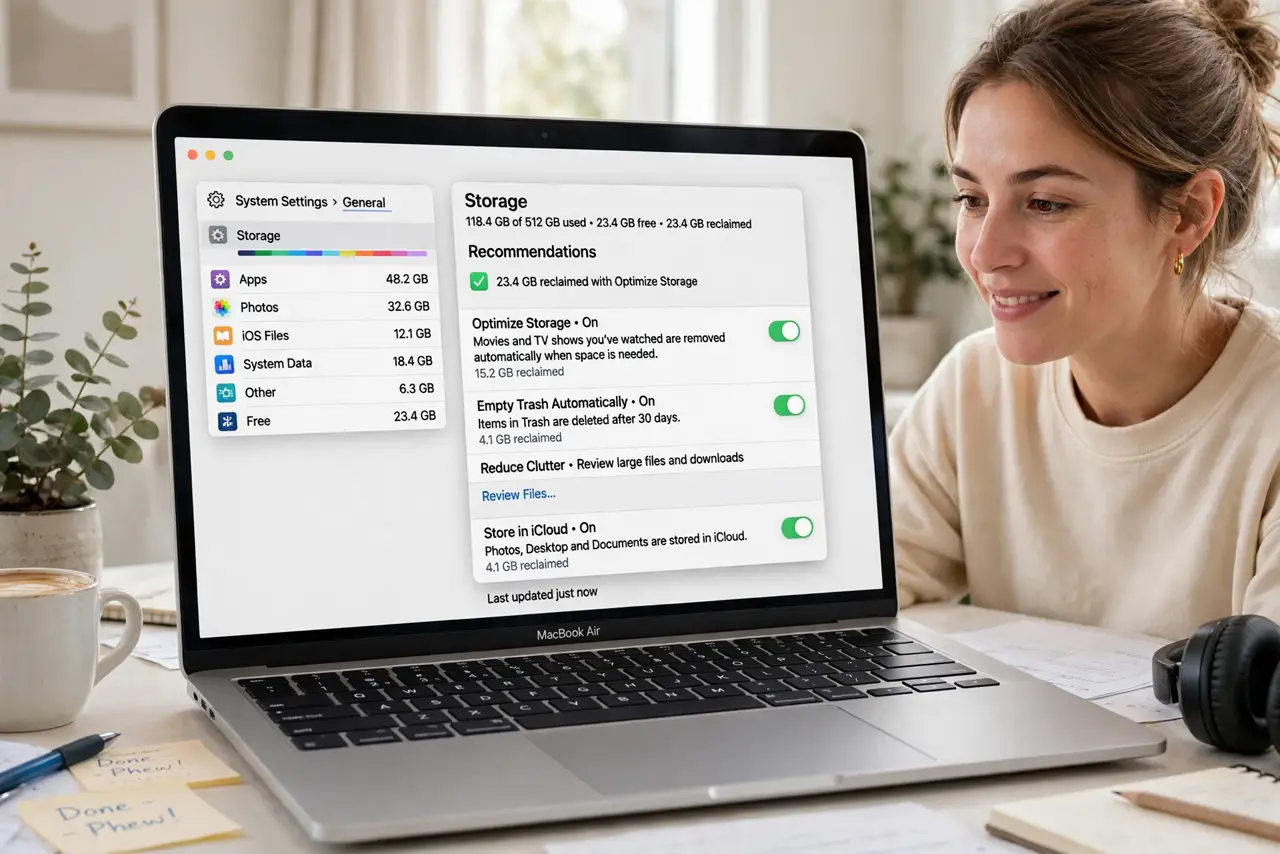
Quick fix: open System Settings, then General, then Storage, and work through the recommendations — Store in iCloud, Optimize Storage, Empty Trash Automatically. Each is a toggle with an explanation. Review what each does before enabling; nothing deletes without your say-so.
Follow these steps
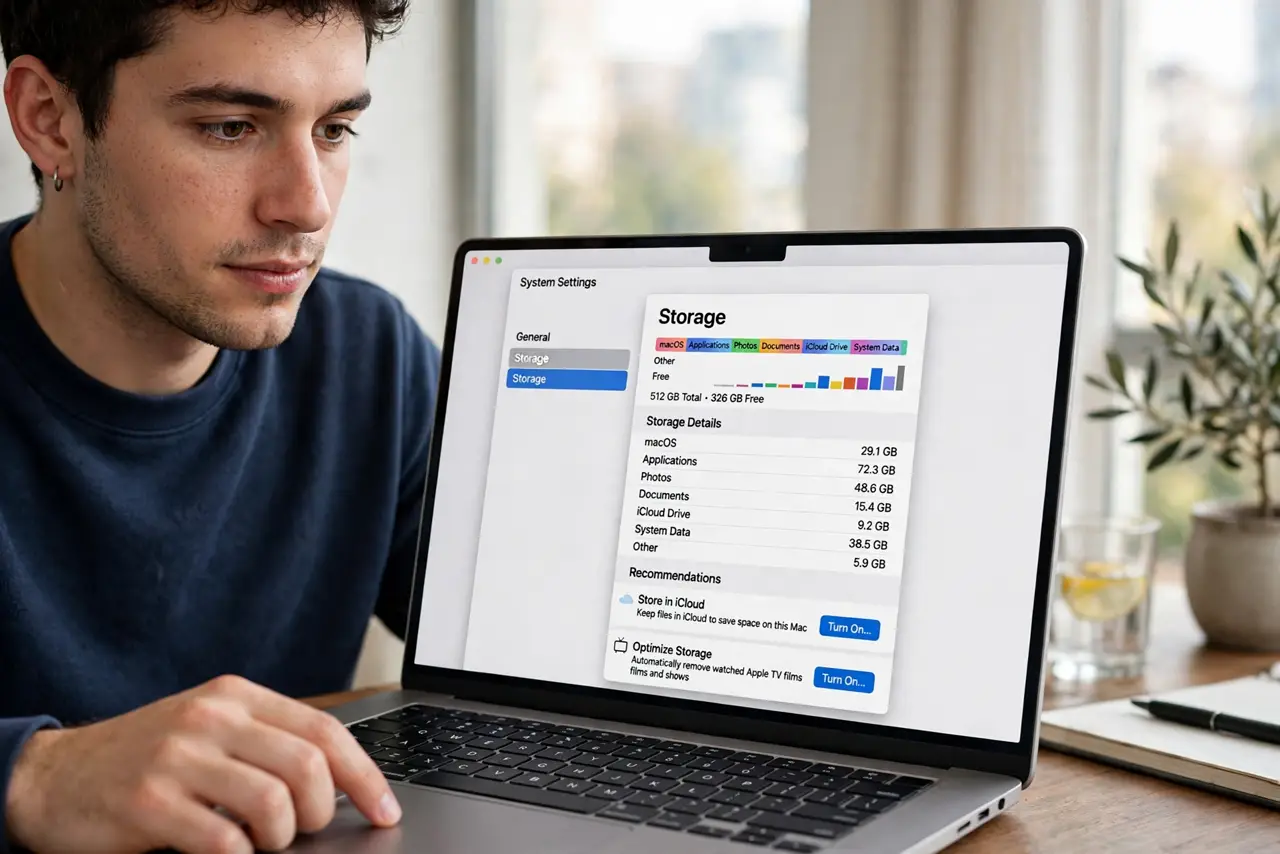
- Open Storage settings. Go to System Settings, then General, then Storage. The bar shows what fills your disk — Applications, Documents, System Data — so you clean with information, not guesses.
- Review the recommendations. macOS lists tailored suggestions with space savings shown. Read each one — they explain exactly what changes before you enable anything.
- Enable Store in iCloud. This moves Desktop and Documents files to iCloud, keeping recent ones local. It frees the most space for most people — but needs enough iCloud storage, so check your plan.
- Turn on Optimize Storage. This removes watched Apple TV movies and shows after viewing, keeping them downloadable. For non-watchers it does little; for TV fans it reclaims gigabytes.
- Empty Trash automatically. Set the trash to empty every 30 days. The trash is the classic 'deleted but not gone' trap — automation ends it.
- Hunt the big files manually. Use the Documents section's large-files view for what automation misses — old disk images, installers, forgotten downloads. Delete with confidence once you see what they are.
What NOT to do
- Do not enable iCloud storage without checking your plan. Offloading needs iCloud room — a full iCloud just moves the problem.
- Do not delete System Data blindly. That category is mostly caches macOS manages itself — the recommendations handle it safely.
- Do not skip the review step. Each recommendation explains itself; enabling all without reading is how surprises happen.
- Do not buy a bigger drive first. Software housekeeping is free — exhaust it before spending on hardware.
Frequently asked questions
Will Optimize delete my files?
No — it offloads to iCloud or removes re-downloadable media. Your files remain accessible; only local copies of safe items go.
How much space will I get back?
Varies wildly — gigabytes for media hoarders, modest for tidy users. The recommendations show estimated savings before you commit.
What is taking all my space?
The Storage bar answers precisely — click each category. 'System Data' mysteries are usually caches; large Documents are usually yours to judge.