Mac Password Rejected? Try These Fixes First
A login password rejected once, or a few times, is stressful, but it is often a typing slip, Caps Lock, or a changed keyboard layout rather than a lost password. Slow down and check the simple causes before trying recovery. Never rush through repeated guesses.

TL;DR / Quick Fix
Quick fix: check Caps Lock, type the password slowly in the password field, and confirm the keyboard layout matches your usual one. If it still fails, use the password hint if offered, then use Apple's official recovery options rather than guessing many times.
Follow these steps
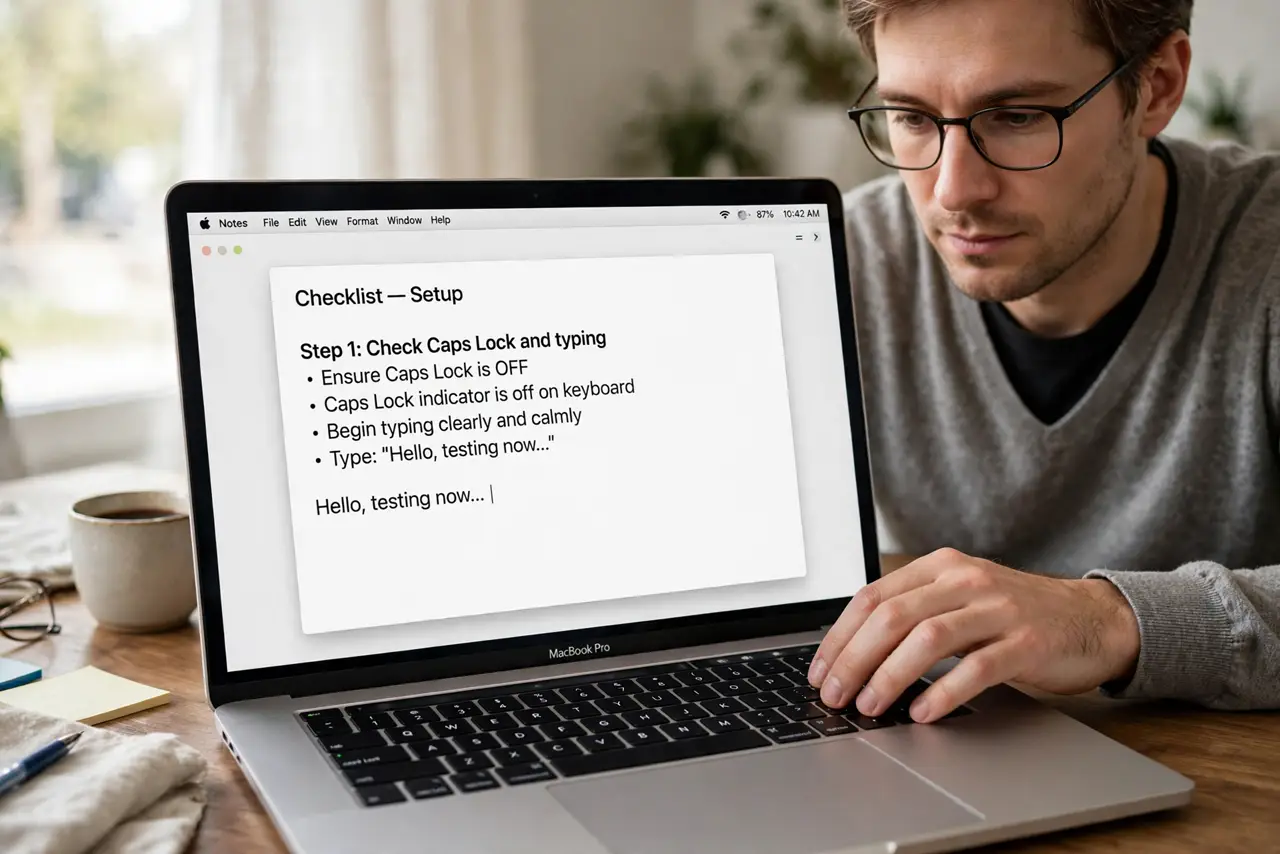
- Check Caps Lock and typing. Look for the Caps Lock indicator and type the password slowly, character by character. Passwords are case-sensitive, so one capital letter in the wrong place rejects the whole password.
- Check the keyboard layout. If you use more than one layout, confirm the login screen uses your usual one. A different layout moves symbols like @ and # to different keys.
- Use the password hint. If the login screen offers a hint, read it carefully. A hint can remind you of a variation you used, without revealing the password itself.
- Try the Apple ID reset option. If the login screen offers to reset the password with your Apple ID, use that official option and follow its prompts. This is the safe recovery path for a linked account.
- Restart and try once more. Restart the Mac and type the password carefully once more. A restart clears a stuck login process that can reject a correct password.
- Use official recovery if it still fails. If the password still fails, use Apple's official account recovery from another device. Do not use unofficial tools that claim to unlock a Mac.
What NOT to do
- Do not guess the password many times rapidly. Repeated failures can lock the account or trigger delays that make recovery harder.
- Do not use an unofficial unlock tool. Tools that claim to open a Mac login without the password can damage the system and risk your data.
- Do not change the password from an untrusted device. Use Apple's official recovery pages and a device you trust.
- Do not write the new password on the Mac itself. Store it in a password manager or a safe place you control, not on a note stuck to the computer.
Frequently asked questions
Why was my password rejected once but works later?
Caps Lock, a layout change, or a stuck login process can reject a correct password once, then accept it after a restart.
What if I forgot the password completely?
Use the Apple ID reset option on the login screen if offered, or Apple's official account recovery from another device.
Can I avoid this happening again?
Type slowly at login, keep Caps Lock off, and store the password in a password manager so you can check it if unsure.