Customize the Login Screen
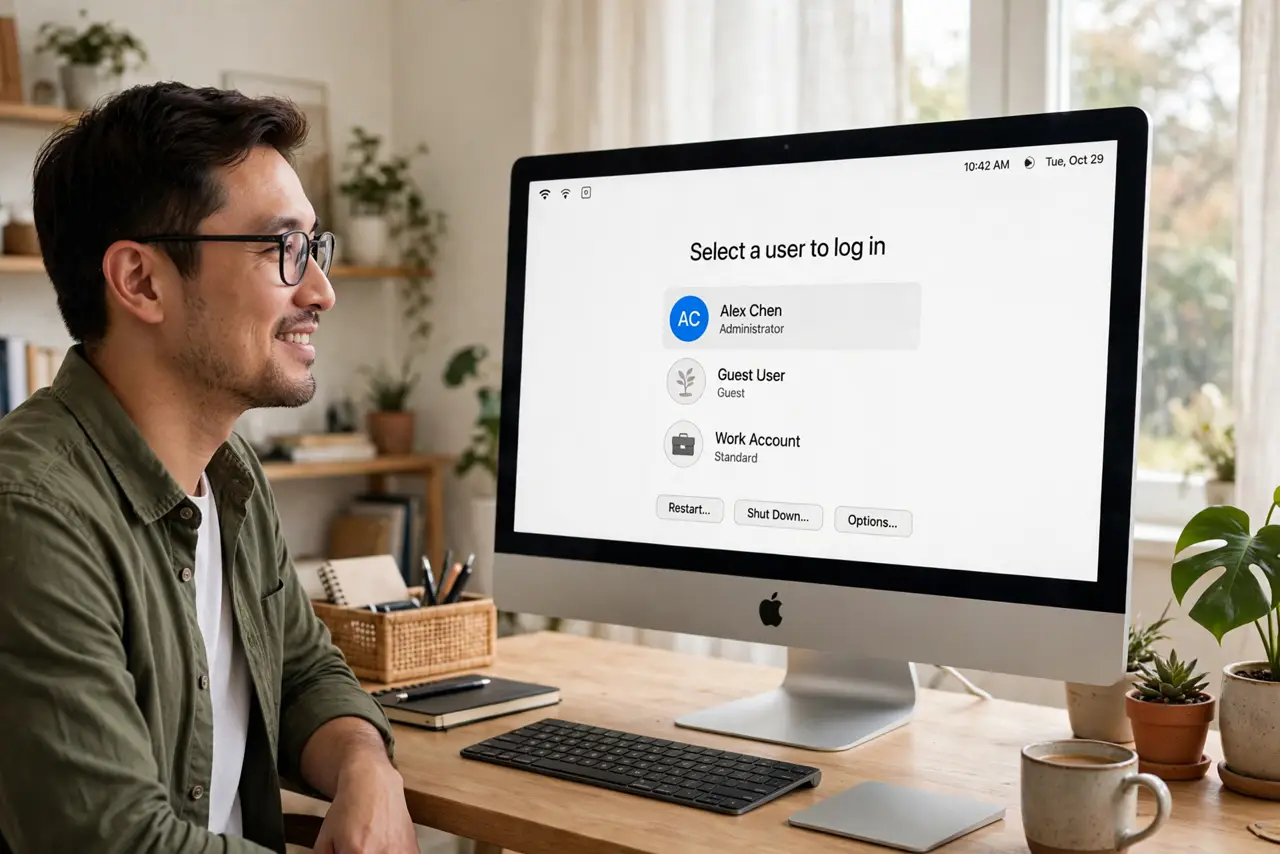
Your Mac's login screen shows users you do not want there — old accounts, a guest you never enabled, clutter from years of use. The login window is customizable within limits: you choose which users appear, how they appear, and what the screen shows. A tidy login screen is also a small security win. If you want to lend the Mac safely, Guest Mode is the right tool.
TL;DR / Quick Fix
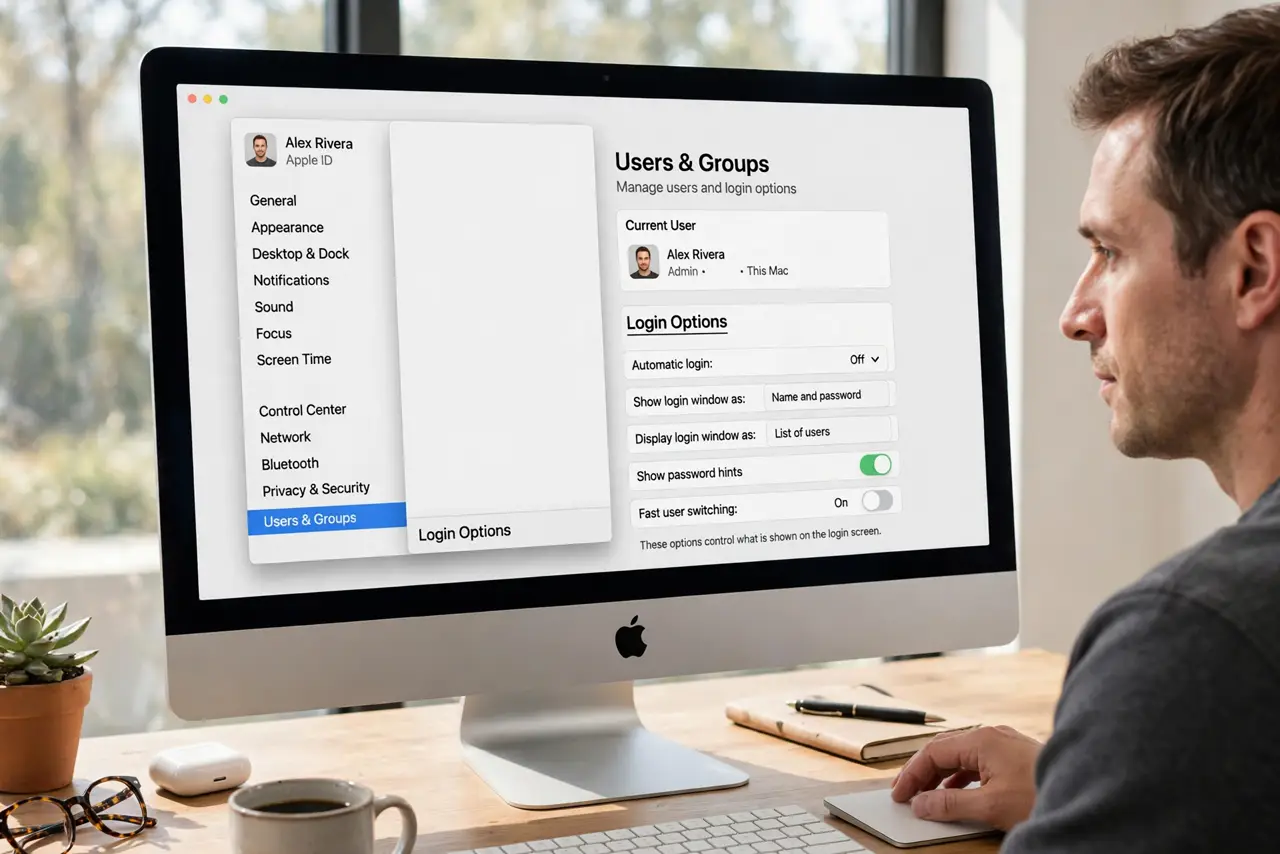
Quick fix: on a Mac, open System Settings, Users and Groups, then Login Options to choose which users appear and whether the screen lists names or asks for typing. Remove old accounts you no longer need, and keep automatic login off for security.
Follow these steps
- Open Login Options. Go to System Settings, Users and Groups, and open Login Options at the bottom. This is the control panel for everything the login screen shows.
- Choose list or name-and-password. List of users is convenient; name and password (typing both) is more private since it reveals nothing about who has accounts. Pick privacy if the Mac ever leaves your home.
- Hide users you do not want shown. Old or rarely used accounts can be hidden from the list without deleting them. The login screen stays clean while the accounts remain available.
- Remove accounts you no longer need. An ex-employee's or old family member's account with admin rights is a liability. Delete what is truly dead — after confirming nothing important lives in it.
- Keep automatic login off. Automatic login skips the password entirely — convenient and completely unprotected. One stolen laptop becomes an open book; leave it off.
- Check what changed. Log out fully and look at the login screen with fresh eyes. It should show only current users, in the style you chose — tidy and intentional.
What NOT to do
- Do not enable automatic login for convenience. It removes the entire point of user accounts — anyone powering on the Mac is you.
- Do not leave old admin accounts lying around. Every unused admin is an unlocked back door; delete or demote them.
- Do not delete an account before checking its files. Move anything worth keeping first — deletion takes the home folder with it.
- Do not confuse hiding with securing. A hidden account still exists; hiding tidies the screen, it does not remove access.
Frequently asked questions
Can I change the login screen background?
macOS offers limited official options here — the wallpaper ties to the system. Third-party hacks exist but risk breaking updates; the built-in choices are the safe path.
Why does a guest user appear that I never made?
macOS can show a guest account from Find My or FileVault settings. Check why it appears before deleting anything.
Should the login screen show my full name?
The name-and-password style avoids showing it. If privacy matters — shared spaces, travel — prefer typing over the list.