Low Power Mode on Mac? Setup
The battery icon turns yellow and everything keeps working — just a little slower. Low Power Mode is macOS borrowing the iPhone's best battery trick: trimming background activity and processor speed to stretch the remaining charge. It is perfect for the last hour before you reach a charger, if you know its trade-offs.
TL;DR / Quick Fix
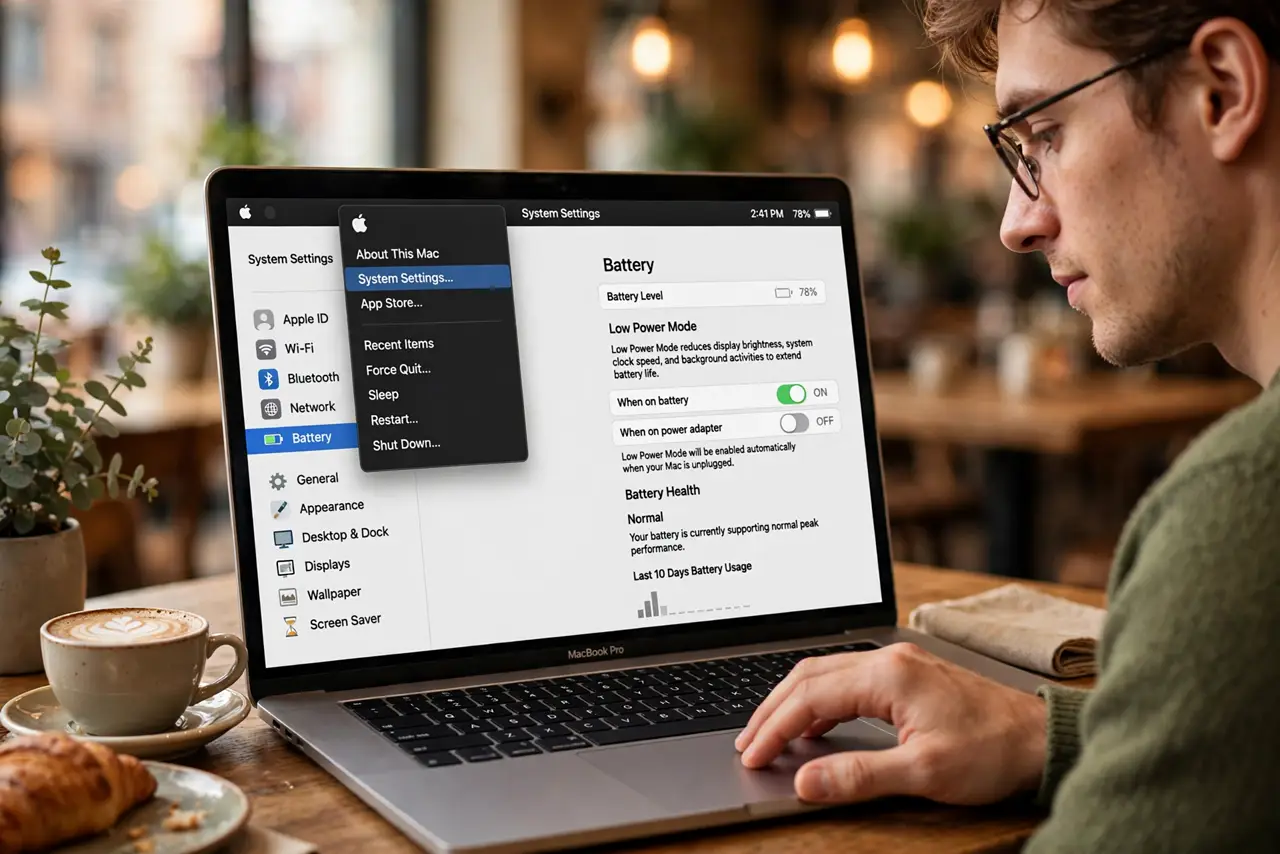
Quick fix: open System Settings, go to Battery, and turn on Low Power Mode to stretch battery life by slowing background activity and the processor. Use it when you are away from a charger. Turn it off when you need full speed — video editing and gaming feel the slowdown.
Follow these steps
- Open Battery settings. Click the Apple menu, choose System Settings, then Battery. Low Power Mode has separate toggles for battery power and plugged-in power.
- Turn it on for battery power. Enable it for 'On battery' — that is the scenario it exists for. The battery icon turns yellow so you always know it is active.
- Know what it slows down. Background refresh, mail fetch frequency, and peak processor speed all drop. Web browsing and documents feel nearly normal; heavy tasks feel the difference.
- Use it strategically, not permanently. Flip it on when the battery is low and no charger is near. Running it 24/7 just gives you a slower Mac for no reason.
- Pair it with brightness control. The display is the biggest battery drain. Low Power Mode plus slightly lower brightness stretches a dying battery remarkably far.
- Turn it off for demanding work. Video calls with screen sharing, exports, and games deserve full speed. Toggle it off, do the task, toggle it back.
What NOT to do
- Do not leave it on while plugged in unless you have a reason. On AC power it just slows your Mac for zero battery benefit.
- Do not expect miracles from a worn battery. Low Power Mode stretches healthy batteries — check your cycle count if runtimes have collapsed.
- Do not confuse it with a performance problem. A suddenly sluggish Mac with a yellow battery icon is in Low Power Mode, not dying.
- Do not use it as a substitute for closing runaway apps. One energy-hogging app can out-drain everything Low Power Mode saves.
Frequently asked questions
How much extra battery does it actually give?
It varies by workload, but expect roughly ten to twenty percent more runtime for light tasks. Heavy workloads see less benefit.
Does Low Power Mode hurt the Mac long-term?
No — it only reduces performance temporarily. Nothing is disabled permanently and no settings are lost.
Why is my battery icon yellow?
That is the Low Power Mode indicator. Turn the mode off in Battery settings and the icon returns to normal.