Add an Email Account in Mail
New job, new email — and Apple's Mail app staring at you empty. Adding an account takes about a minute for Gmail, iCloud, and Outlook, because Mail already knows their settings. Only unusual providers need manual configuration, and even that is just a few fields.
TL;DR / Quick Fix
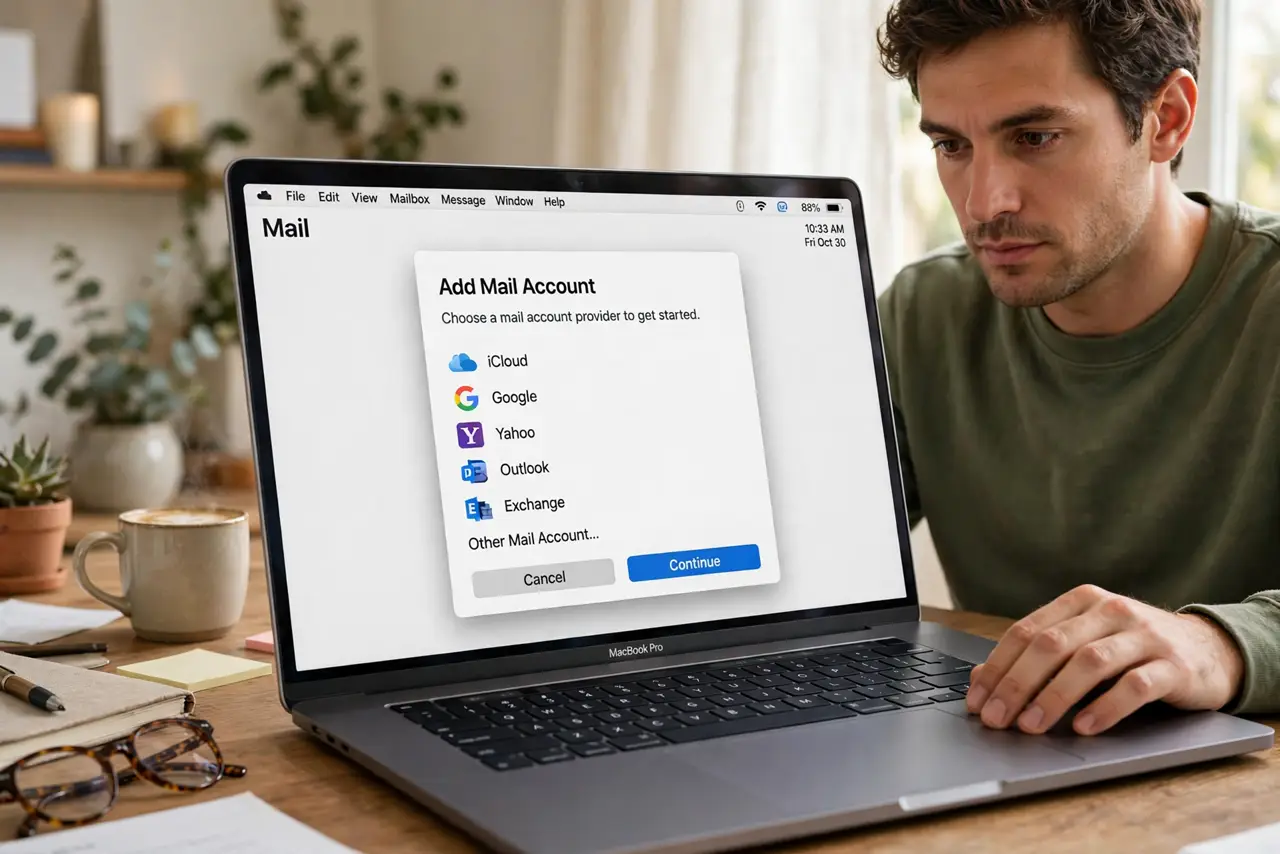
Quick fix: open the Mail app, go to Mail settings, then Accounts, and click Add Account. Pick your provider — Gmail, iCloud, Outlook, or Other — and sign in. Mail configures everything automatically for major providers; only obscure accounts need manual server settings.
Follow these steps
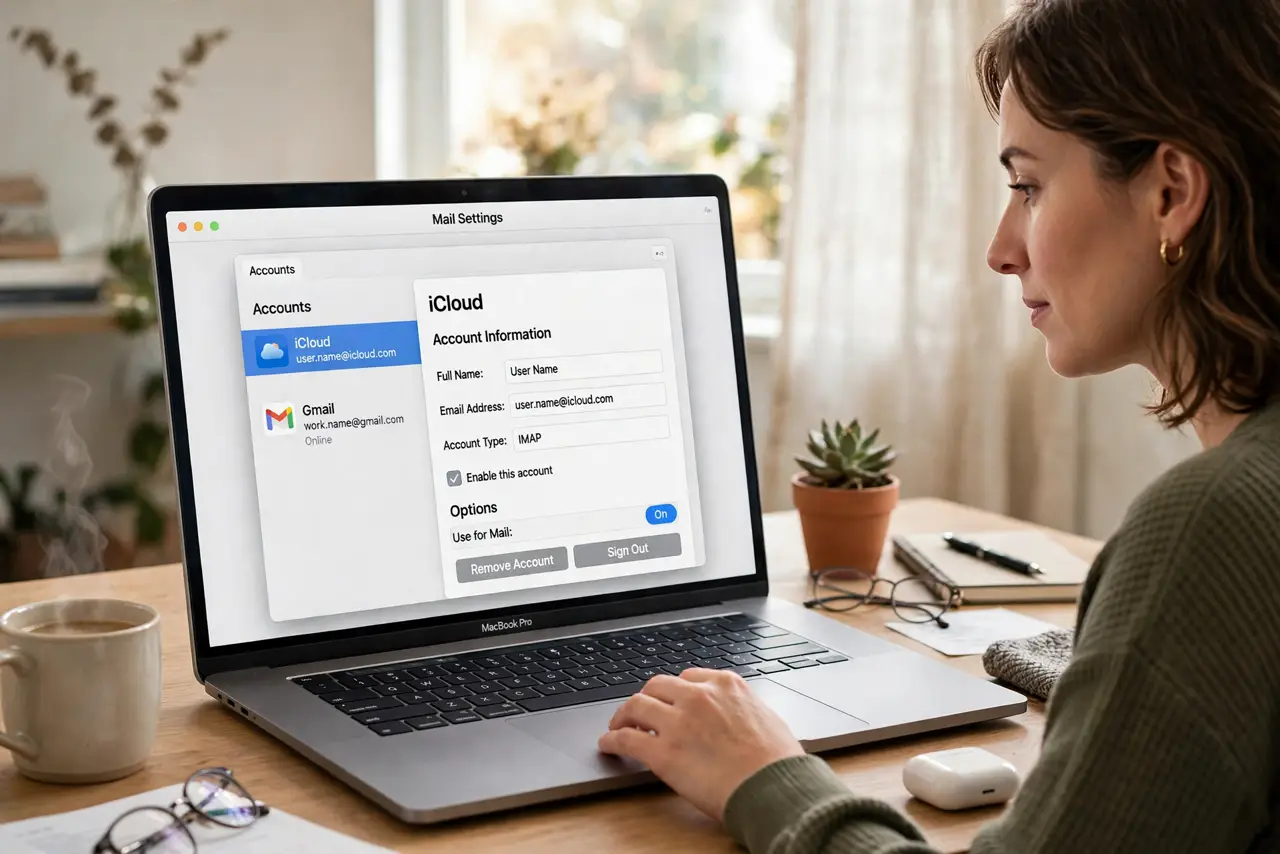
- Open Mail's account settings. In the Mail app, open Settings and go to the Accounts tab. The account list — possibly empty — appears here.
- Click Add Account. Choose your provider from the list: iCloud, Gmail, Outlook, Yahoo, or Other for everything else.
- Sign in with your credentials. Enter your email and password in the provider's own sign-in window. For Gmail and Outlook this may involve their two-step verification.
- Choose what to sync. Mail, Contacts, Calendars, Notes — toggle what you want on this Mac. You can change these later without re-adding the account.
- Wait for the first sync. The inbox fills over minutes, not seconds — especially large accounts. Let it finish before judging.
- Handle 'Other' accounts manually. For custom domains, choose Other and enter the incoming and outgoing server details from your provider's help page.
What NOT to do
- Do not enter server settings for Gmail or Outlook manually. The automatic setup is correct — manual entries are how accounts break.
- Do not add the same account twice 'to be sure.' Duplicates double every message — remove extras from the Accounts list.
- Do not panic when old mail takes a while. The first sync of a decade-old inbox is slow by nature, not by malfunction.
- Do not use your main password where an app password is required. Some providers demand app-specific passwords for Mail — check theirs first if sign-in fails.
Frequently asked questions
Why does Mail keep asking for my password?
Usually a stale stored credential or a provider security change. See the password prompt fix guide before re-adding anything.
Can I use Mail with a work Exchange account?
Yes — choose the Exchange option and enter your work email. Your IT department's server details auto-configure in most cases.
How many accounts can I add?
As many as you like — Mail handles a dozen accounts gracefully, each with its own inbox under one roof.