Send Large Attachments
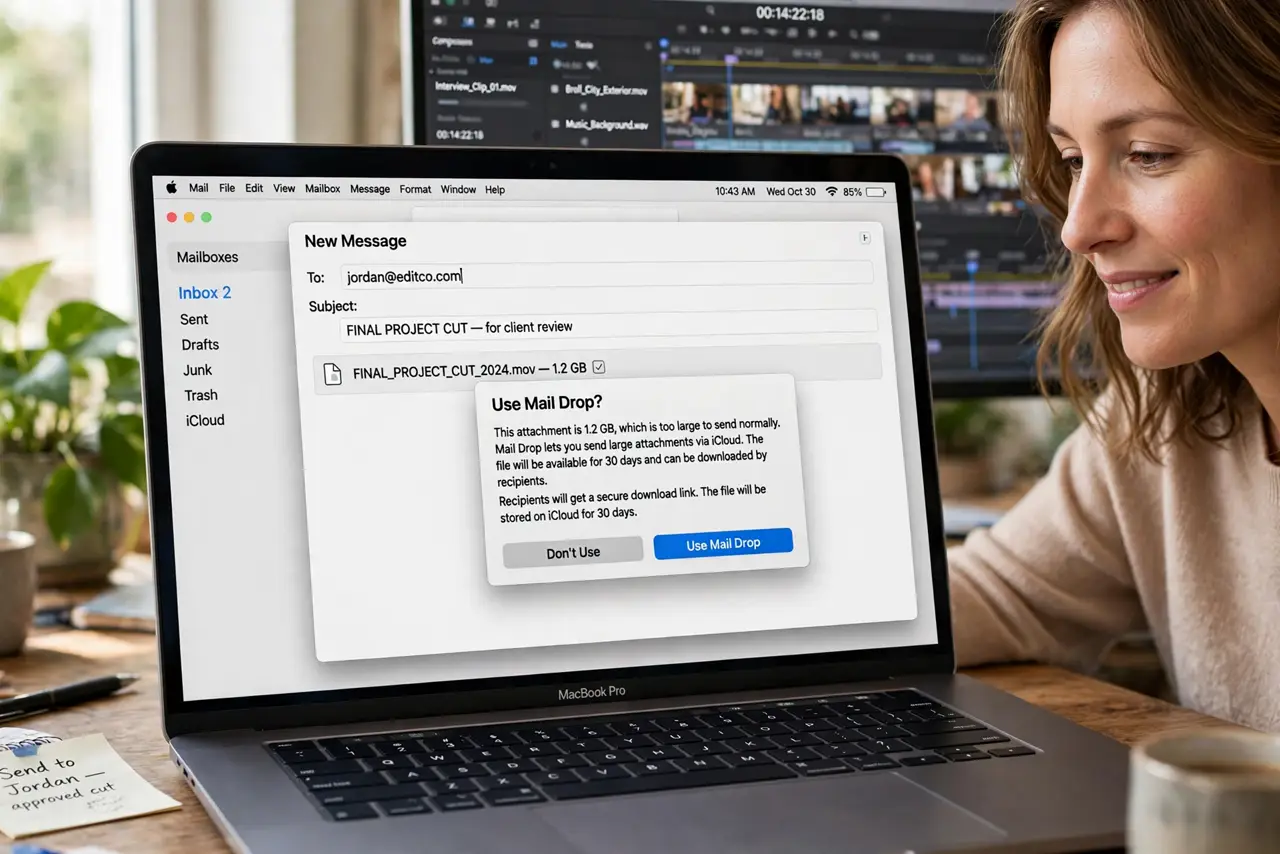
You attach a 40MB video to an email and Mail refuses to send it. Email was never built for big files — providers cap attachments around 20-25MB — but Mac Mail has Mail Drop, which uploads large files to iCloud and sends a link instead. Same email, no bounce.
TL;DR / Quick Fix
Quick fix: attach the file in Mac Mail and let Mail Drop upload it to iCloud — the recipient gets a download link, not a bounced email. Mail Drop handles files up to 5GB; links expire after 30 days. For other accounts, use a drive link instead of fighting limits.
Follow these steps
- Attach the file normally. Compose your message and attach the big file as usual. Mail detects the size and offers Mail Drop instead of bouncing.
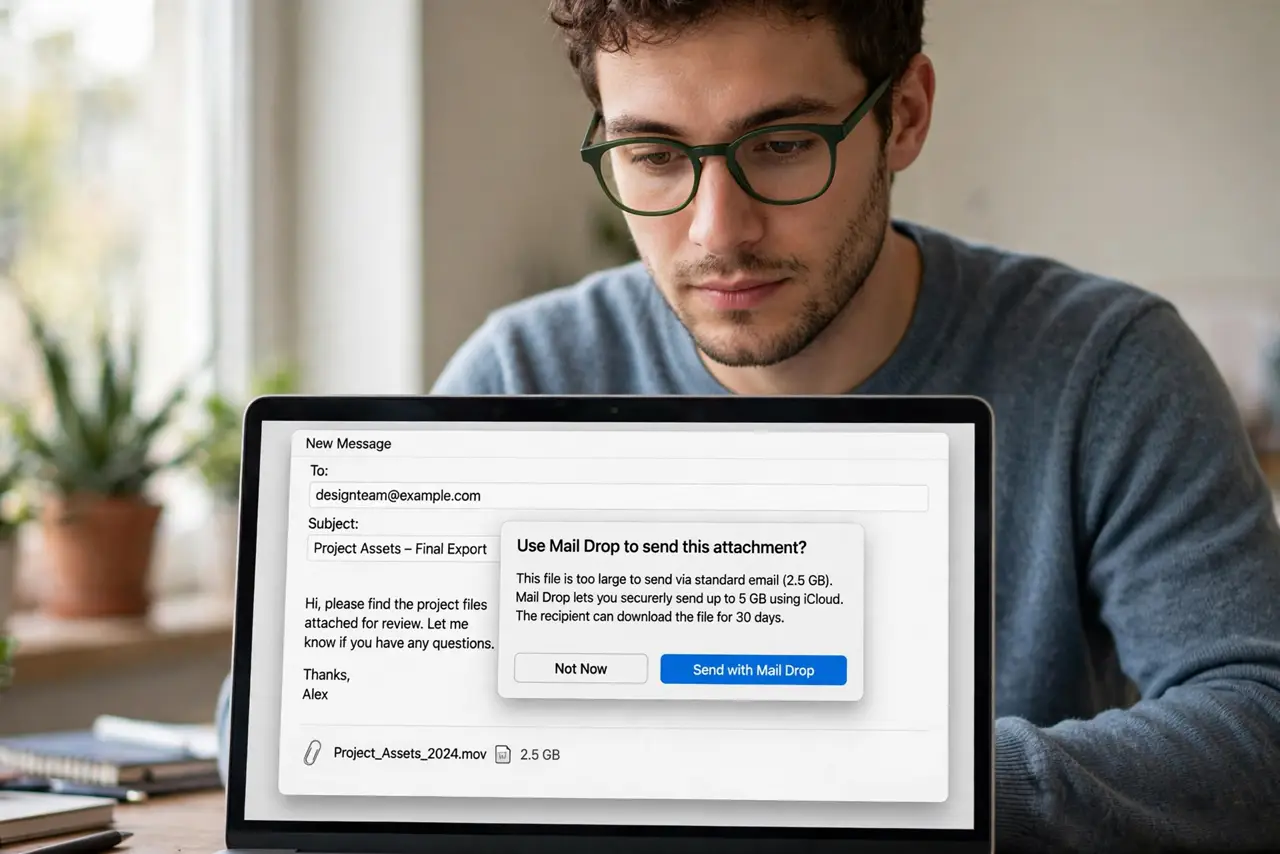
- Accept the Mail Drop prompt. When Mail asks to use Mail Drop, click Use Mail Drop. The file uploads to iCloud in the background while you finish writing.
- Wait for the upload link. Mail replaces the attachment with a download link. Send only after the upload finishes — a half-uploaded link fails for the recipient.
- Mind the 5GB and 30-day limits. Mail Drop caps files at 5GB and links expire after 30 days. For bigger files or permanent links, use a cloud drive.
- Use cloud links for non-iCloud accounts. Mail Drop needs an iCloud-linked sender. With Gmail or Outlook accounts, upload to a drive and paste the share link — see too-large-to-send for the general limits.
- Warn the recipient about the link. Some recipients ignore link-downloads as suspicious. A one-line note — this is my file, via Apple — prevents the is this safe worry.
What NOT to do
- Do not split a video into twelve emails. One Mail Drop link beats a dozen confusing parts.
- Do not send giant attachments to mailing lists. Twenty recipients times 40MB is a server admin's nightmare — link it.
- Do not assume the recipient can open the link. Corporate firewalls sometimes block iCloud — ask if a plain drive link works better.
- Do not use Mail Drop for sensitive documents. The link is unlisted but not password-protected — encrypt first if it matters.
Frequently asked questions
How big can Mail Drop files be?
Up to 5GB per file, with 1TB of Mail Drop storage separate from your iCloud quota. Links expire after 30 days.
Does the recipient need a Mac?
No — the link downloads in any browser. Mail Drop is Apple-hosted but platform-neutral for recipients.
Why is Mail Drop not offered?
It needs an iCloud account signed in on the Mac and a large-enough attachment. Small files just send normally.