Auto-Sort Mail into Categories
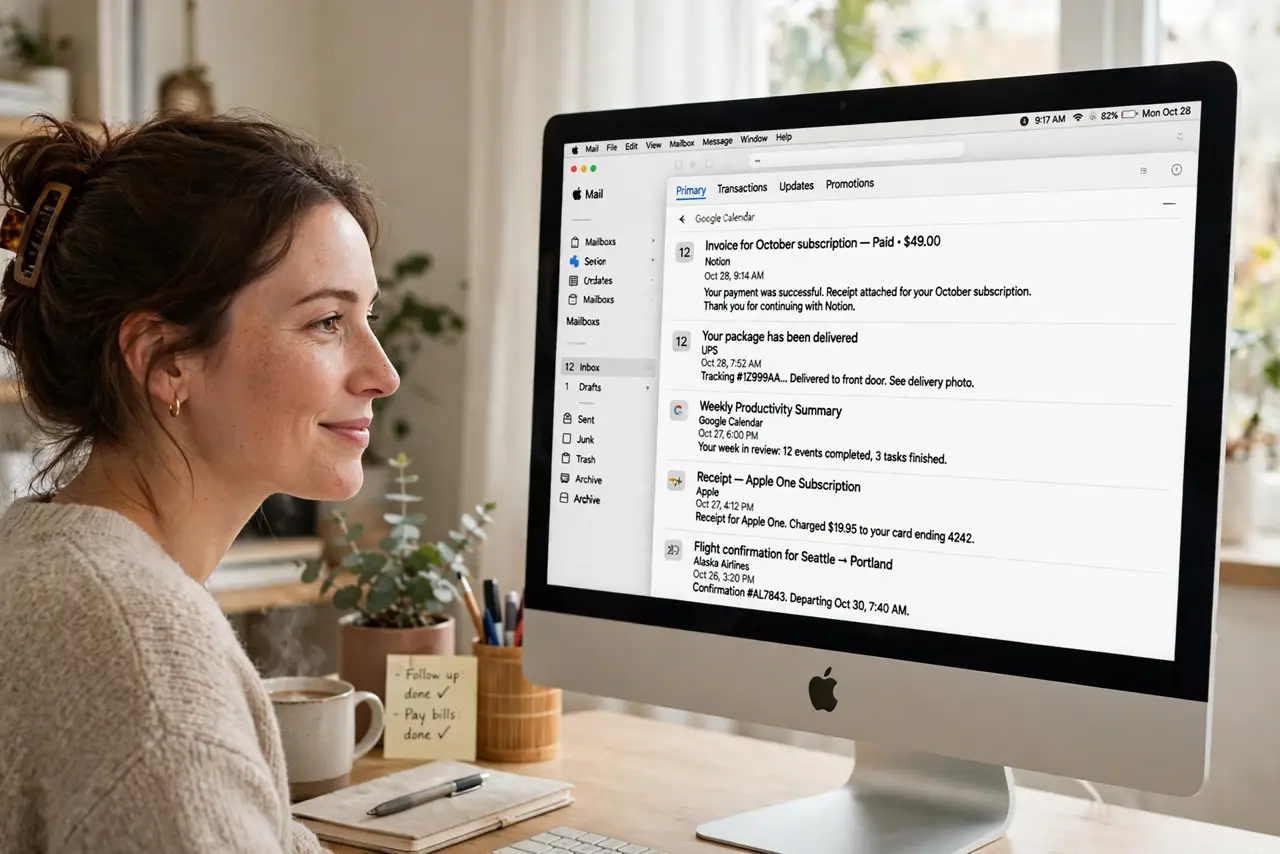
Your inbox is a firehose: receipts, newsletters, shipping updates, and the three actually important emails, all jumbled together. Apple Mail on the Mac can auto-sort incoming mail into categories — Primary, Transactions, Updates, Promotions — so important mail surfaces while the noise files itself. This guide enables it and teaches it your preferences.
TL;DR / Quick Fix
Quick fix: Apple Mail on the Mac can auto-sort incoming mail into categories — Transactions, Updates, Promotions — so important mail surfaces first. Enable it from the View menu or the Mail toolbar. It learns over time; drag miscategorized messages to teach it. No more manual inbox sorting.
Follow these steps
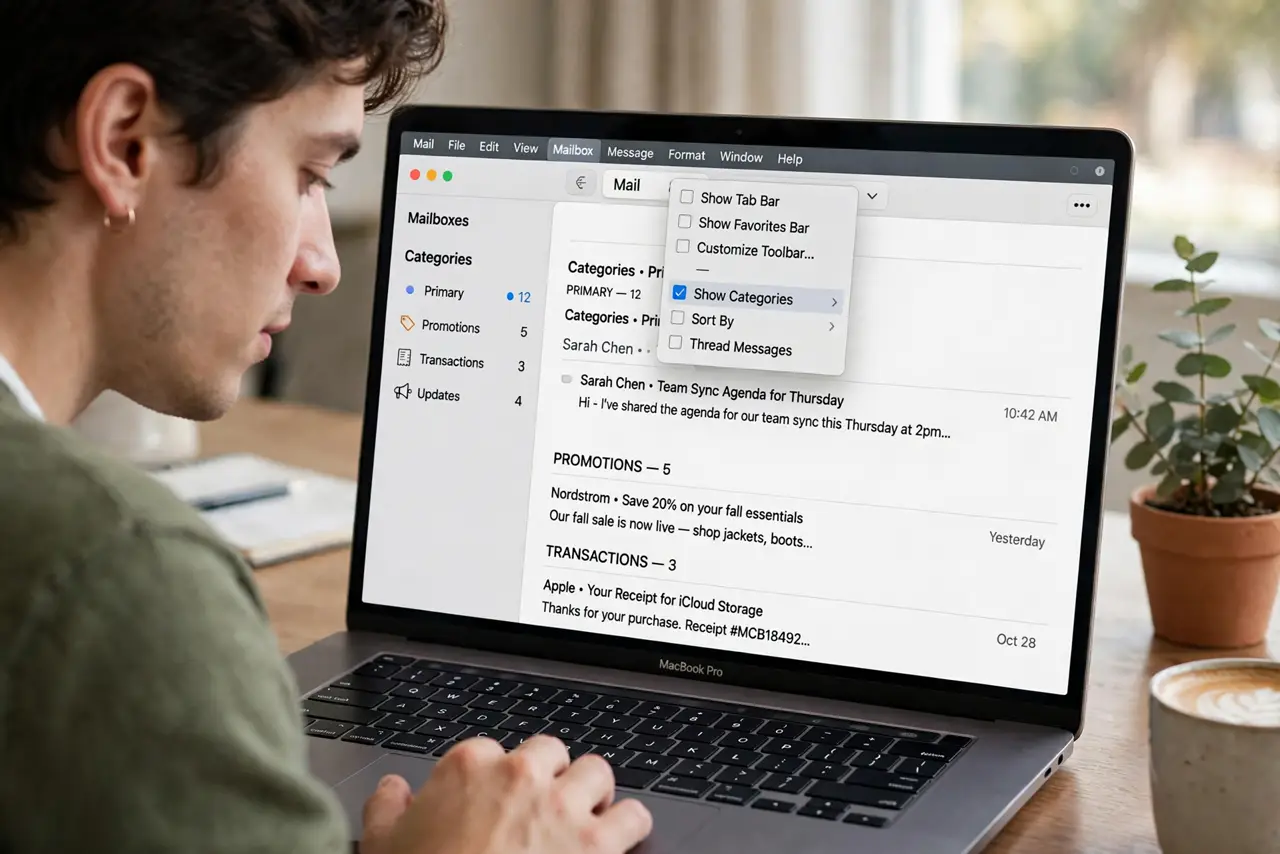
- Enable categories. In Mail, open the View menu (or the toolbar customization) and switch the inbox to the categorized view. Your existing mail instantly sorts into Primary, Transactions, Updates, and Promotions tabs.
- Learn what goes where. Primary: people and important mail. Transactions: receipts, orders, bills. Updates: newsletters, social notifications. Promotions: marketing and deals. Knowing the buckets helps you trust the sorting.
- Correct its mistakes. Drag a miscategorized message to the right tab. Mail learns from corrections — a week of occasional dragging trains it to your patterns better than any setting.
- Check Promotions before deleting. Deals and newsletters land here, but so does the occasional misfiled important mail. Glance through it during your weekly review rather than mass-deleting blind.
- Combine with rules for power users. Categories handle the broad sorting; Mail rules handle the specific. If a sender always lands wrong, a rule beats repeated dragging — see Mail rules troubleshooting when rules misbehave.
- Turn it off if you hate it. Not everyone likes categorized inboxes. The same View menu switches back to the classic single list — no data lost, no harm done. The best inbox is the one you actually read.
What NOT to do
- Do not mass-delete the Promotions tab unseen. Miscategorized important mail hides there — skim before purging, at least weekly.
- Do not expect perfection on day one. The categorizer learns from your corrections; week-one sorting is a rough draft, not the final system.
- Do not create a hundred manual folders instead. Categories plus a few smart rules beat elaborate folder taxonomies that you never maintain.
- Do not ignore the sender's list. Newsletters you never open should be unsubscribed, not just categorized — sorting is not a substitute for unsubscribing.
Frequently asked questions
Can I rename the categories?
No — the four categories are fixed. For custom organization, use mailboxes and rules alongside categories instead.
Does it work with Gmail accounts?
Yes. Categories apply to the Mail app's view regardless of provider — Gmail, iCloud, Outlook all sort the same way.
Will it hide important emails from me?
It sorts, never hides — everything is still in the inbox, just tabbed. Badge counts cover all categories so nothing vanishes silently.