Mac Mail Shows Old Messages Only? Fix Sync
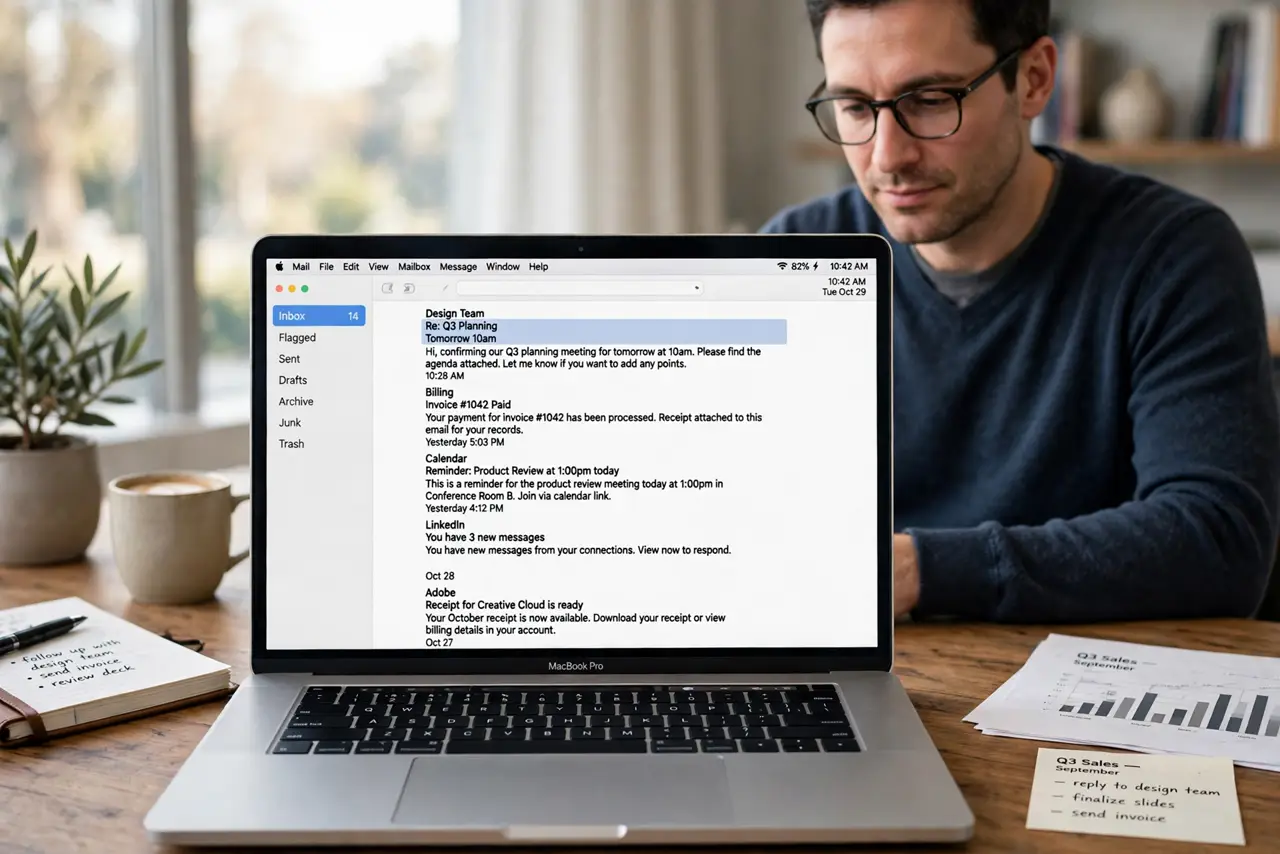
Mail opens, but only old messages appear, and nothing new arrives. That usually means the account stopped syncing, not that your mail is gone. Work through the account and mailbox checks before deleting anything.
TL;DR / Quick Fix
Quick fix: check that the account is online in Mail, take it online if needed, then use Mailbox and Synchronize to force a fresh sync. Rebuild the mailbox only if new mail still does not appear. Then test the fix for a full day before changing anything else.
Follow these steps
- Check the account status. Open Mail, then Mailbox, and look for Take All Accounts Online. If an account is offline, bring it online and wait a few minutes for new mail to arrive.
- Force a mailbox sync. Select the inbox, then choose Mailbox, then Synchronize, then the account name. This asks the server for new mail instead of waiting for the next automatic check.
- Check Mail settings for the account. Open Mail, then Settings, then Accounts, and confirm the account is enabled. An account that was turned off will show old mail only, with no error.
- Rebuild the mailbox. Select the mailbox, then choose Mailbox, then Rebuild. Rebuilding re-downloads messages from the server, so keep Mail open and connected while it runs.
- Check your internet connection. Open a website in Safari to confirm you are online. Mail cannot fetch new messages without a working connection, even if old messages still display.
- Remove and re-add only as a last step. If sync still fails, remove the account in Mail settings and add it again. Your mail stays on the server for most modern accounts, but confirm that first.
What NOT to do
- Do not delete the mailbox to fix sync. Deleting it can remove local mail that is not on the server.
- Do not keep clicking Get Mail every few seconds. Repeated requests do not speed up a stuck sync and can confuse the account status.
- Do not change server settings you do not recognize. Wrong server details break sync completely instead of fixing it.
- Do not assume mail is lost because it is not visible. Check webmail first; if mail is there, it is a sync problem, not a loss.
Frequently asked questions
Is my new mail lost?
Probably not. If webmail shows the new messages, they are safe on the server and Mail just needs to sync again.
Why does only one account show old mail?
That account is likely offline or paused. Other accounts sync on their own, so check the offline account first.
How long does a rebuild take?
It depends on mailbox size. Large mailboxes can take a long time, so leave Mail open and connected until it finishes.