Build Smart Mailboxes
You drag messages into folders by hand, and the same email can only live in one folder at a time. Smart Mailboxes are saved searches that collect matching mail automatically — unread from your boss, attachments from this week, flagged items — without moving anything. Build them once; they stay current forever.
TL;DR / Quick Fix
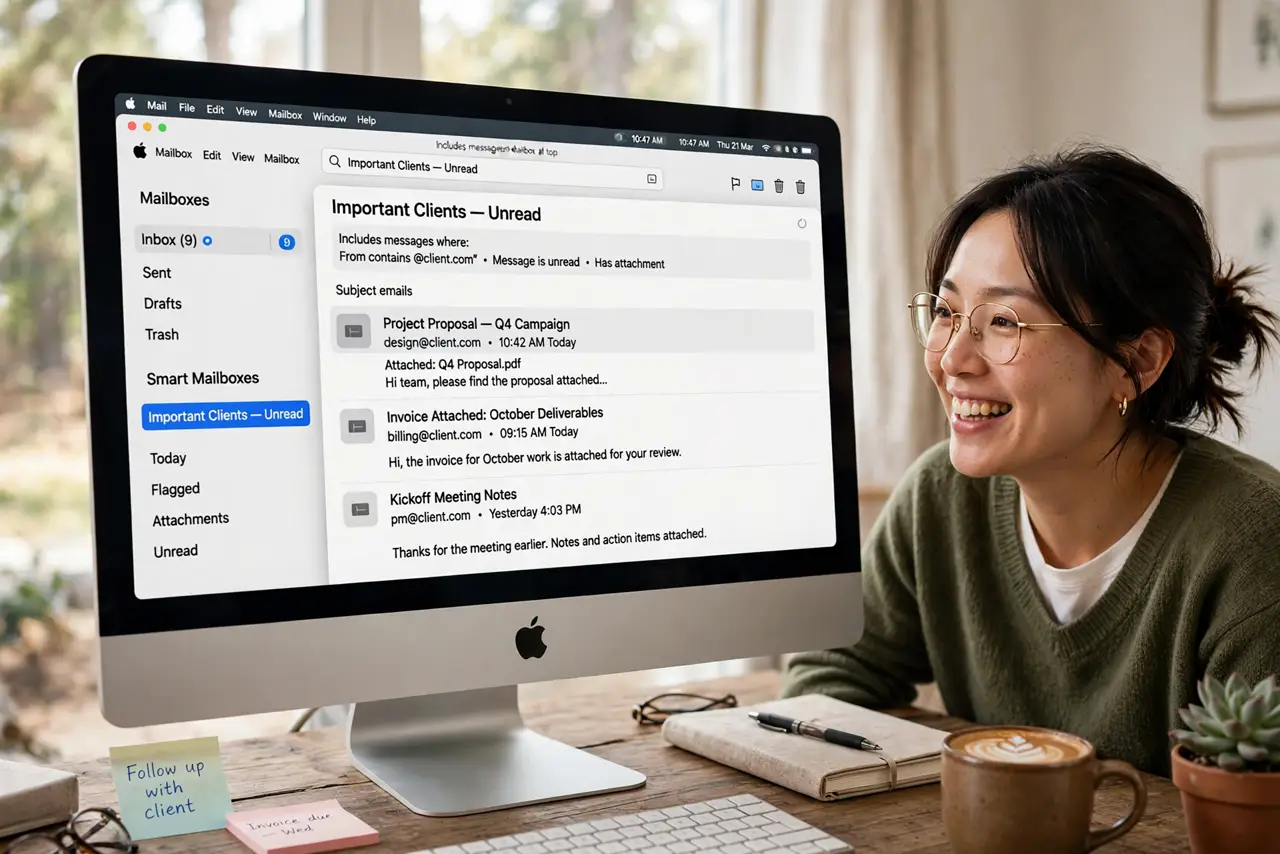
Quick fix: in Mac Mail, choose Mailbox, New Smart Mailbox, and set conditions like From contains your boss. Name it and it appears in the sidebar, always current. Combine conditions with All or Any for views. Smart Mailboxes never move mail — they only show matching messages wherever they live.
Follow these steps
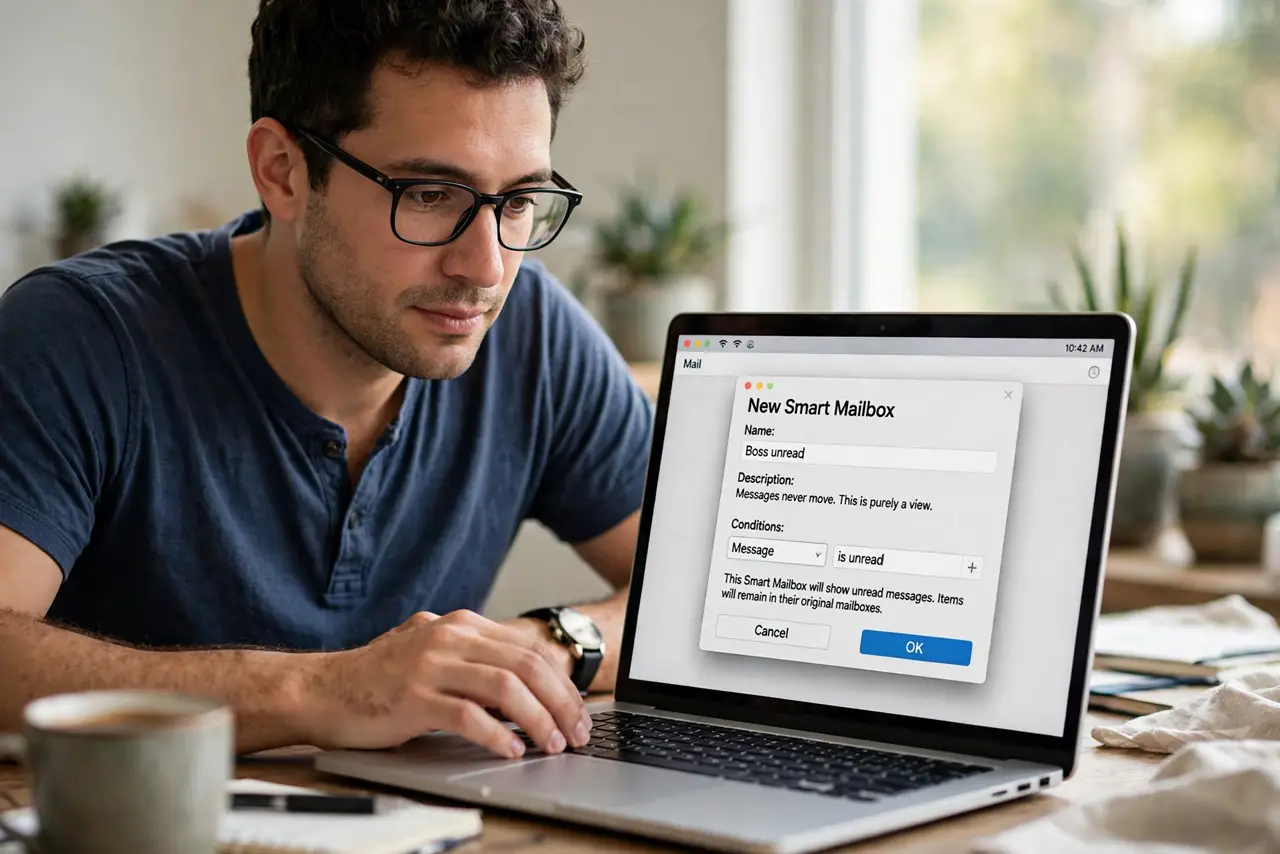
- Create your first Smart Mailbox. Go to Mailbox, New Smart Mailbox. Name it something obvious like Boss unread, then set the first condition — messages never move, this is purely a view.
- Add conditions that matter. Combine From, Subject, and Date conditions. All means every condition must match; Any means just one. Start with two conditions and refine.
- Use them for people, not just topics. A Smart Mailbox per key person beats folders for tracking conversations. Pair with VIPs for the truly urgent ones.
- Build an attachments view. Condition: Has Attachments, Date within last 7 days. Every file anyone sent you this week, in one place — no digging through threads.
- Combine with Rules for power. Let Mail rules file the bulk mail, then use Smart Mailboxes as lenses over the top. Rules organize; Smart Mailboxes reveal.
- Rebuild when they go stale. If a Smart Mailbox shows odd results, open Mailbox, Edit Smart Mailbox and check the conditions. A renamed contact or changed address breaks matches silently.
What NOT to do
- Do not confuse Smart Mailboxes with folders. They hold no mail — deleting a Smart Mailbox deletes nothing but the view.
- Do not build twenty of them. Five sharp Smart Mailboxes beat a sidebar full of overlapping views.
- Do not expect them to sync perfectly. Smart Mailboxes are per-Mac; your iPhone will not show them.
- Do not use vague names. Boss stuff is useless in six months — name them like From boss, unread.
Frequently asked questions
What is the difference between a Smart Mailbox and a Rule?
Rules move or act on mail automatically; Smart Mailboxes only display matching mail. Rules change where mail lives, Smart Mailboxes change what you see.
Can Smart Mailboxes search across all accounts?
Yes — they span every account in Mail by default. Narrow with an Account condition if you want just one.
Why is my Smart Mailbox empty?
Usually a condition typo or an All/Any mix-up. Edit it and test each condition separately until mail appears.