Never Miss VIP Mail
Your boss's email lands in a flood of newsletters and promo blasts, and you spot it two hours late. Mac Mail's VIP list puts a star on messages from people who matter, with a dedicated mailbox that collects them all in one place. It takes a minute to set up and saves you from the buried-email panic.
TL;DR / Quick Fix
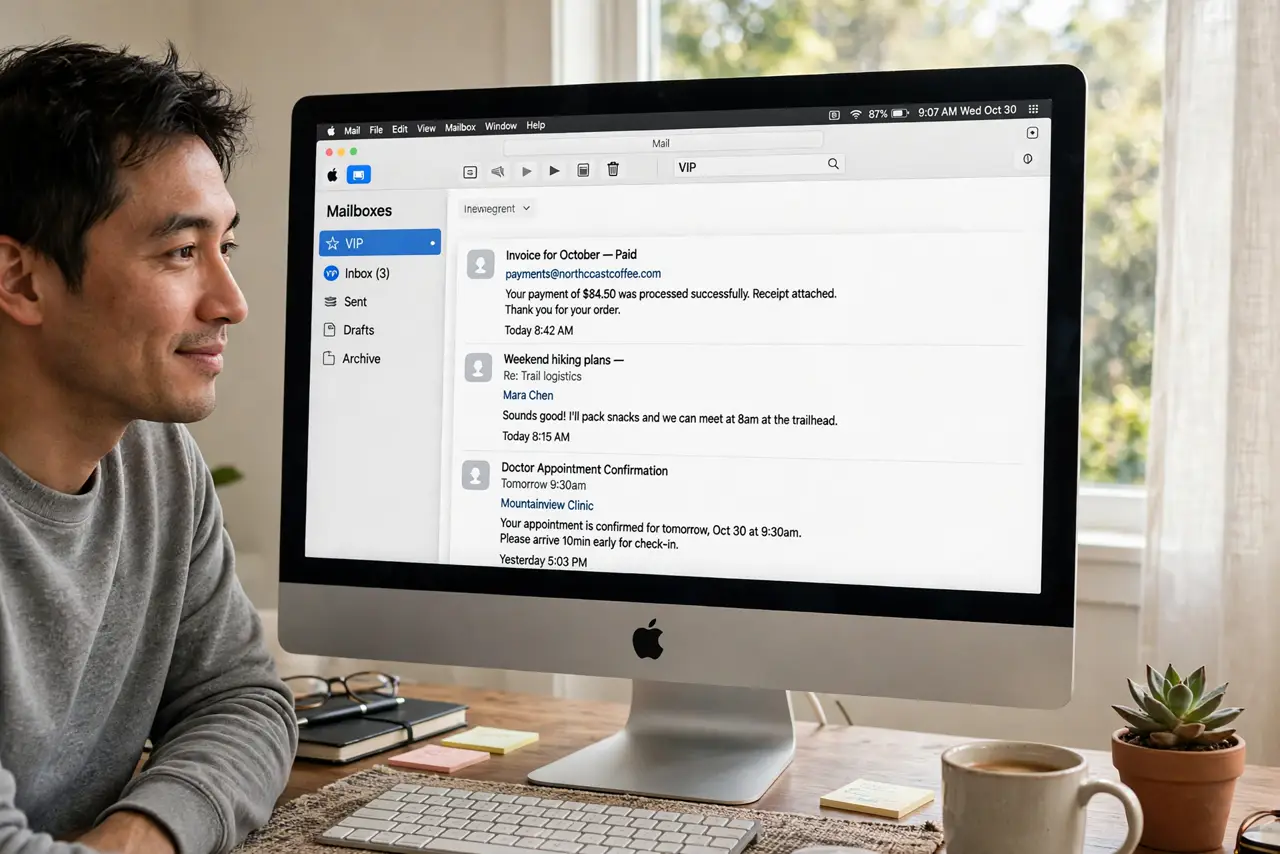
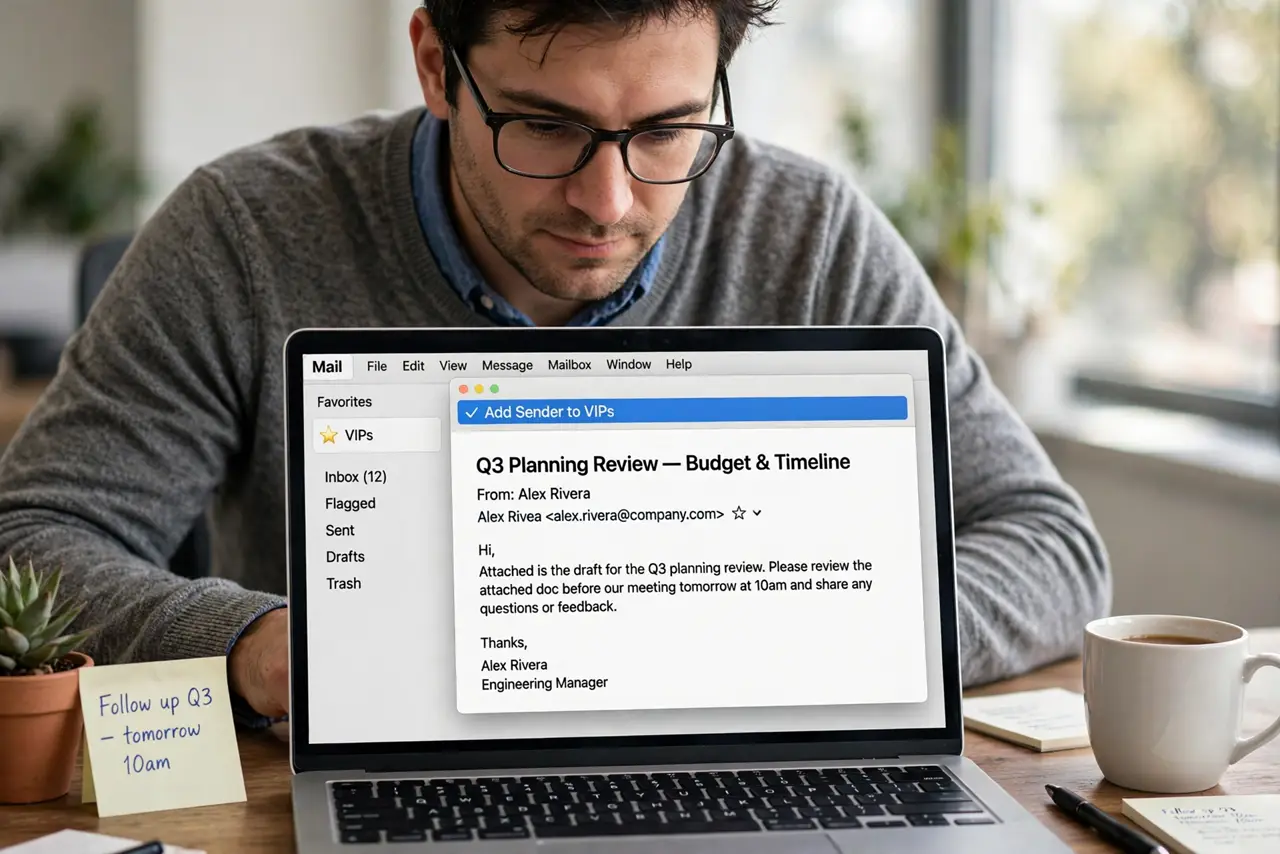
Quick fix: in Mac Mail, hover over the sender name in a boss email and click Add to VIPs. A VIP mailbox appears in the sidebar, collecting all their messages. Add a VIP alert in Mail settings so you also get notified. Read the VIP mailbox first, not the inbox.
Follow these steps
- Add your boss as a VIP. Open a message from them, hover over the sender name, and click Add to VIPs. You can also select the message and use Message, Add Sender to VIPs from the menu bar.
- Find the VIP mailbox. A VIP section appears in the Mail sidebar with one mailbox per VIP. Click it to see every message from that person across all your accounts, newest first.
- Set a VIP notification alert. Go to Mail, Settings, General, and set new message notifications to VIPs only — or keep all notifications and check the VIP alert fix if alerts misbehave.
- Add the rest of your VIPs. Repeat for clients, family, or anyone time-sensitive. A short VIP list stays useful; fifty VIPs just rebuilds the inbox flood.
- Use Rules to auto-file the rest. With VIPs handled, send newsletters to folders with Mail rules so the inbox holds only real people.
- Check the VIP mailbox first each morning. Make it a habit: VIP mailbox before inbox. Urgent mail from key people never sits unseen again.
What NOT to do
- Do not VIP half your contacts. A VIP list with fifty people is just a second inbox — keep it under ten.
- Do not rely on VIPs for shared inboxes. VIP status is per Mac; teammates on other machines see nothing different.
- Do not ignore the VIP mailbox. Marking someone VIP changes nothing if you never open that mailbox.
- Do not set VIP alerts and forget. Test with a real message — a silent misconfiguration means missed mail.
Frequently asked questions
Can I get VIP alerts only for one person?
Yes — macOS lets VIP alerts trigger per VIP. Add each key person separately, then choose which VIPs can notify you in Mail settings.
Do VIPs sync to my iPhone?
Yes, VIP senders sync through iCloud Mail settings, so your iPhone flags them too. Third-party accounts may vary.
Why am I not getting VIP alerts?
Check notification permissions for Mail in System Settings and the VIP alerts troubleshooting steps — Do Not Disturb is the usual culprit.