Read Memory Pressure
Your Mac feels sluggish, Activity Monitor shows memory nearly full, and you are wondering if 8GB was a terrible mistake. Here is the good news: macOS is supposed to fill RAM — empty RAM is wasted RAM. The number that actually matters is the memory pressure graph, a simple color gauge that tells you whether your Mac is coping or drowning. Learn to read it in two minutes. For what happens when pressure stays red, see the swap guide.
TL;DR / Quick Fix
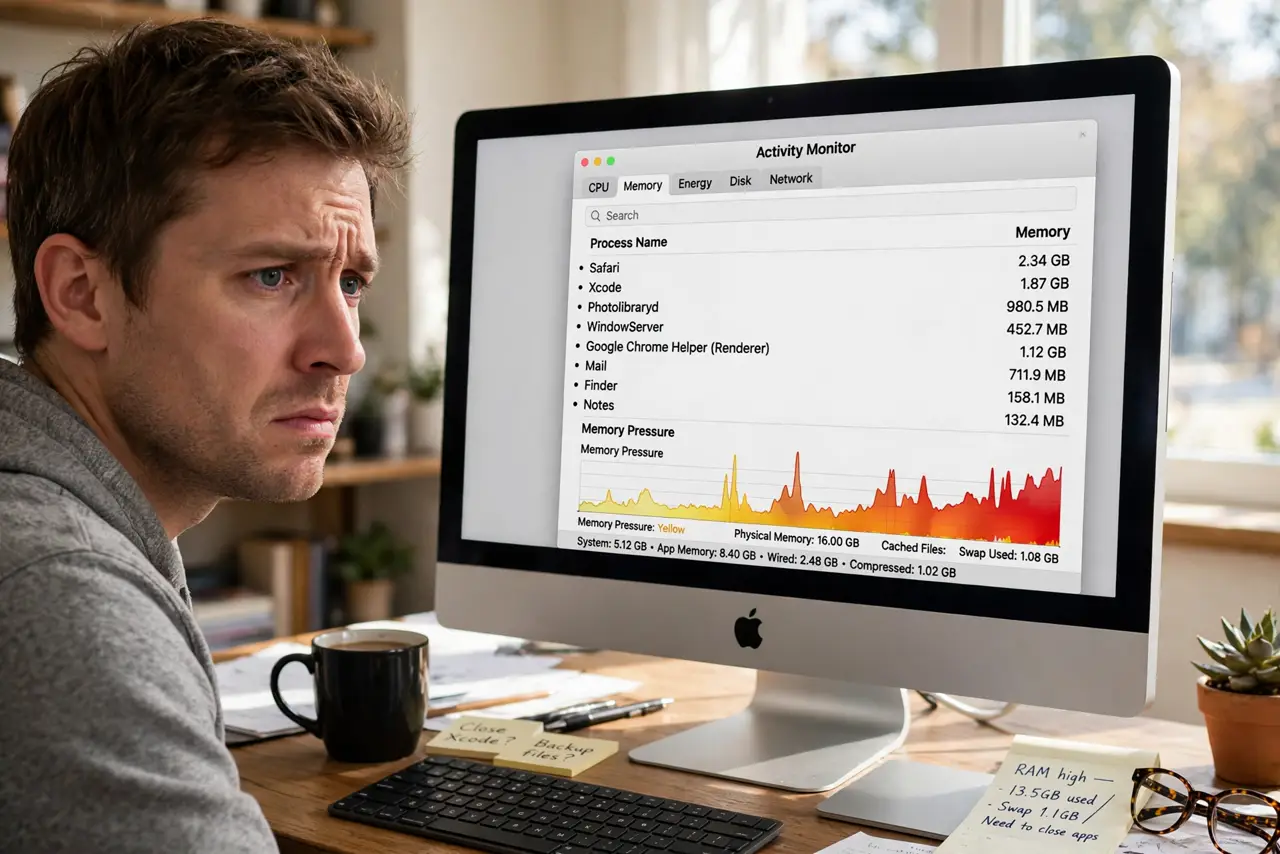
Quick fix: open Activity Monitor and look at the memory pressure graph — green means your Mac is fine, yellow means it is working hard, red means it needs more RAM or fewer open apps. Do not panic over high memory used numbers; macOS fills RAM on purpose.
Follow these steps
- Open Activity Monitor. Find it in Applications, then Utilities, or search with Spotlight. Click the Memory tab at the top to see the full picture.
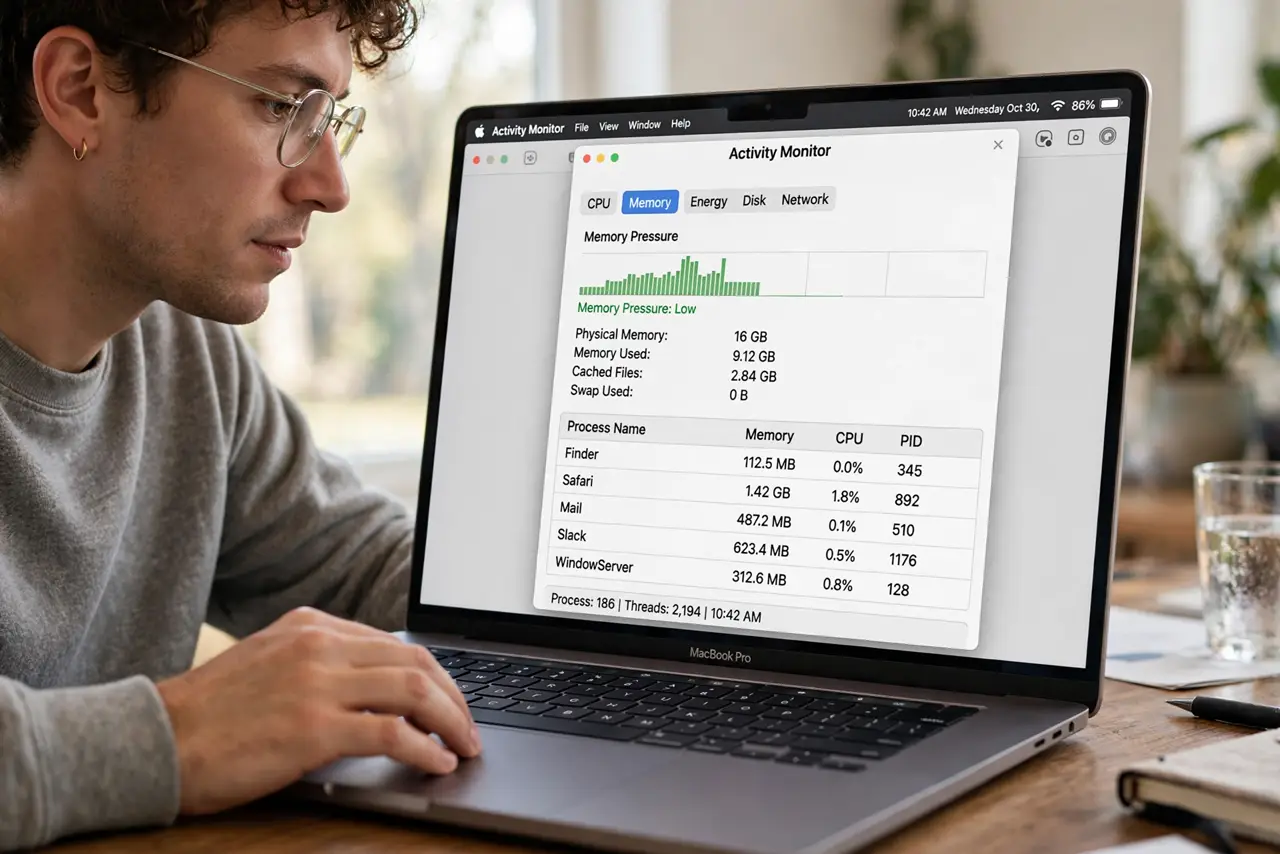
- Find the memory pressure graph. At the bottom of the Memory tab sits a small graph, green, yellow, or red. This single indicator matters more than every number above it.
- Read the color correctly. Green: the Mac is comfortable, whatever the 'used' number says. Yellow: it is working hard but managing. Red: it is struggling — apps will stutter and slow.
- Ignore the big 'used' number. macOS caches files in spare RAM deliberately; high usage with green pressure is healthy and fast. This is the number one misunderstanding about Mac memory.
- Check which apps use the most. Sort the app list by Memory to find the hogs. A runaway browser tab or a leaky app is often the real culprit, not the amount of RAM.
- Act on sustained red only. Occasional yellow during heavy work is fine. If pressure sits red during normal use, close heavy apps — or accept that your next Mac needs more RAM.
What NOT to do
- Do not buy more RAM based on the 'used' number alone. Green pressure with high usage means the system is working as designed.
- Do not install memory cleaner apps. They fight macOS's own excellent memory management and usually slow things down.
- Do not confuse swap with failure. Some swap during heavy tasks is normal — constant heavy swap with red pressure is the warning.
- Do not reboot daily to 'free RAM.' macOS manages memory better than a reboot does; restart only when something is actually wrong.
Frequently asked questions
Is 8GB enough on a Mac?
For browsing, office work, and light creative tasks, yes — Apple Silicon uses memory efficiently. Heavy video, development, or dozens of apps want 16GB or more.
Why is memory pressure yellow sometimes?
During heavy multitasking or big exports, yellow is the system working hard but coping. Worry only when it stays red.
Does green pressure mean I can open more apps?
Essentially yes. Green means headroom remains — macOS will use it well.