Show Battery Percentage in the Menu Bar
The battery icon shows a vague fill level, and you are left guessing whether that is 40% or 15% before a meeting. macOS can print the exact number next to the icon — one toggle in Control Center settings. It updates live as you charge and drain.
TL;DR / Quick Fix
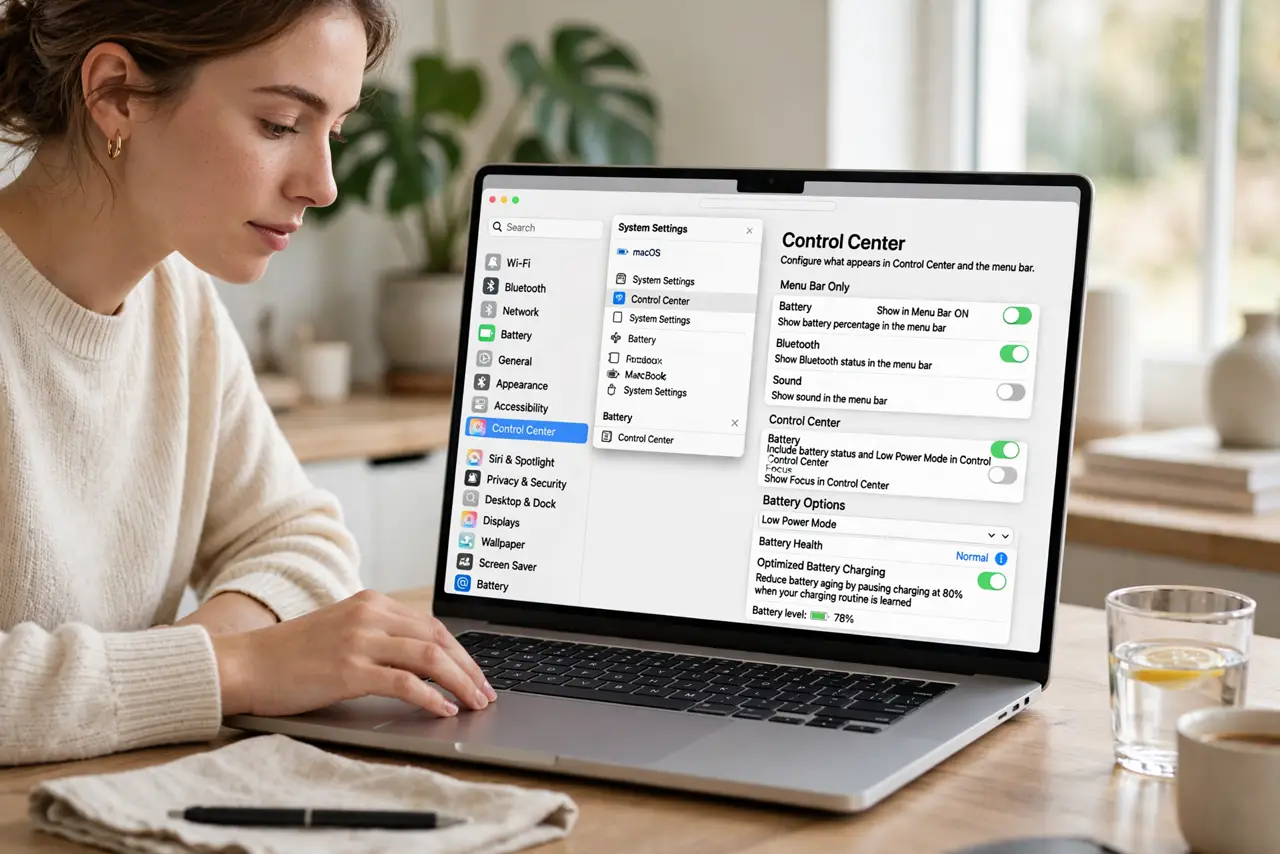
Quick fix: open System Settings > Control Center, find Battery, and switch on Show Percentage. The number appears beside the battery icon in the menu bar and updates live. If the icon itself is missing, set Show in Menu Bar to Always on the same page.
Follow these steps
- Open Control Center settings. Open System Settings and go to Control Center.
- Find the Battery row. Locate Battery in the Menu Bar Only section.
- Switch on Show Percentage. Enable the percentage toggle. The number appears beside the battery icon immediately.
- Set Show in Menu Bar to Always. If the icon hides itself, this dropdown forces it to stay visible. Automatic hides it when the menu bar is crowded.
- Watch it update live. Unplug and the number ticks down; plug in and it climbs. The icon fills while the number tells the truth.
- Pair with Low Power Mode. The same Battery settings page offers Low Power Mode for stretching the last twenty percent — the percentage tells you when to flip it.
What NOT to do
- Do not obsess over single percent drops. Batteries drain in steps; watching 47 become 46 is not productive.
- Do not confuse the percentage with battery health. The number is current charge; health lives in System Information under Power.
- Do not hide the icon to save space and then guess. The percentage earns its pixels — hide a lesser icon instead.
- If the percentage jumps erratically, that signals calibration or battery age, not a display bug.
Frequently asked questions
Why does my percentage drop fast from 100 to 90?
Batteries report optimistically at the top. The first ten percent is the least honest; the middle range is the most linear.
Can I see time remaining instead?
macOS no longer offers a time estimate — usage varies too much. Percentage plus experience is the modern answer.
Does showing the percentage use more battery?
No. Updating a number costs nothing measurable; the display was already on.