The Menu Bar Clock Hides the Date
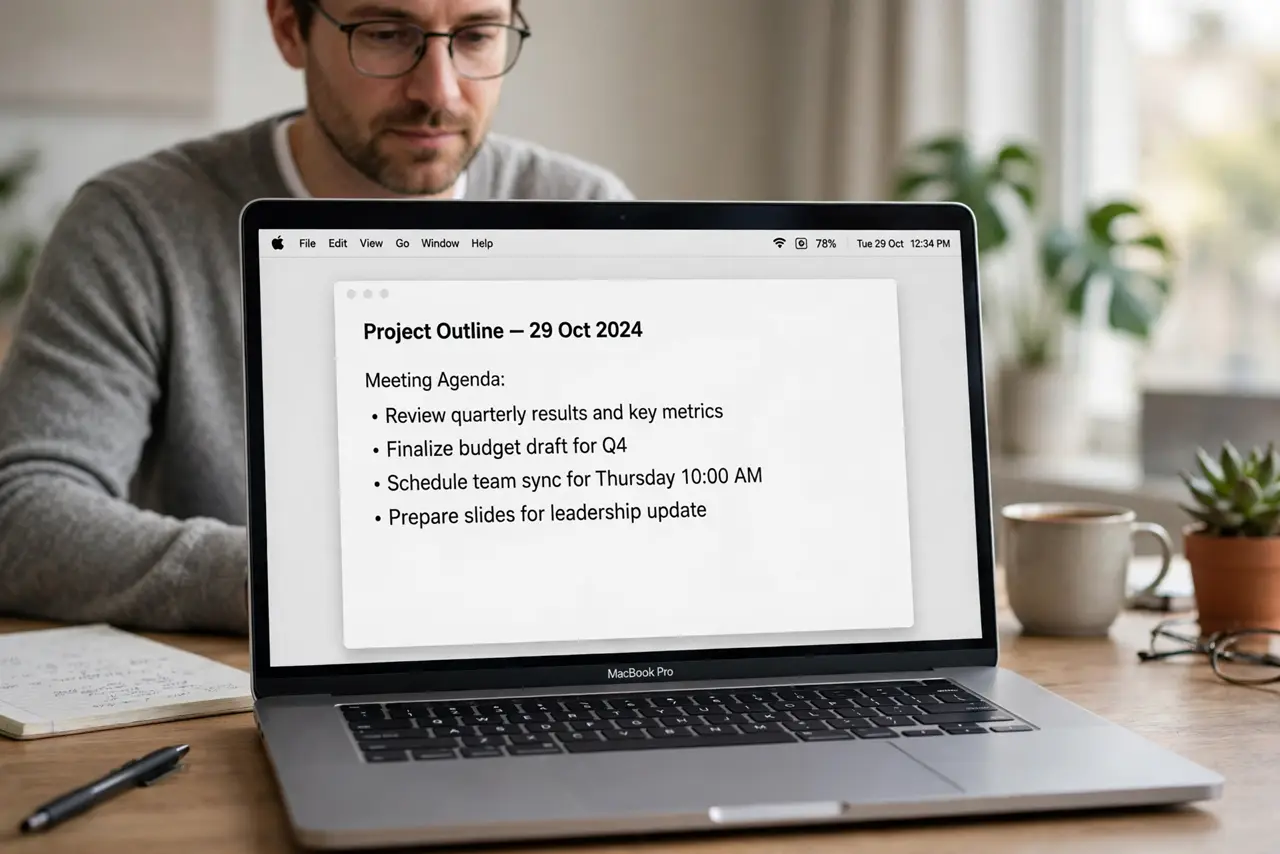
The menu bar clock hides the date by default on some setups, showing only the time. That is a display choice, not a missing feature, and one setting brings the date back beside the time.
TL;DR / Quick Fix
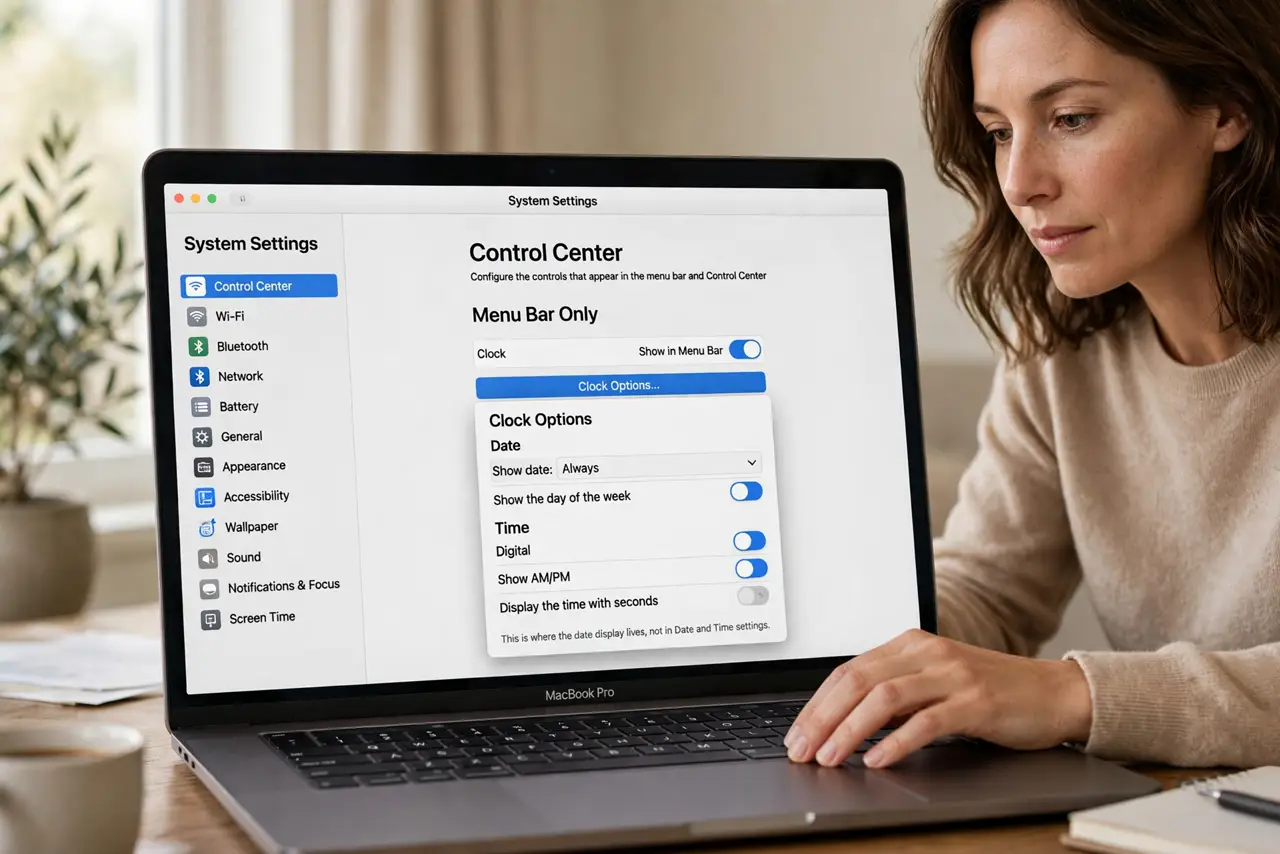
Quick fix: open System Settings, then Control Center, then Clock Options, and turn on Show Date. Pick a format that fits the menu bar, such as showing the day and date, and the date appears immediately. Test the fix, then keep the setting that works.
Follow these steps
- Open Clock Options. Open System Settings, then Control Center, and find Clock Options for the menu bar clock. This is where the date display lives, not in Date and Time settings.
- Turn on Show Date. Enable the option to show the date alongside the time. The menu bar should update immediately, without needing a restart.
- Pick a readable format. Choose a date format that fits your menu bar, such as abbreviated day and date. A long format can crowd out other menu bar icons on a small screen.
- Check the time format too. While you are there, confirm the time shows as 12-hour or 24-hour according to your preference. Fixing both at once saves a second trip to settings.
- Check for crowding. Look at the full menu bar after enabling the date. If icons are squeezed, shorten the date format rather than turning the date off again.
- Restart the menu bar if stuck. If the date does not appear, sign out and back in, or restart the Mac. A stale menu bar can lag behind a setting change until it reloads.
What NOT to do
- Do not install a menu bar clock app for this one setting. The built-in date option covers the need without extra software running constantly.
- Do not change the system date to make the date appear. The date display is a format setting, and changing the actual date causes real problems elsewhere.
- Do not assume the clock is broken. A missing date beside a working time is a display option, not a clock fault.
- Do not pick the longest date format on a small MacBook screen. It pushes icons off the bar and creates a new annoyance.
Frequently asked questions
Where is the menu bar date setting?
In System Settings, then Control Center, then Clock Options, where you can turn on Show Date.
Why does my clock show time but no date?
Because the date display is off by default on some setups. Turning Show Date on restores it immediately.
Will showing the date crowd the menu bar?
It can on a small screen. Use an abbreviated day and date format to keep the bar readable.