Remove Spotlight From the Menu Bar
The little magnifying glass sits in your menu bar, but you always press Cmd+Space anyway — the icon is just occupying prime pixels. Removing it declutters the bar without losing Spotlight itself. One dropdown in Control Center settings does it.
TL;DR / Quick Fix
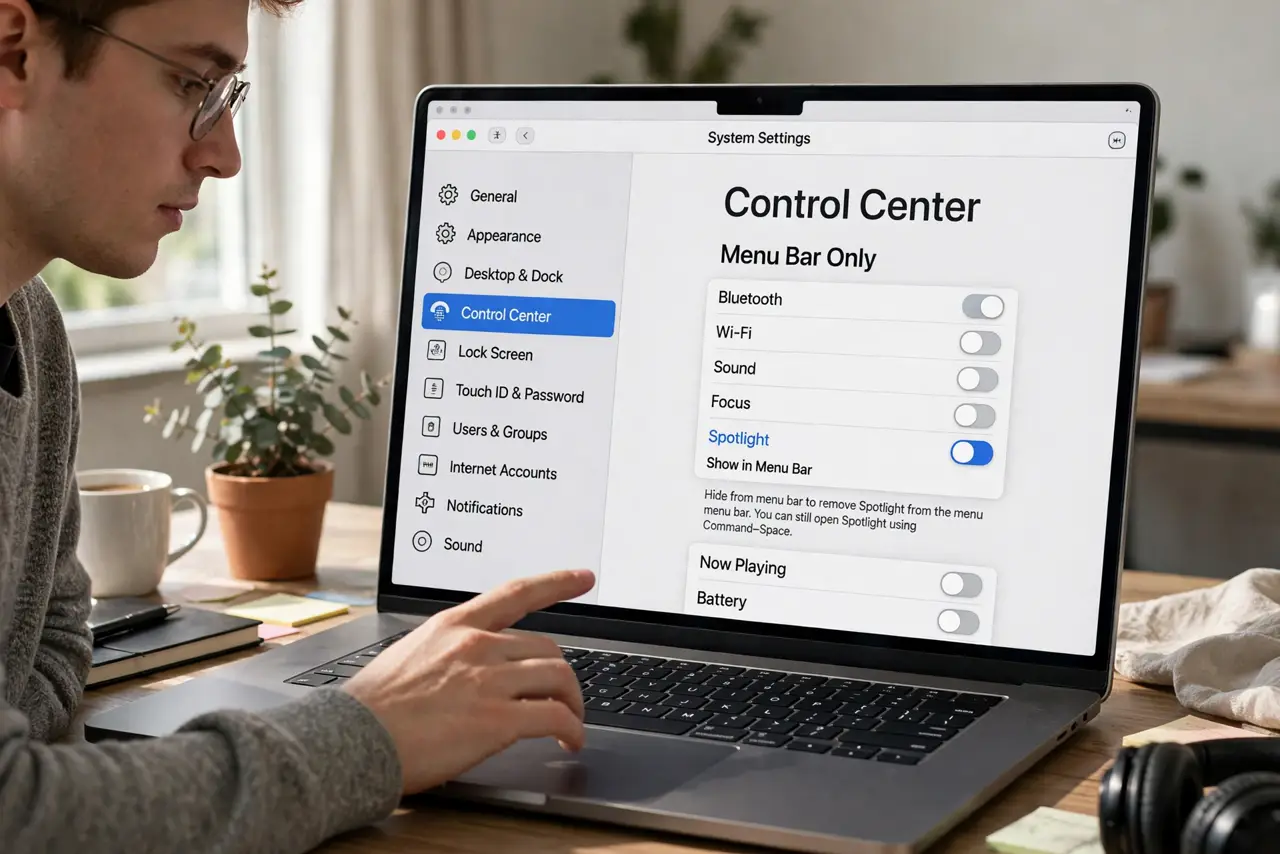
Quick fix: open System Settings > Control Center and set Spotlight to Don't Show in Menu Bar. The magnifying glass leaves the menu bar instantly. Spotlight itself keeps working — Cmd+Space still searches everything. Re-enable the same way if you miss the icon.
Follow these steps
- Open Control Center settings. Open System Settings and go to Control Center.
- Find the Spotlight row. In the Menu Bar Only section, locate Spotlight with its magnifying-glass icon.
- Set it to Don't Show in Menu Bar. Choose that option from the dropdown. The icon vanishes from the bar immediately.
- Confirm Spotlight still works. Press Cmd+Space — the search field appears as always. The icon was a launcher; the engine is untouched.
- Enjoy the reclaimed space. Menu bar room is precious on notched MacBooks. Every removed icon is space for an app indicator that earns it.
- Restore it anytime. Return to the same dropdown and choose Show in Menu Bar. If Spotlight itself ever finds nothing, that is a separate indexing issue.
What NOT to do
- Do not confuse hiding the icon with disabling Spotlight. Search keeps working everywhere — you removed a button, not a feature.
- Do not delete Spotlight with Terminal hacks. Disabling the search engine breaks Finder search and countless app features.
- Do not expect the icon space to stay empty. macOS may rearrange remaining icons to fill the gap — that is normal.
- Do not forget Cmd+Space. New users who remove the icon sometimes forget the shortcut exists — it is the faster way anyway.
Frequently asked questions
Will removing the icon break Spotlight search?
No. The menu bar icon is purely a clickable shortcut; Cmd+Space and Finder search are unaffected.
Why is my menu bar so crowded?
Notched MacBooks have limited bar space. Hiding little-used icons like Spotlight is the intended relief valve.
Can I hide other menu bar icons the same way?
Many, yes — the same Control Center page governs Siri, Focus, and several others with identical dropdowns.