Set the Microphone Input Level
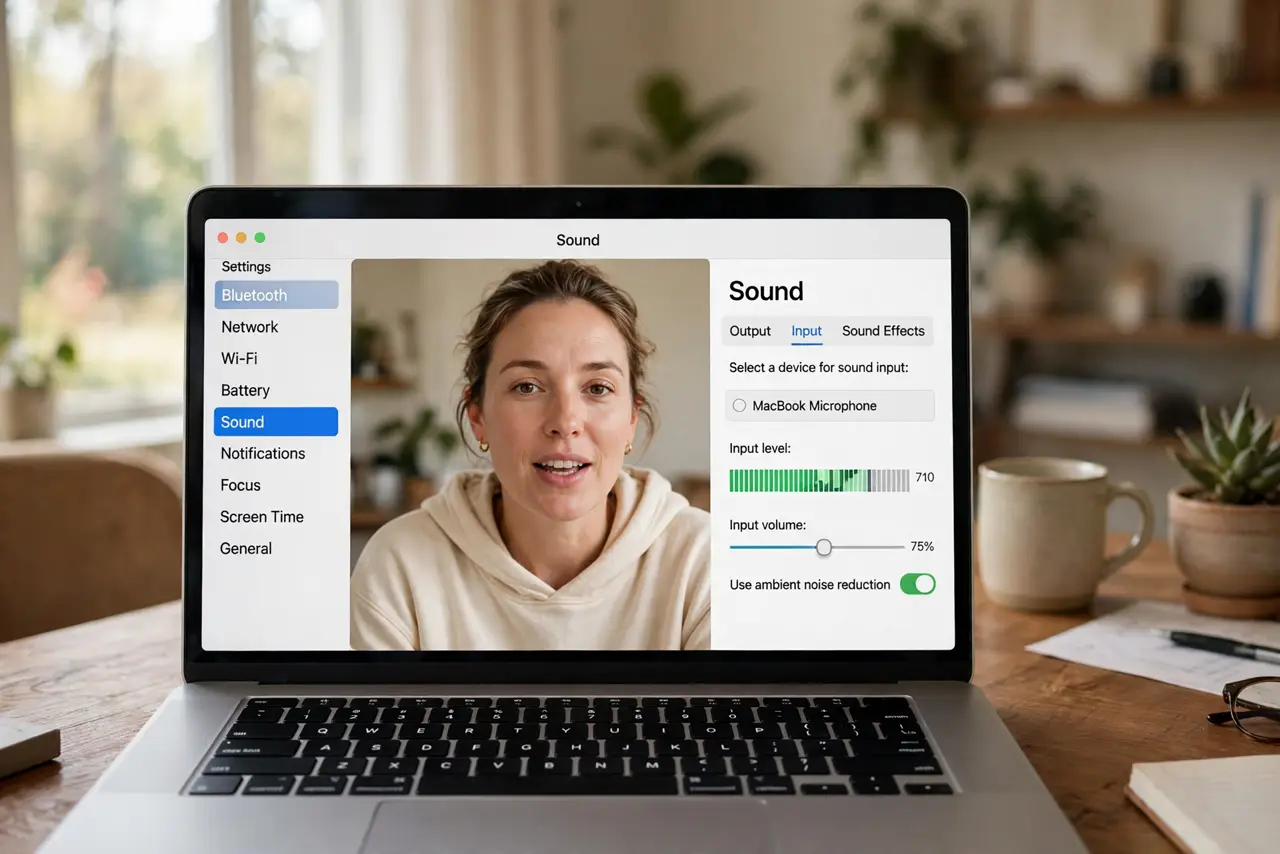
On calls you are either barely audible or blasting everyone's ears — and the volume slider in the call app does not fix it. The real control is the microphone input level in macOS, a single slider most people never touch. Set it once with the live meter and your audio problems on calls mostly vanish.
TL;DR / Quick Fix
Quick fix: open System Settings, go to Sound, then Input, and drag the input level slider while you talk. Aim for the meter peaking around three-quarters — loud and clear without distortion. Too quiet gets buried; maxed out clips and crackles.
Follow these steps
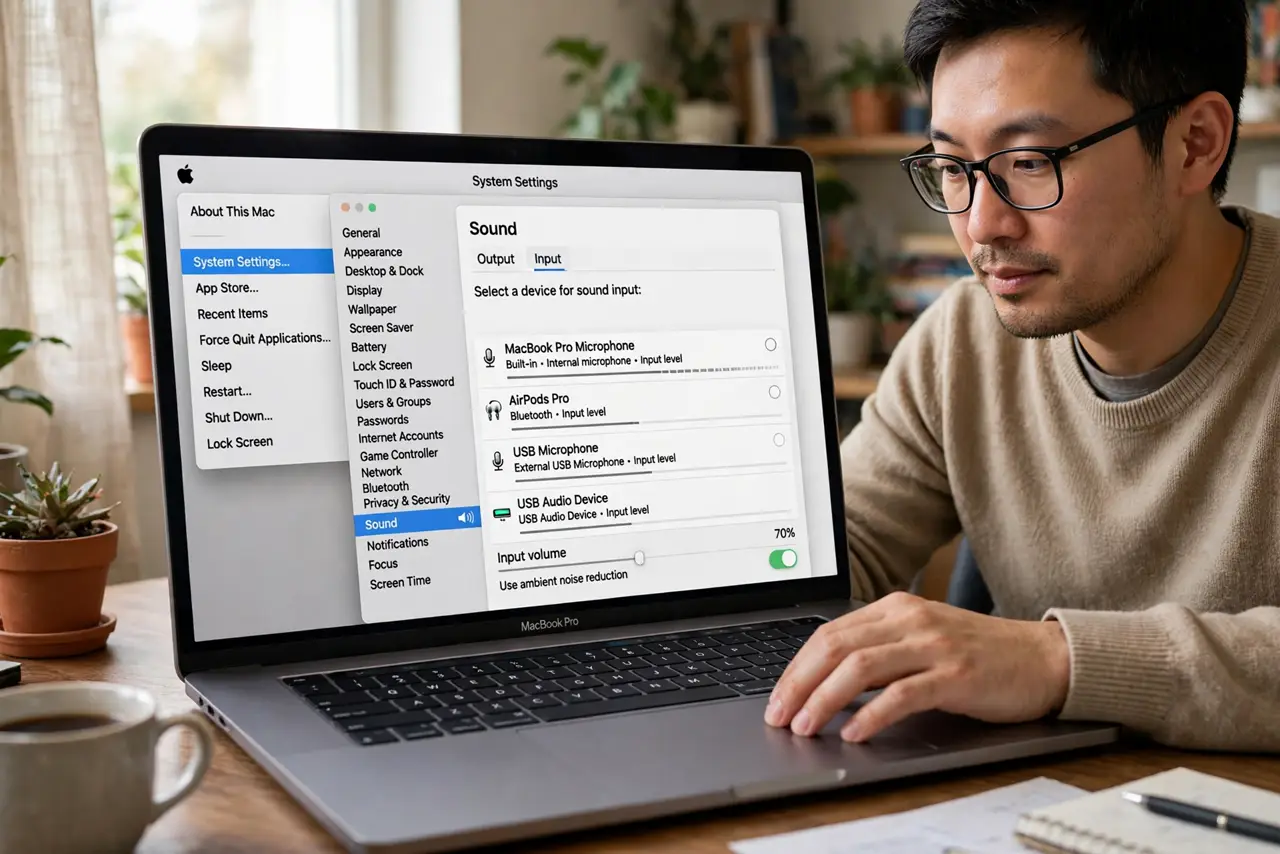
- Open Sound settings. Click the Apple menu, choose System Settings, then Sound. The Input tab lists every microphone macOS sees.
- Select the right microphone. Built-in, headset, USB mic — pick the one you actually use. Settings apply per device, so the wrong selection fixes nothing.
- Talk while watching the meter. Speak at your normal call volume and watch the input level bar bounce. This live feedback is the whole trick — set by eye, not by guessing.
- Aim for three-quarters peak. Drag the slider so your normal speech peaks around 75% of the meter. Loud moments should stay below the top — hitting the ceiling means distortion.
- Test in a real call. Record a quick voice memo or join a test call. Meters lie a little; your actual voice in someone else's ears is the truth.
- Recheck when you change gear. New headset, new room, new USB mic — each one needs its own level. The setting does not transfer between devices.
What NOT to do
- Do not max the slider 'to be safe.' Maximum input guarantees clipping — the harsh crackle that makes you unintelligible.
- Do not set the level in silence. An empty room tells you nothing — always calibrate while speaking normally.
- Do not blame the call app first. Zoom, Teams, and Meet all add their own gain on top — fix the system level before touching app settings.
- Do not forget background noise counts. A loud fan or air conditioner eats your headroom — reduce noise rather than boosting the mic into distortion.
Frequently asked questions
Why do I sound fine to myself but bad to others?
Your monitoring hears the raw mic; callers hear it after compression and their own speakers. The input meter is a better judge than your ears.
Should I use automatic gain in the call app?
App auto-gain helps with varying distance, but it fights a badly set system level. Set macOS right first, then let the app fine-tune.
Does input level affect recording quality?
Yes — the same slider feeds every app. Set it once and your voice memos, recordings, and calls all benefit.