Mic Permission Greyed Out on Mac? Fix It
An app needs your microphone, but its toggle in Privacy & Security is greyed out and cannot be switched on. macOS locks the switch when a device profile, Screen Time restriction, or a stuck permission database overrides it. This guide unlocks the toggle safely.
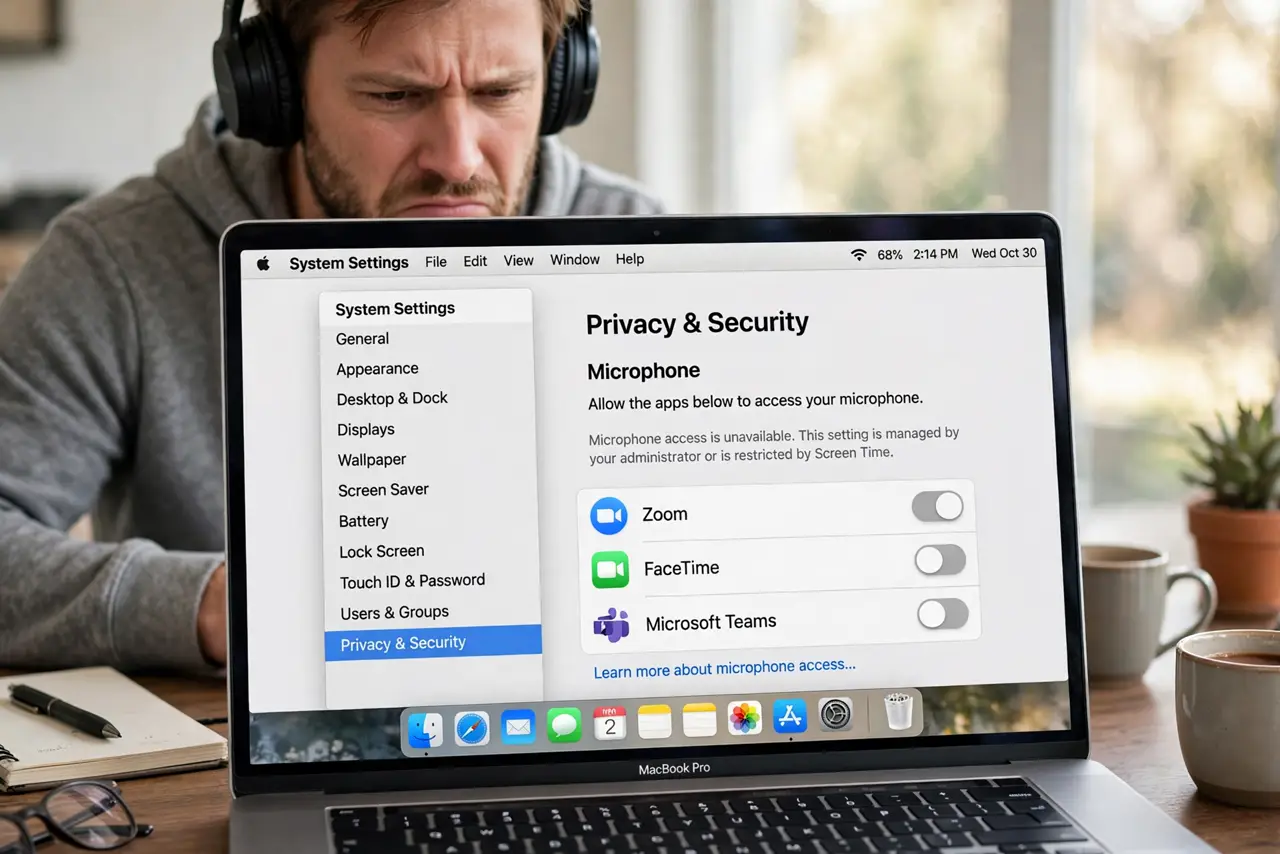
TL;DR / Quick Fix
Quick fix: check Screen Time > Content & Privacy Restrictions for a microphone block, and look for a configuration profile in System Settings > General > Device Management. Remove what you no longer need, restart the Mac, then retry the toggle.
Follow these steps
- Check Screen Time restrictions. Go to System Settings > Screen Time > Content & Privacy Restrictions. A microphone restriction here greys out the toggle for every app — turn the restriction off.
- Look for a configuration profile. Open System Settings > General > Device Management. A school or work profile can lock microphone access; remove profiles you no longer need, then restart.
- Restart after profile changes. Removing a profile does not always unlock settings until a restart. Restart the Mac, then open the Microphone privacy page again.
- Reset the permission database. If no profile or restriction explains it, the permission database may be stuck. Boot into Safe Mode, toggle the permission there, then restart normally.
- Reinstall the affected app. A corrupted app record can present as a greyed toggle. Delete the app, reinstall it fresh, and approve the microphone prompt on first launch.
- Check for a second admin lock. If another administrator enabled restrictions, only that account can lift them. Log in as that administrator to change the setting.
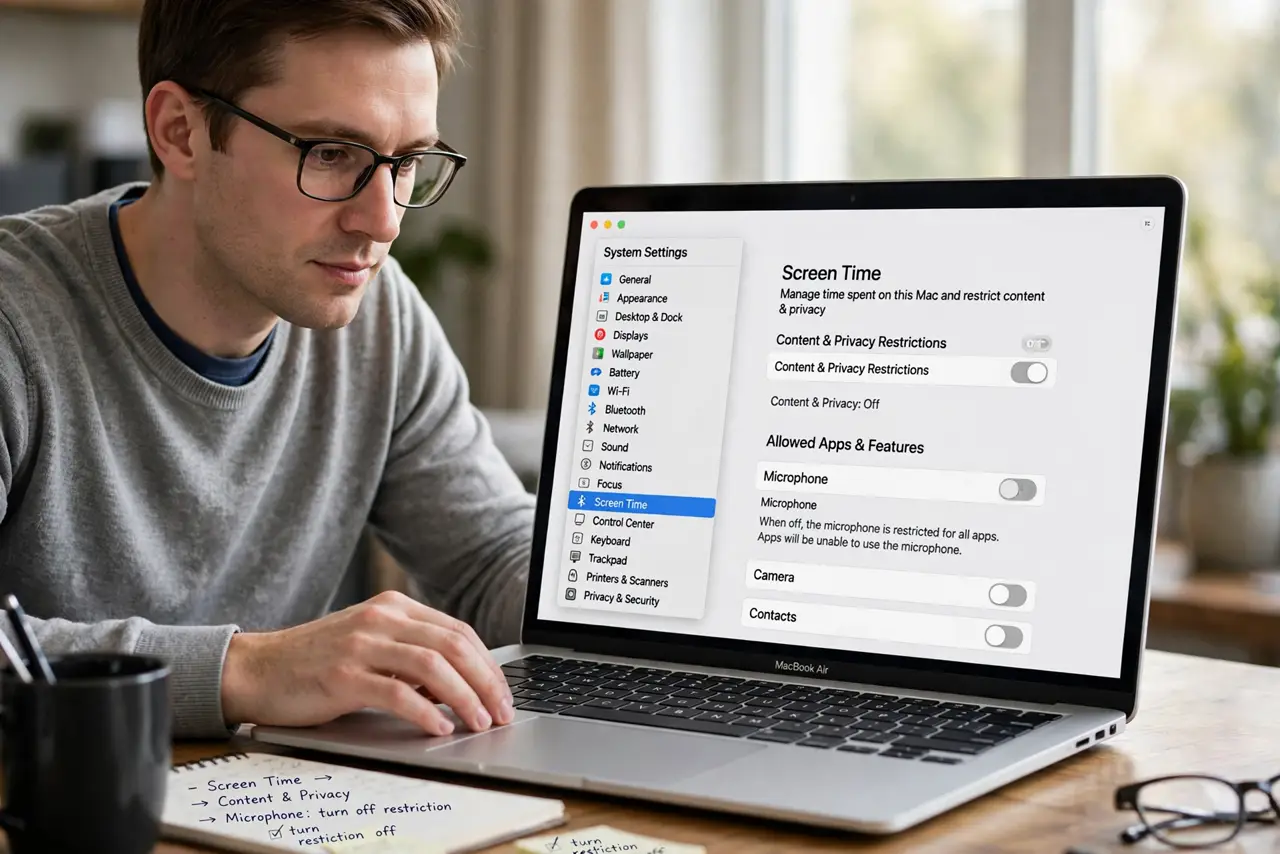
What NOT to do
- Do not delete system privacy files by hand. The permission database is protected for a reason; use Safe Mode instead of terminal surgery.
- Do not remove a work or school profile from a managed Mac lightly. The profile may be required, and removing it can break work access.
- Do not grant the microphone to every app that asks. A greyed toggle is sometimes correct — only enable it for apps that truly need it.
- Do not ignore which account you are on. Standard users cannot change some privacy settings; switch to an administrator account.
Frequently asked questions
Why is the microphone toggle greyed out on Mac?
A Screen Time restriction, a configuration profile, or a stuck permission database. Check restrictions and profiles first.
Can a website lock my mic permission?
No. Browser microphone access is per-site and separate from the system privacy toggle.
Will reinstalling macOS fix it?
Almost never needed. Profiles, restrictions, and Safe Mode cover every common cause short of a reinstall.