Minimize Windows Into the App Icon
Minimized windows pile up as tiny thumbnails on the right side of the Dock, eating space and attention. macOS can minimize windows straight into the app's own icon instead — one tidy setting that declutters the Dock in seconds.

TL;DR / Quick Fix
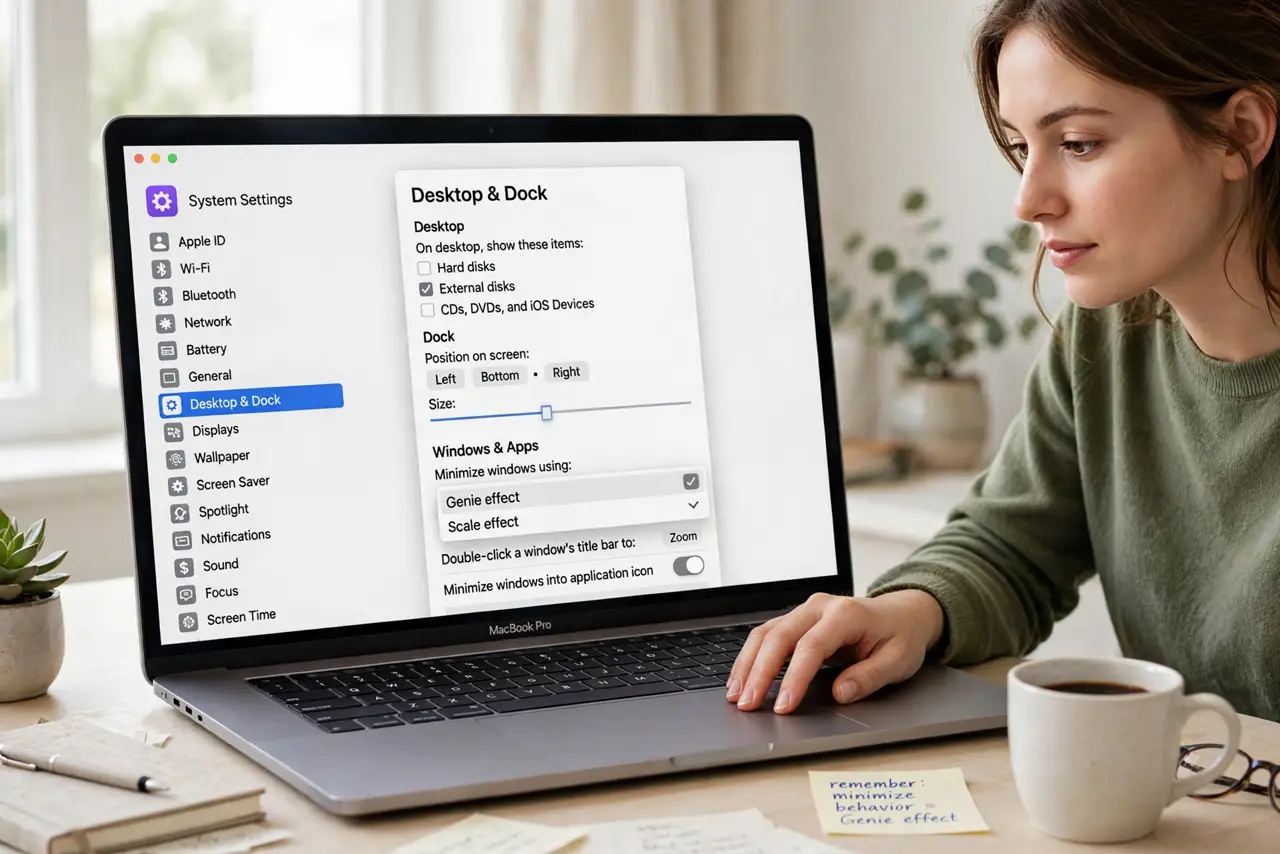
Quick fix: open System Settings, go to Desktop & Dock, and enable 'Minimize windows into application icon.' Minimized windows now collapse into the app's Dock icon — click and hold the icon to see them, or right-click it for a list.
Follow these steps
- Open Desktop & Dock settings. System Settings > Desktop & Dock. The minimize behavior lives here, not in Dock right-click menus.
- Enable the setting. Turn on 'Minimize windows into application icon.' From now on, the yellow minimize button sends windows into the app icon.
- Retrieve a minimized window. Click and hold (or right-click) the app's Dock icon to see its minimized windows, then pick one. A single click just focuses the app.
- Learn the visual cue. A small dot or indicator under the icon shows the app has windows open. No more thumbnail strip to scan.
- Pair it with the minimize effect. While you're here, pick your minimize effect — Genie or Scale. It's pure aesthetics, but you'll see it fifty times a day.
- Revert if you miss thumbnails. Some people navigate by thumbnail. If the icon-holding feels slower after a week, flip the setting back — it's pure preference.
What NOT to do
- Do not confuse minimize with hide. Cmd+H hides the whole app instantly; minimize parks one window. Different tools, different moments.
- Do not expect minimized windows in Mission Control the old way. They're tucked in the icon now — that's the trade you chose.
- Do not enable this and then hunt the Dock for thumbnails. Give the new retrieval gesture a day before declaring it worse.
- Do not forget fullscreen apps can't minimize this way. A fullscreen window has no yellow button — exit fullscreen first.
Frequently asked questions
Where did my minimized window go?
Into the app's Dock icon. Click and hold the icon (or right-click it) to see and restore minimized windows.
Can I still see window thumbnails somewhere?
Yes — Mission Control (F3 or swipe up) shows all windows including minimized ones, as thumbnails.
Does this affect all apps?
Yes, it's system-wide. Every app's minimize button now targets its Dock icon.