Mission Control Spaces Out of Order? Fix Them
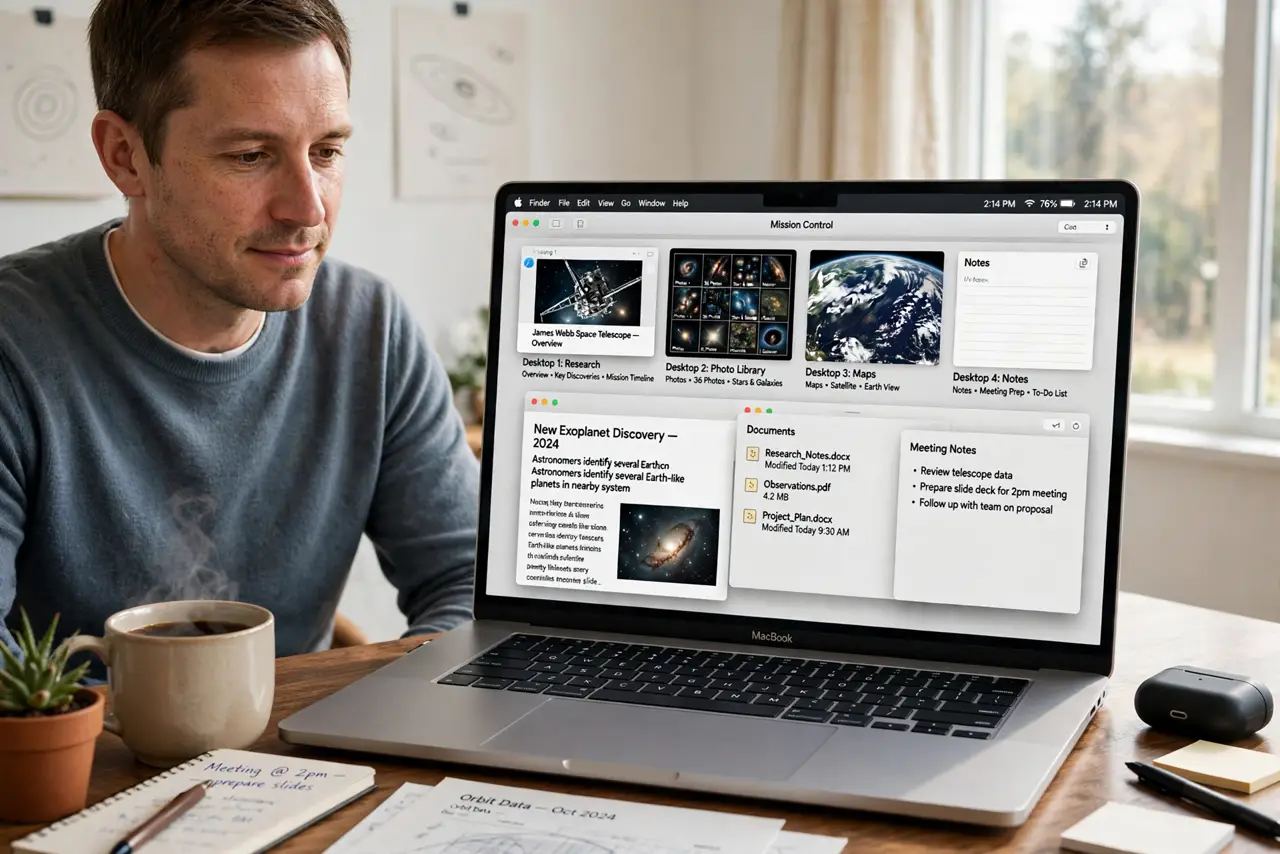
When Mission Control spaces end up out of order, your work desktop is suddenly third, and your reference desktop is first, and switching by habit sends you to the wrong place. Spaces reorder when automatic rearrangement is on, or when a new space is created in the wrong spot. Turning that off and dragging spaces into place restores order.
TL;DR / Quick Fix
Quick fix: open Mission Control, drag the space thumbnails at the top into the order you want, then open System Settings, then Desktop and Dock, then Mission Control, and turn off Automatically rearrange Spaces based on most recent use for good.
Follow these steps
- Open Mission Control. Swipe up with three or four fingers, or press the Mission Control key, to see all spaces as thumbnails at the top of the screen.
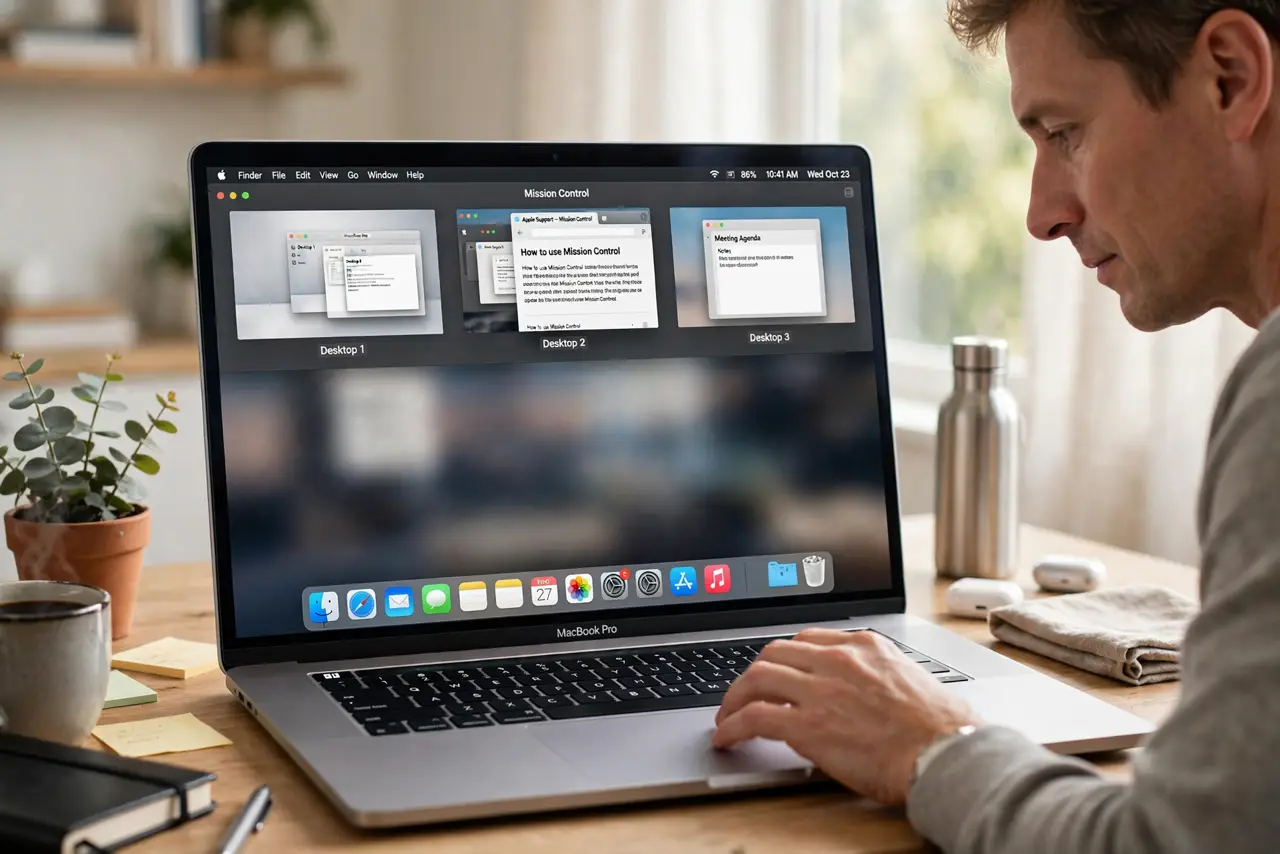
- Drag spaces into order. Drag a space thumbnail left or right to its correct position. Spaces keep the order you drag them into, until automatic rearrangement moves them again.
- Turn off automatic rearrangement. Open System Settings, then Desktop and Dock, then Mission Control, and turn off Automatically rearrange Spaces based on most recent use. This is the setting that shuffles spaces on its own.
- Assign apps to spaces if you want stability. Right-click an app in the Dock, choose Options, then Assign To, and pick a space. Assigned apps open in their space, which keeps that space meaningful over time.
- Remove empty extra spaces. In Mission Control, hover over a space thumbnail and close any empty space you do not use. Extra spaces make the order harder to remember and easier to shuffle.
- Test the order over a day. Switch between spaces normally for a day and check that the order holds. If it shuffles again, automatic rearrangement is still on, or a new space was created in the wrong spot.
What NOT to do
- Do not delete spaces to fix their order. Deleting a space closes or moves its windows, while dragging thumbnails reorders them without losing anything.
- Do not recreate every space from scratch. Reordering existing spaces is faster, and recreating them forces you to reopen and rearrange every window.
- Do not leave automatic rearrangement on and keep dragging spaces back. The setting will keep shuffling them, so turning it off is the lasting fix.
- Do not assign every app to a space at once. Assign only the apps you always want in one place, and leave flexible apps unassigned so they can follow you.
Frequently asked questions
Why do my spaces keep reordering?
Because Automatically rearrange Spaces based on most recent use is on. It moves the most recently used space first, which shuffles your deliberate order.
Will dragging spaces move their windows too?
Yes. A space thumbnail represents all its windows, so dragging the thumbnail moves the whole space, windows included.
What if a new space appears in the wrong spot?
Drag it into place right away. New spaces appear at the end by default, so a quick drag keeps your order intact.